
Want to sell access to your show? With Paid Memberships Pro handling signups and payments, AiO Podcast Studio can lock your podcasts and episodes to paying members — and give those members a private podcast feed they can subscribe to in Apple Podcasts, Overcast or Pocket Casts, just like any other show. Everyone else keeps seeing your public feed and your signup message.
This guide covers the AiO Podcast Studio side of that setup. Configuring Paid Memberships Pro itself — membership levels, payment gateways and checkout pages — is covered thoroughly in their own documentation, so we link to it rather than repeat it here.
Before You Start
- AiO Podcast Studio installed. Restricting by membership level works in the free plugin — you do not need the Pro upgrade for it.
- Paid Memberships Pro installed and set up, with at least one membership level created. Download it from their download page — it is no longer listed in the WordPress plugin directory, so searching for it there will not find it. Then follow their guide to add a membership level.
- The Custom Post Type (CPT) Membership Access add-on, which is what lets Paid Memberships Pro restrict podcasts and episodes at all. It is not part of the free Paid Memberships Pro plugin — check their website for what your plan includes.
- Optionally the Member RSS Feed add-on, if you want members to listen in a podcast app rather than only on your website. Covered in Step 4.
Contents
- Step 1: Add the Custom Post Type Membership Access Add-On
- Step 2: Restrict Your Podcasts and Episodes
- Step 3: Test It
- Step 4: Give Members Their Own Podcast Feed (Optional)
- Good to Know
Step 1: Add the Custom Post Type Membership Access Add-On
Out of the box, Paid Memberships Pro can only restrict ordinary pages and posts. This add-on extends it to your podcasts and episodes.
- Go to Memberships → Add Ons, find Custom Post Type, and install and activate it. If it shows as unavailable, connect your Paid Memberships Pro account key first — that screen will prompt you.
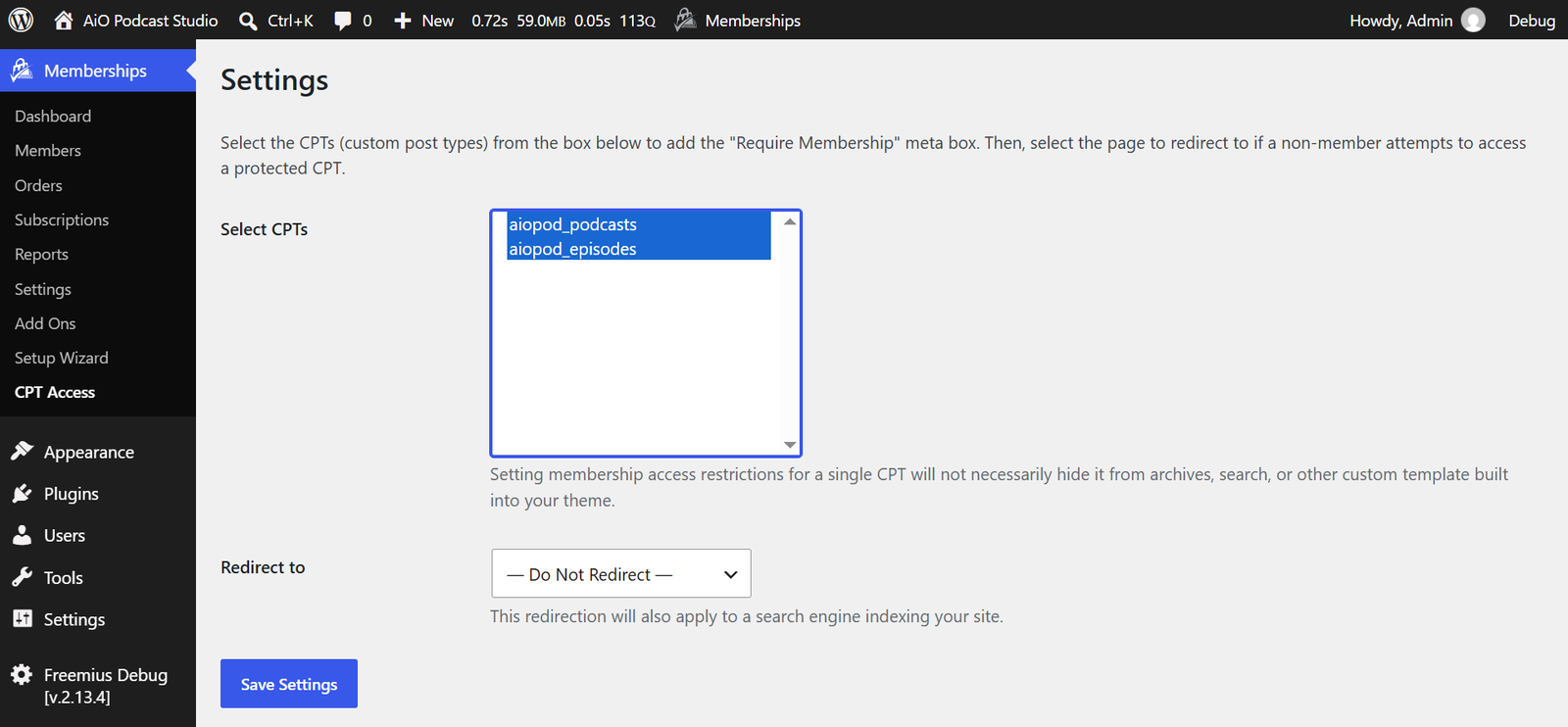
- Go to Memberships → CPT Access.
- Select aiopod_podcasts and aiopod_episodes from the Select CPTs box.
- Leave Redirect to set to Do not Redirect. This one matters — see the note below.
- Click Save Settings.
Why leave “Redirect to” empty? If you choose a page there, anyone without the right membership is sent away from your episode page before they ever see it — no artwork, no title, no signup message, just a redirect. Leaving it empty keeps visitors on the episode, where they get your membership message and a link to join. That is almost always what you want for a podcast, because the episode page is what convinces someone to subscribe.
Step 2: Restrict Your Podcasts and Episodes
- Edit the podcast or episode you want to sell.
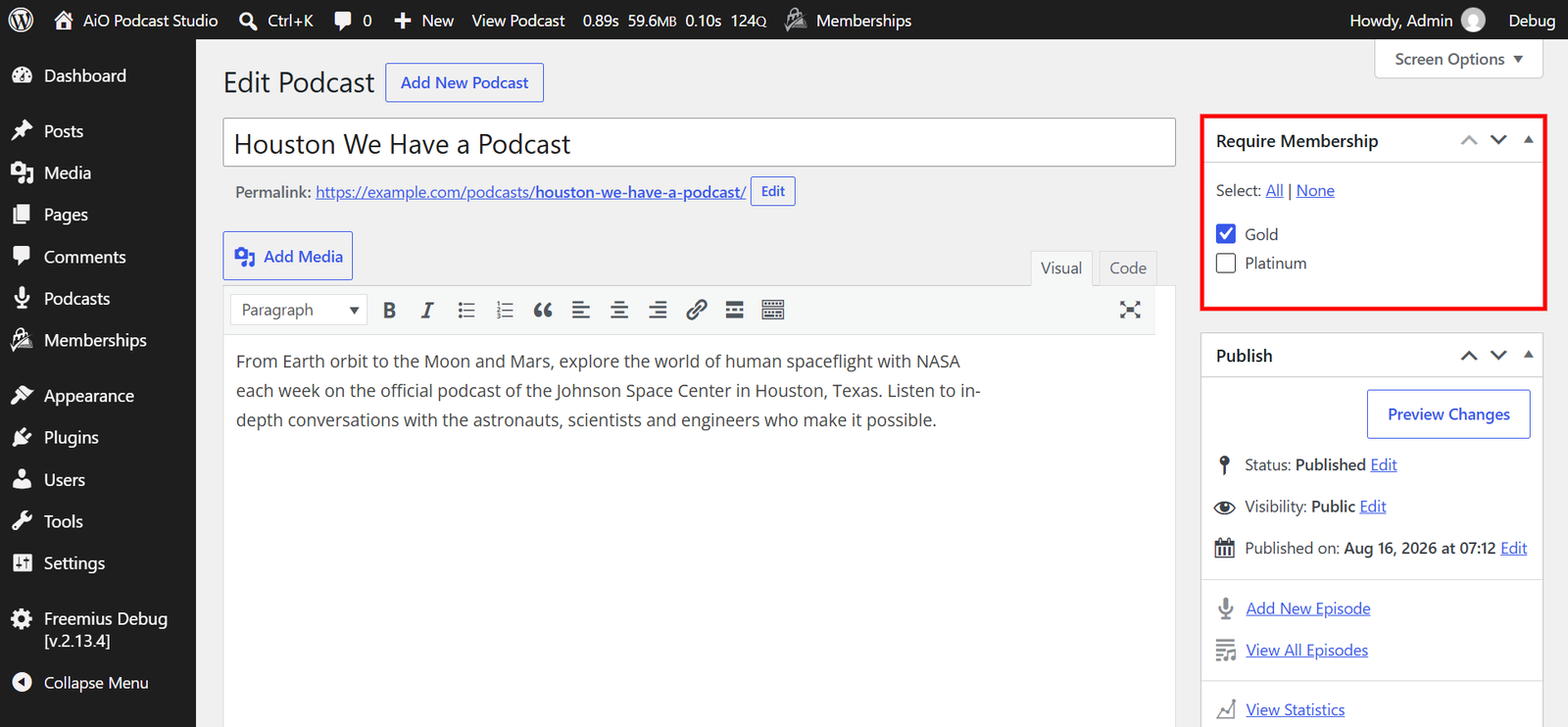
- Find the Require Membership box in the sidebar — the add-on from Step 1 puts it there.
- Tick the level or levels that should have access.
- Click Update.
Restricting a podcast restricts all of its episodes. You do not need to edit them one by one, and episodes that arrive later — from an RSS import or a scheduled sync — are covered automatically. That last part matters: without it, every new episode would arrive unlocked until you remembered to go and restrict it.
To sell a few episodes rather than the whole show, leave the podcast unrestricted and set Require Membership on the individual episodes instead. That is the “free show with bonus episodes for members” pattern, and it works well: everyone gets the public episodes, members get the extras.
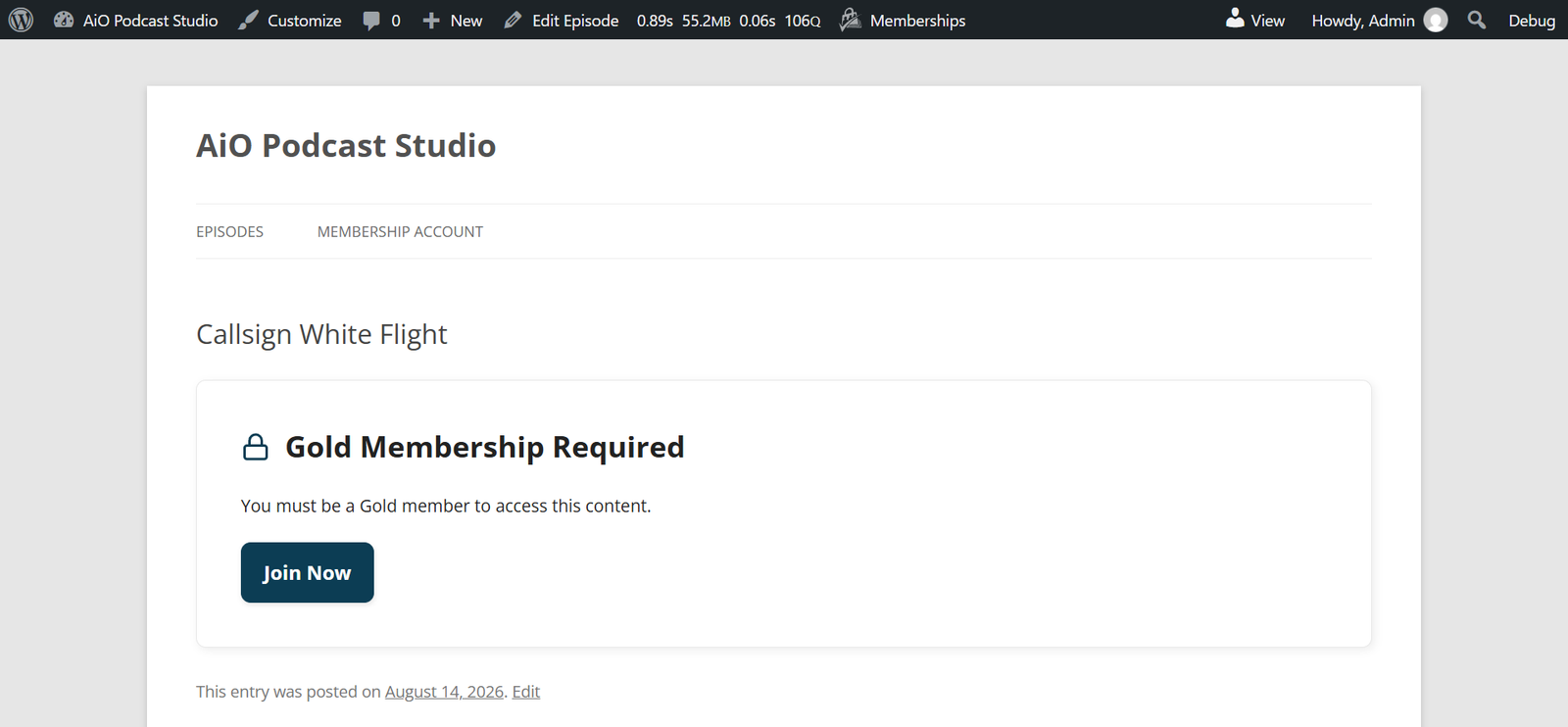
Once saved, the restriction applies everywhere that content appears — the single page, episode grids, shortcodes, blocks, widgets, the player, and your public RSS feed. Visitors without the level see the message from Paid Memberships Pro itself, so your wording, your signup link and your translations are used exactly as you set them up under Memberships → Settings → Advanced.
Step 3: Test It
- Open your site in a private or incognito window. A restricted episode should show the membership message with your signup link, and no player.
- Check your public RSS feed in the same window — restricted episodes should be absent from it.
- Create a test user, then give them the membership level under Memberships → Members. You can also go through your real checkout instead, if your payment gateway is set up in test mode.
- Log in as that user and open the restricted episode — it should now play.
- Remove the membership again under Memberships → Members, then check the episode — access should be gone.
Test with a separate account, not your admin account. When Paid Memberships Pro restricts something, its decision applies to everyone — administrators included. That is deliberate, and it matches how Paid Memberships Pro behaves on ordinary pages, but it does surprise people: if you open a restricted episode as an admin and see the membership message, nothing is broken.
Step 4: Give Members Their Own Podcast Feed (Optional)
Everything so far protects your website. But most people listen in a podcast app, not on a web page — and a podcast app cannot log in. This step gives every member a private feed address that delivers exactly the episodes their membership entitles them to, in Apple Podcasts, Overcast, Pocket Casts or whatever they already use.
- Go to Memberships → Add Ons, find Member RSS, and install and activate it.
- Create a new page, set its parent to your Membership Account page, and add the [pmpro_member_rss] shortcode to it.
- Go to Memberships → Settings → Pages and set the Member RSS Feeds field to that new page.
- Save, then visit that page while logged in as a member.
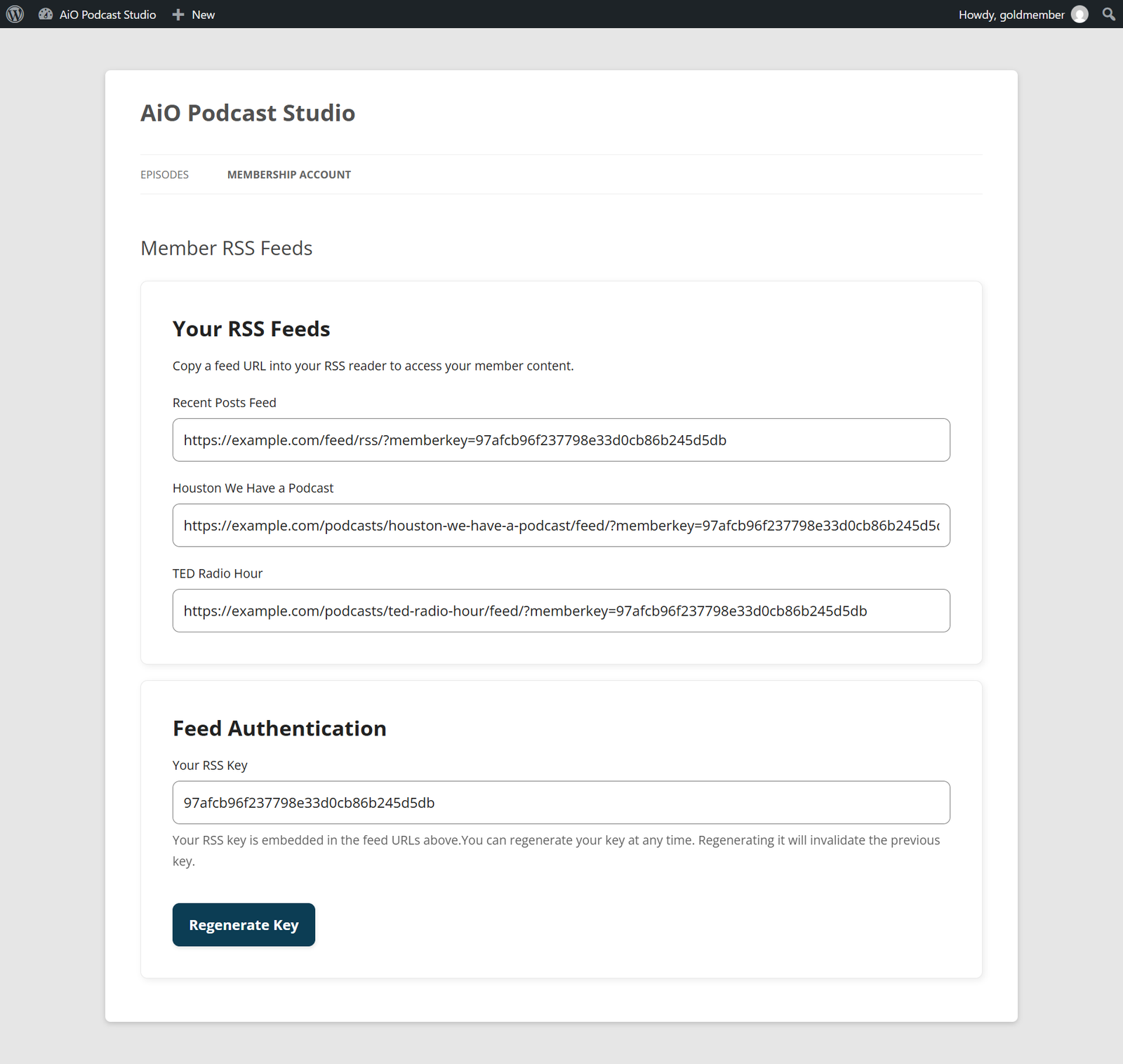
Each member now sees their own feed address for every podcast their membership gives them something extra in — whether the whole show is for members, or it is a public show with members-only episodes inside it. Shows they gain nothing from are not listed, so every address they are shown is one that works for them.
Two ways members can sign in, both provided by the add-on:
- Member key in the address — the default, and the one every podcast app can handle. The key is part of the web address, so the address itself has to be treated as private, like a password.
- Basic authentication — the member enters their WordPress username and an application password. Stronger, because nothing secret sits in the address, but only some podcast apps support it. Turn it on under Memberships → Settings → Advanced.
If a member’s address ever leaks, they can regenerate their key from the same page. That takes effect immediately: the old address stops working and they simply re-subscribe with the new one. Episodes already downloaded in their app stay where they are.
To test it, copy a member’s feed address and open it in a private browser window, or paste it straight into a podcast app. You should see the members-only episodes; open the same feed without the key and they should be gone.
Good to Know
- Restricting a show covers its episodes → Including episodes imported later. To control access episode by episode instead, leave the podcast unrestricted and set Require Membership on individual episodes.
- Locked episodes still appear in listings → In episode grids and lists a restricted episode keeps its artwork, title and description, with the player replaced by a padlock, so listeners can see what they are missing. They are left out of the public RSS feed entirely.
- Administrators are not exempt → When Paid Memberships Pro restricts a podcast or episode, its decision applies to everyone, including you. Always test with a separate account.
- What restricting does and does not protect → It keeps the episode out of your public feed, replaces the player with the membership message, and makes the episode’s download link answer “403 Forbidden”. It does not encrypt the media file: anyone who already has its direct address, from a shared link or a browser’s network tools, can still open it. Where that matters, host your media on a service that issues signed addresses that expire. Built-in support for third-party storage such as Bunny.net is on our roadmap.
- Tiers work as you would expect → Tick several levels on one episode and a listener holding any one of them gets in. A common setup is one level on the back catalogue and a higher one on bonus episodes.
- Feeds are cached for up to 12 hours → If you change something and a feed has not caught up, open the podcast and click Update. That refreshes the public feed and every member feed for that show straight away.
- Not using Paid Memberships Pro? → AiO Podcast Studio Pro can restrict podcasts and episodes by WordPress user role on its own, with no add-on needed. See Restricting Podcast Access.
Reference: Restricting Podcast Access · Download Paid Memberships Pro · Add a Membership Level · Custom Post Type Membership Access Add On · Member RSS Add On