
AiO Podcast Studio lets you restrict access to individual podcasts and episodes based on WordPress user roles. When a podcast or episode is restricted, visitors who do not meet the access requirements will see a customizable message instead of the content. This tutorial explains how to enable the feature, apply restrictions to a podcast or episode, and customize what restricted visitors see.
Contents
- Enabling the Restrictions Feature
- Restricting a Podcast or Episode
- Customizing the Access Denied Message
- Showing a Label on Restricted Content
Enabling the Restrictions Feature
Access restrictions are disabled by default. You must turn the feature on globally before you can apply restrictions to individual podcasts or episodes.
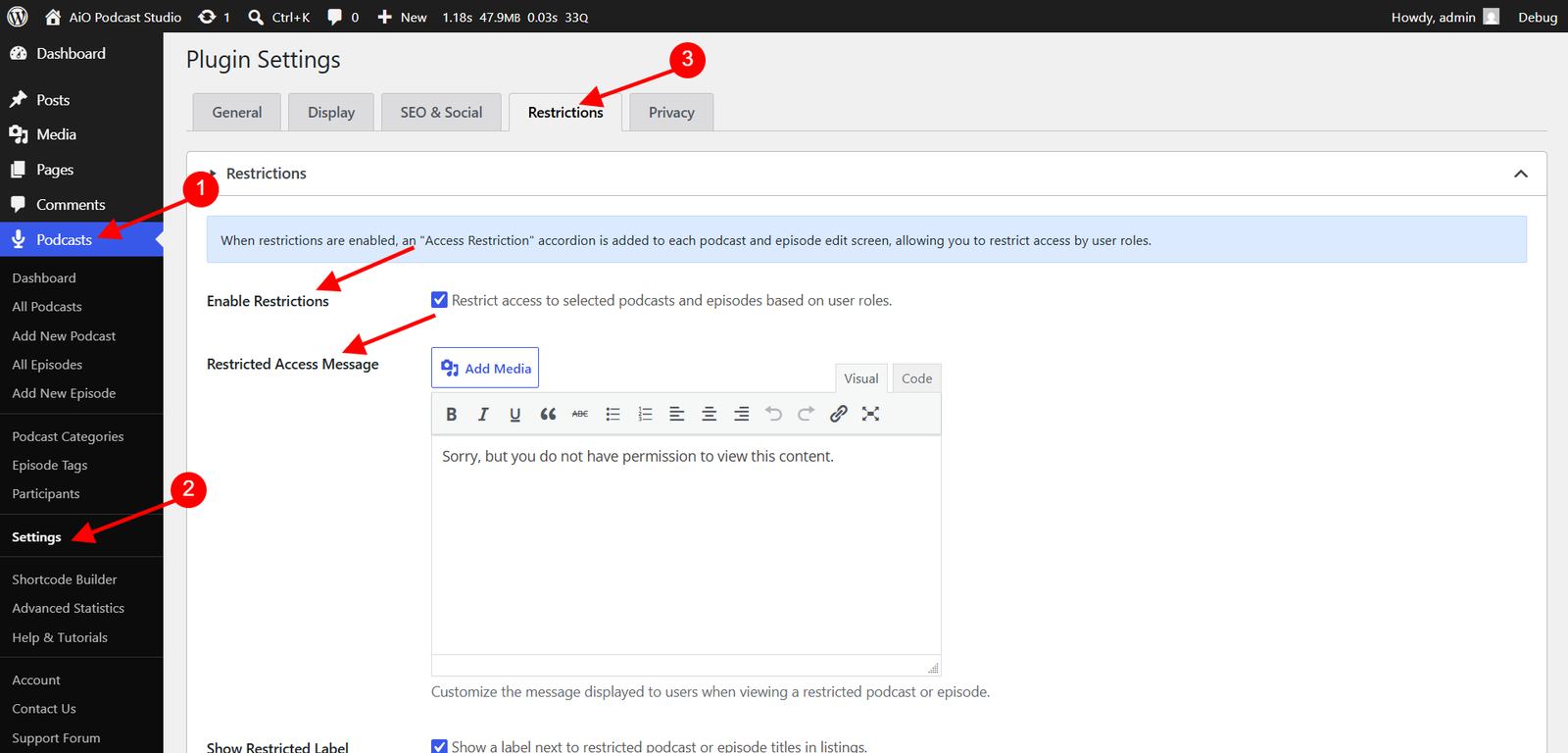
Go to Podcasts → Settings and open the Restrictions tab. Under the Restrictions section, check the Enable Restrictions box and click Save Changes.
Once enabled, an Access Restriction accordion will appear on every podcast and episode edit screen. Content that has not been individually restricted remains publicly accessible — enabling the feature alone does not restrict anything.
Restricting a Podcast or Episode
Access restrictions are configured per podcast and per episode. The same steps apply to both.
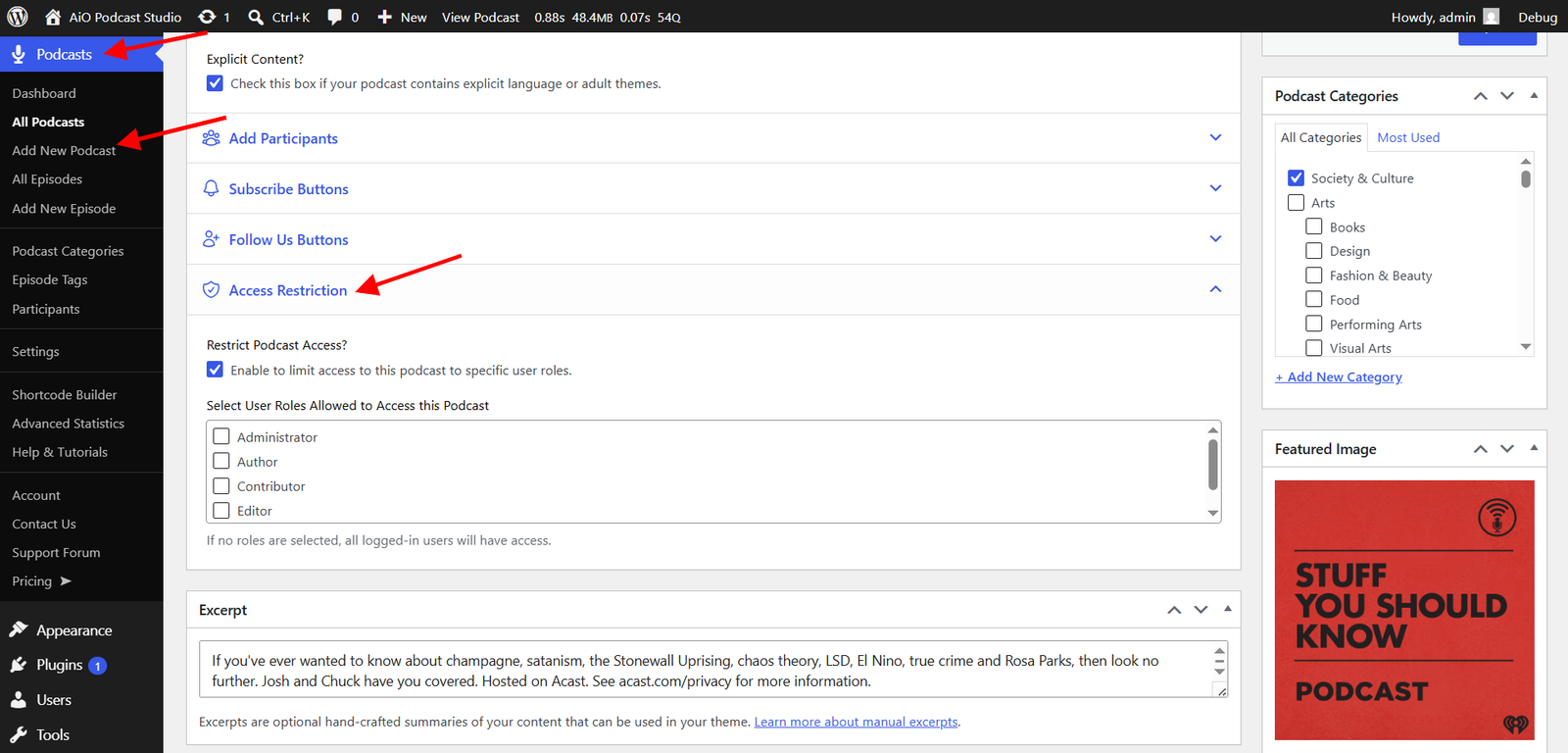
Go to Podcasts → All Podcasts (or Podcasts → All Episodes) and open the item you want to restrict. In the Podcast Info panel below the content editor, expand the Access Restriction accordion. Check the Restrict Podcast Access? (or Restrict Episode Access?) box. A list of WordPress user roles will appear beneath the checkbox.
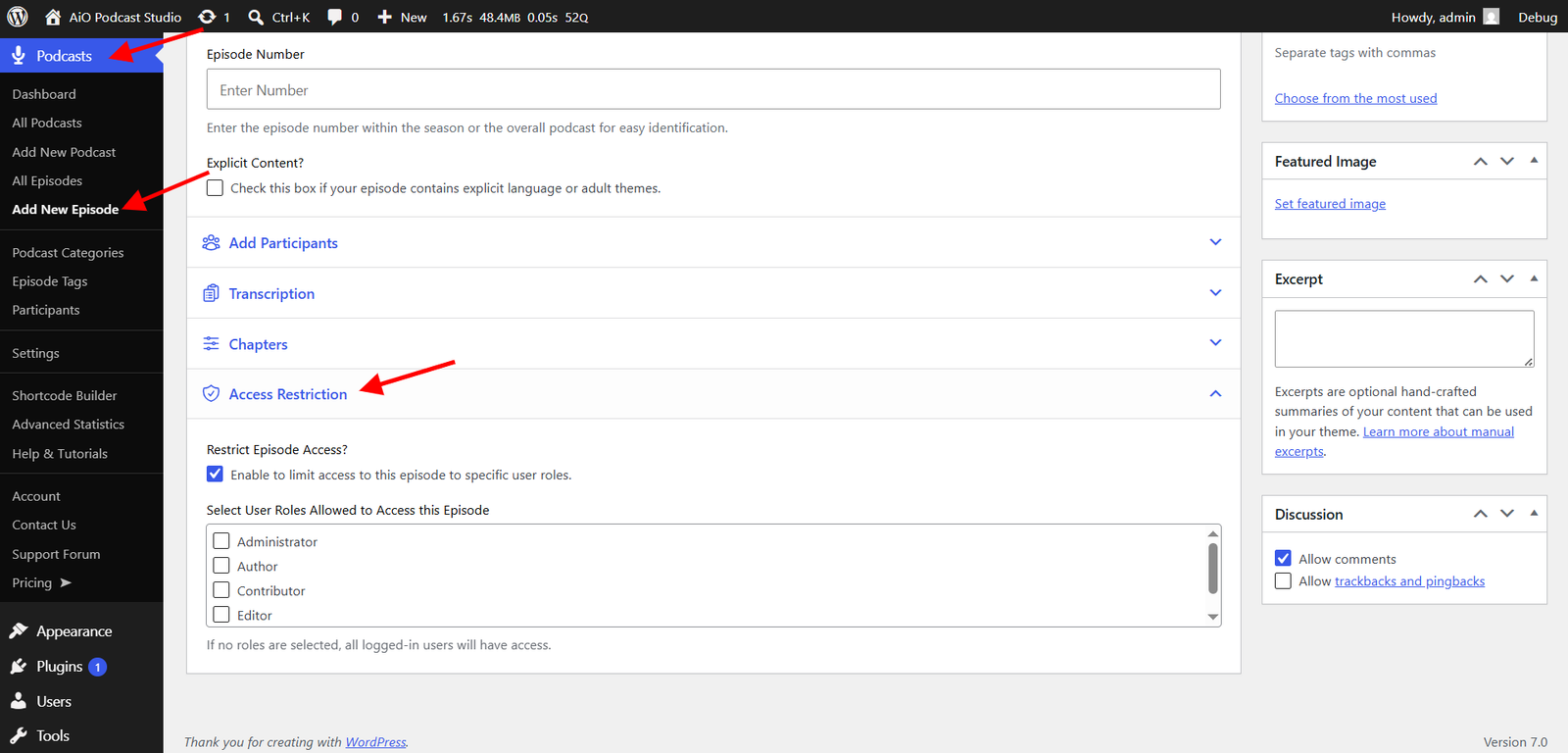
Select every role that should be allowed to view this content. For example, to limit access to subscribers only, check the Subscriber role. Users who are logged in with one of the selected roles will be able to view the content; everyone else will see the access denied message instead.
If you check the restriction box but leave all role checkboxes unchecked, any logged-in user — regardless of their role — will be allowed to view the content. Only visitors who are not logged in at all will be blocked.
Site administrators and users with podcast editing permissions always have access to restricted content, so there is no need to add those roles to the list.
Click Update to save the restriction settings.
Customizing the Access Denied Message
When a visitor tries to view a restricted podcast or episode without the required role, the plugin displays an access denied message in place of the content. You can customize this message to include any text, links, or instructions you want — for example, a prompt to log in or a link to a membership sign-up page.
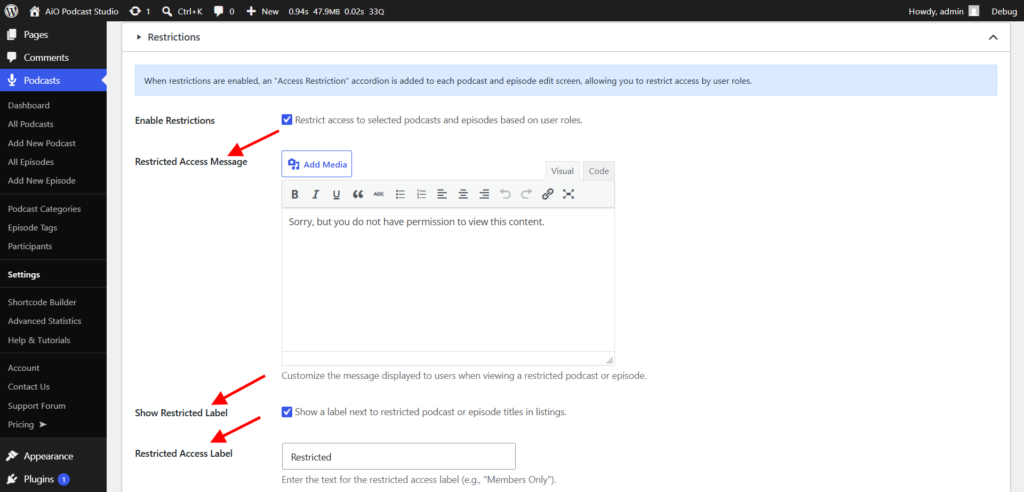
Go to Podcasts → Settings and open the Restrictions tab. In the Restricted Access Message field, enter the message you want visitors to see. The field uses the full WordPress text editor, so you can format the text, add links, and include images. Click Save Changes when done.
The same message is shown for all restricted podcasts and episodes. It is not possible to set a different message per item.
Showing a Label on Restricted Content
You can display a small label next to the titles of restricted podcasts and episodes in your listings, so that visitors can see at a glance which content requires membership or a specific role before clicking through.
Go to Podcasts → Settings and open the Restrictions tab. Check the Show Restricted Label box. In the Restricted Access Label field that appears below it, enter the text you want to display — for example, Members Only or Premium. Click Save Changes.
The label will then appear next to the title of any podcast or episode that has the Restrict Podcast Access? or Restrict Episode Access? checkbox enabled, wherever those titles are displayed in your episode and podcast listings.