
AiO Podcast Studio provides three methods for displaying podcast content on the front end of your WordPress website: the Shortcode Builder, Gutenberg Blocks, and Widgets. All three methods offer the same content types and configuration options — the choice between them depends on where the content will appear and your preferred workflow.
Contents
Available Content Types
Each display method supports the same five content types. Understanding what each one outputs will help you choose the right type for each location on your website.
| Content Type | Shortcode | What It Displays | Available Layouts |
|---|---|---|---|
| Episodes | [aiopod_episodes] | A list of podcast episodes with player and metadata | Grid, List, Compact, Slider |
| Podcasts | [aiopod_podcasts] | A list of all podcasts on your site | Grid |
| Categories | [aiopod_categories] | Podcast categories for navigation and browsing | Grid, List, Dropdown |
| Tags | [aiopod_tags] | Episode tags for topic-based browsing | Cloud, List, Dropdown |
| Participants | [aiopod_participants] | Hosts, guests, and contributors | Grid |
Using the Shortcode Builder
The Shortcode Builder is a visual interface for generating shortcodes without writing any code. It is the most flexible display method and is well suited to placing podcast content on any standard WordPress page or post.
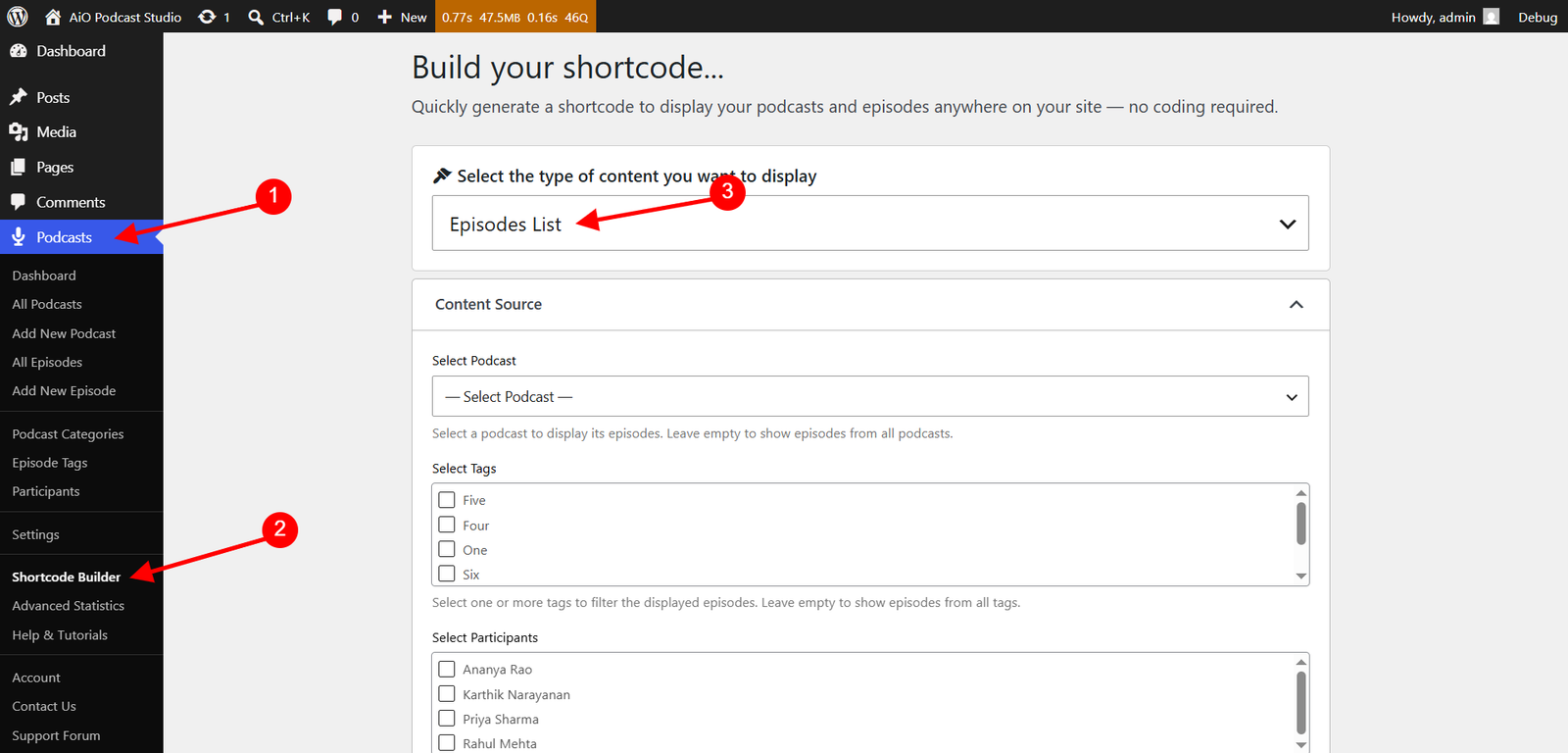
Generating a shortcode
Navigate to Podcasts → Shortcode Builder in your WordPress admin. The builder is divided into sections that correspond to the configuration options for the selected content type. Work through each section in order.
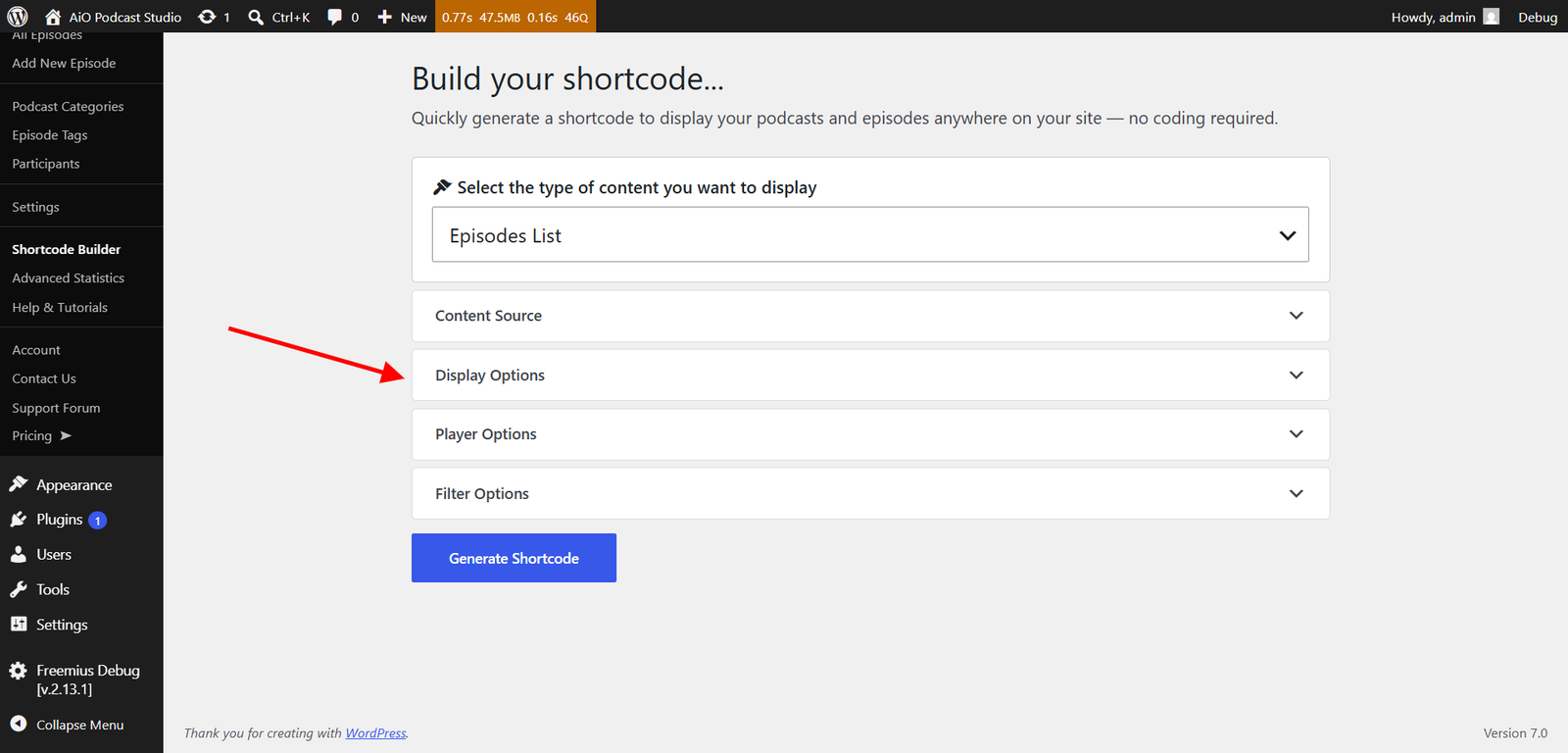
- Select a content type. Choose from Episodes, Podcasts, Categories, Tags, or Participants. The available options in the sections below will update to reflect the selected type.
- Apply filters. Narrow the content that will be displayed. For example, an Episodes shortcode can be filtered by a specific podcast, by season, by episode type, by tag, or by participant. Leaving a filter blank will display all matching content.
- Configure display options. Select the layout style and specify how many items to display per page. Episodes support Grid, List, Compact, and Slider layouts. Categories support Grid, List, and Dropdown. Tags support Cloud, List, and Dropdown.
- Configure player options. For episodes and podcasts, choose which player controls to show, whether to autoplay, and how the player is positioned within each card.
- Configure filter options. Optionally enable a visible search and filter form above the episode list, allowing visitors to filter by keyword, season, tag, or sort order directly on the page.
- Configure pagination. Choose between numbered pagination or a load-more button, and set the number of items displayed per page.
- Click Generate Shortcode. The completed shortcode will appear in the output field at the bottom of the builder.
Adding the shortcode to a page
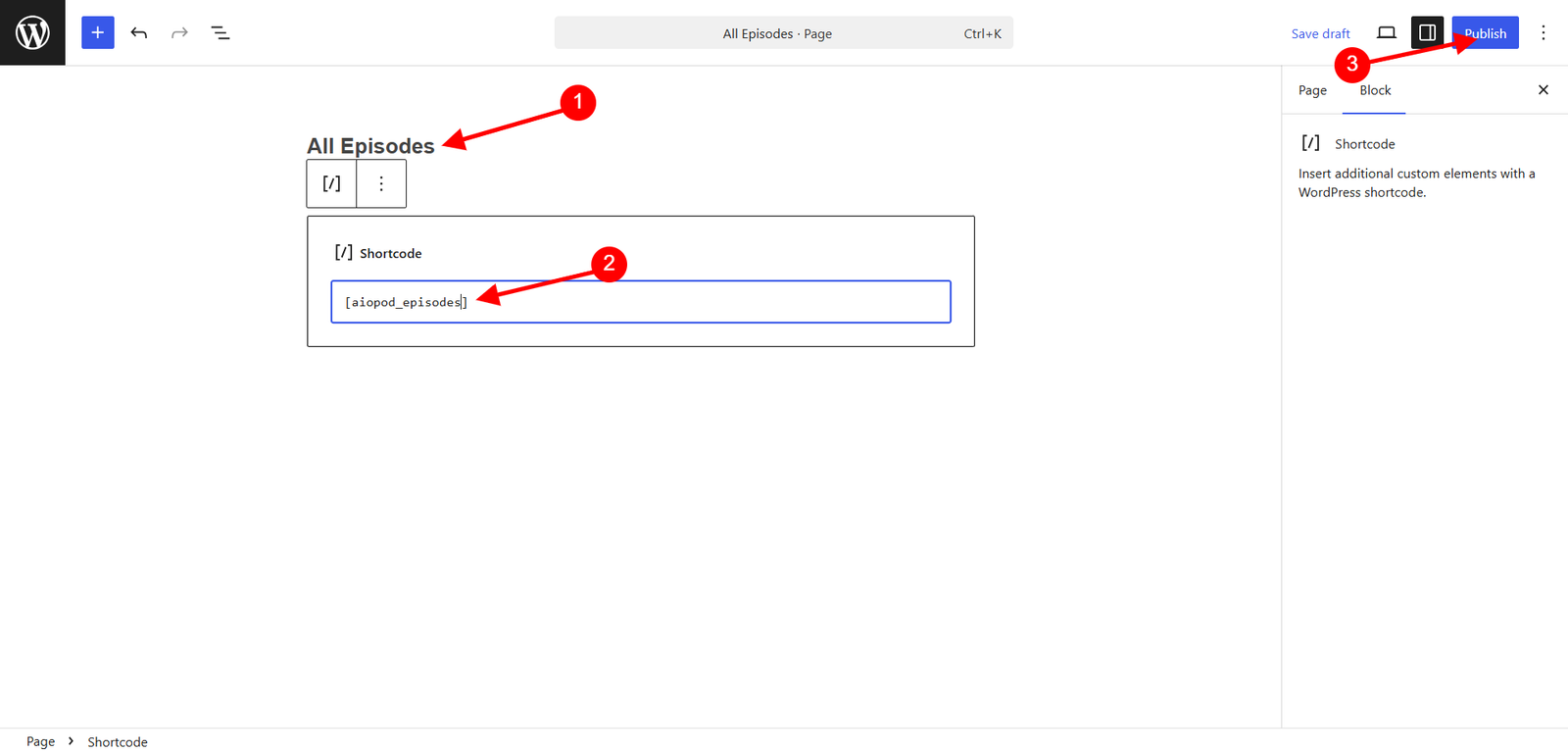
Copy the generated shortcode from the output field. Open the page or post where the content should appear, add a Shortcode block in the WordPress block editor, paste the shortcode into it, and publish or update the page. The podcast content will appear on the front end exactly as configured in the builder.
Shortcodes can be used on any number of pages simultaneously, and each instance can have different configuration options. For example, you may have one page showing all episodes in a Grid layout and another showing only episodes from a specific season in a List layout.
Using shortcodes manually
Shortcodes can also be written or edited by hand without using the builder. Every configuration option available in the builder corresponds to a shortcode attribute. For example, the following shortcode displays episodes from podcast ID 5 in a List layout, showing 10 items per page with numbered pagination:
[aiopod_episodes podcast="5" layout="list" per_page="10" pagination="numeric"]Refer to the shortcode attribute reference in the documentation for a complete list of available attributes for each content type.
Using Gutenberg Blocks
AiO Podcast Studio registers a dedicated Gutenberg block for each of the five content types. Blocks are the preferred method when building pages entirely within the WordPress block editor, as they allow you to configure and preview podcast content without leaving the page.
Adding a block to a page
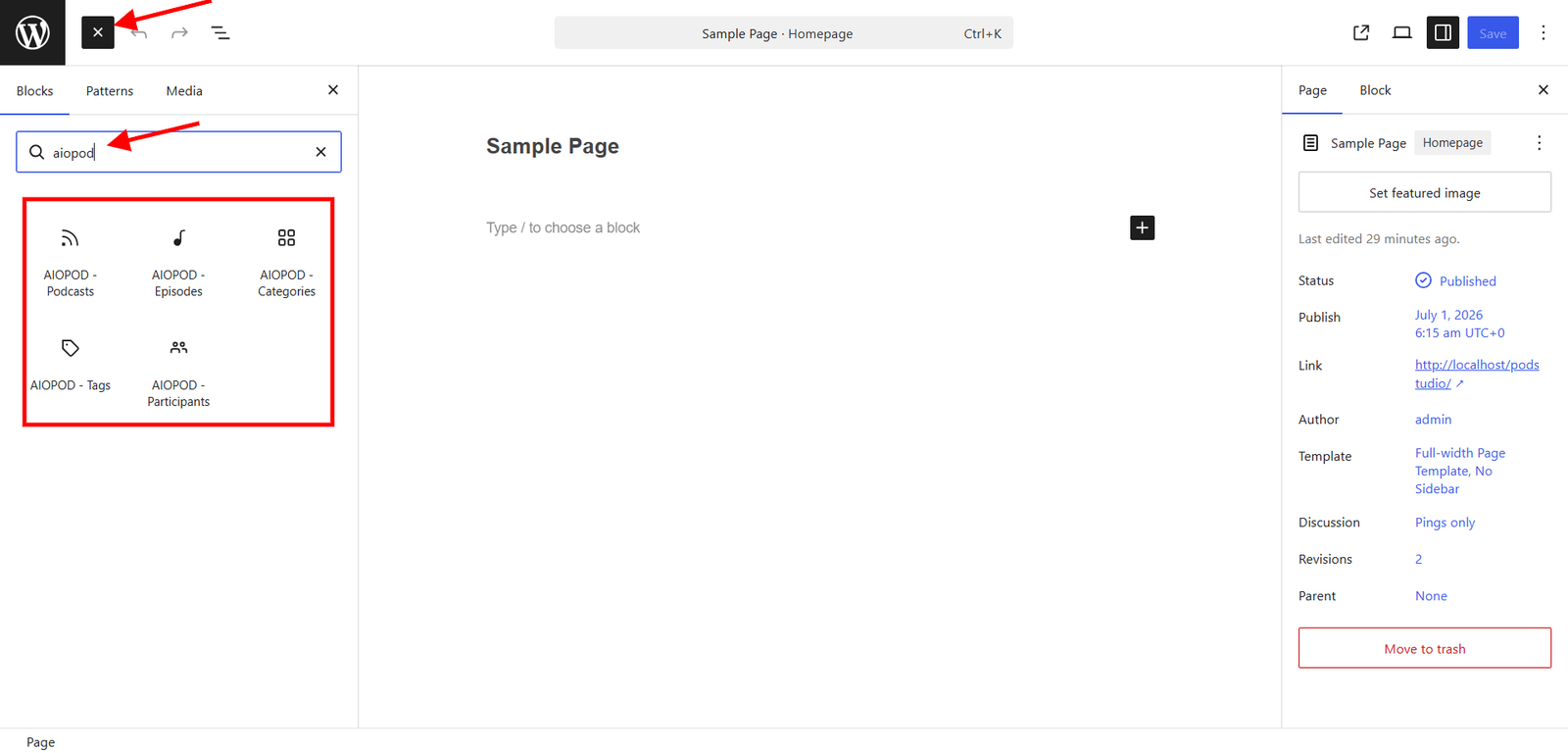
- Open the page or post in the WordPress block editor.
- Click the Add Block button ( + ) at the desired position in the layout.
- In the block search field, type Podcast.
- Select the block that corresponds to the content type you wish to display — for example, Episodes List, Podcasts List, Podcast Categories, Episode Tags, or Participants.
- The block will be inserted into the page with default settings applied.
Configuring the block
With the block selected, the block settings panel on the right side of the editor displays all available configuration options. These options are identical to those in the Shortcode Builder: filters, layout, player settings, filter form, and pagination. Adjust the settings as required and the block preview in the editor will update accordingly.
Multiple blocks of the same type can be added to a single page, each with different configurations. Publish or update the page when the layout is complete.
Using Widgets
Widgets are intended for placing podcast content in areas of your website that exist outside of individual pages and posts, such as sidebars, footers, and other theme-defined widget regions. This method requires that your active WordPress theme supports widget areas.
Adding a widget to a widget area
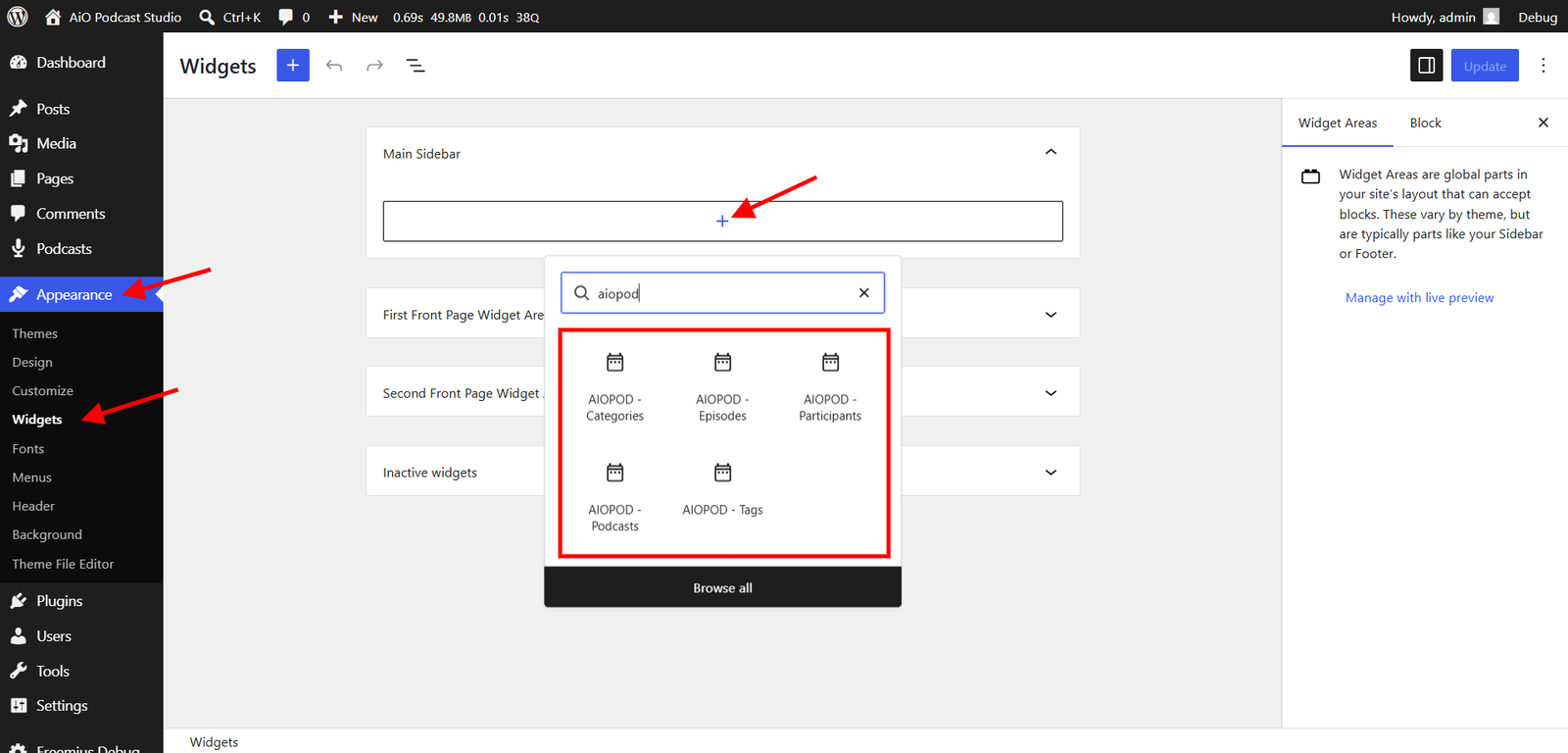
- Navigate to Appearance → Widgets in your WordPress admin.
- The left panel lists all available widgets. Locate the AiO Podcast Studio widgets — one is available for each of the five content types.
- Click the Add block button ( + ) inside the widget area where the content should appear, search for Podcast, and select the appropriate widget.
- Configure the widget settings in the panel that appears. The available options are the same as those in the Shortcode Builder and Gutenberg Blocks.
- Click Update to save the widget area.
The podcast content will now appear in the selected widget area across all pages where that area is displayed, in accordance with your theme’s layout. To remove a widget, open the widget area in Appearance → Widgets, select the widget, and click Remove.