
The Advanced Statistics dashboard gives you a detailed picture of how your podcast content is performing. It shows downloads and plays broken down by date, podcast application, episode, and podcast — all within a single admin screen. This tutorial explains how to open the dashboard, use the date filters, read the charts and tables, and navigate between the different views.
Contents
- Opening the Statistics Dashboard
- Filtering by Date Range
- The Global Dashboard
- The Podcast Dashboard
- The Episode Dashboard
Opening the Statistics Dashboard
The statistics dashboard is a premium feature. There are three ways to reach it.
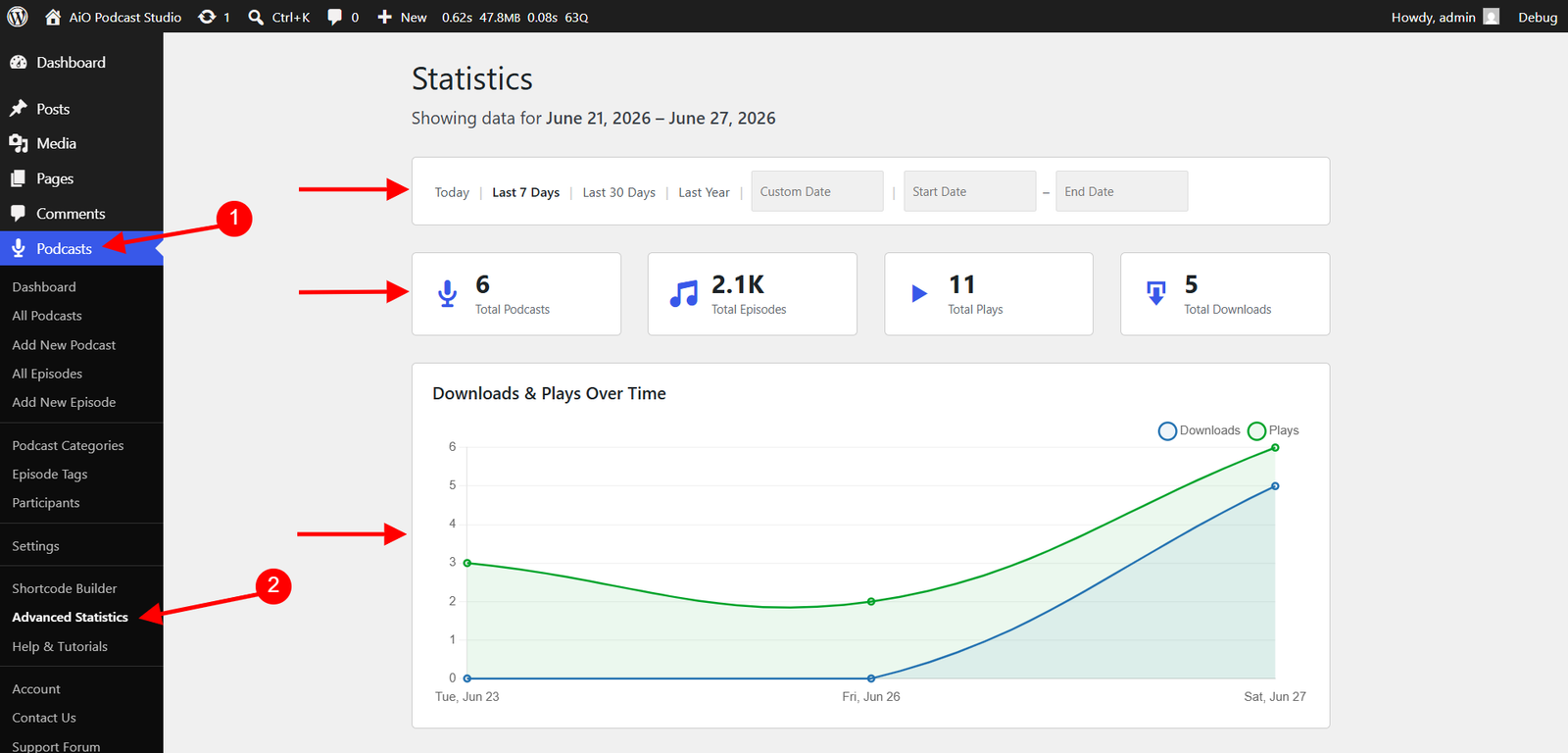
- Main menu — Go to Podcasts → Advanced Statistics in the WordPress admin sidebar. This opens the global dashboard showing data across all your podcasts and episodes.
- Publish metabox — When editing a podcast or episode, a View Statistics link appears in the Publish panel on the right side of the screen. Clicking it opens the statistics dashboard scoped to that specific podcast or episode.
- Stats column in list tables — In the Podcasts → All Podcasts and Podcasts → All Episodes screens, each row includes a Stats column. Click the View Stats → link in any row to open the dashboard for that specific podcast or episode.
Filtering by Date Range
Every dashboard view — global, podcast, and episode — includes a date filter bar at the top of the page. Use it to control which time period the statistics cover.
- Today — Shows data for the current calendar day, broken down by hour.
- Last 7 Days — Shows the past seven days, broken down by day.
- Last 30 Days — Shows the past thirty days, broken down by day.
- Last Year — Shows the past year, broken down by month.
- Custom Date — Click the Custom Date field and use the date picker to select a single day. The chart will show hourly data for that day.
- Custom Range — Click the Start Date and End Date fields and use the date pickers to define a specific date range. Ranges longer than 90 days are automatically aggregated by month rather than by day to keep the chart readable.
If no downloads or plays were recorded during the selected period, the dashboard displays a No data yet message. Try selecting a broader date range if you expect to see data.
The Global Dashboard
The global dashboard is the default view when you open Podcasts → Advanced Statistics. It summarises activity across your entire library.
Summary cards
Four cards at the top of the page show high-level totals for the selected date range.
- Total Podcasts — The number of podcasts in your library.
- Total Episodes — The total number of published episodes across all podcasts.
- Total Plays — The number of plays recorded from the embedded web player during the selected period.
- Total Downloads — The number of episode file downloads recorded from podcast apps during the selected period.
Downloads and plays over time
A line chart below the summary cards plots downloads and plays as two separate lines across the selected date range. Use this chart to spot trends — for example, a spike in downloads on the day a new episode is published, or a steady increase in plays over a campaign period.
Top podcasts and top episodes
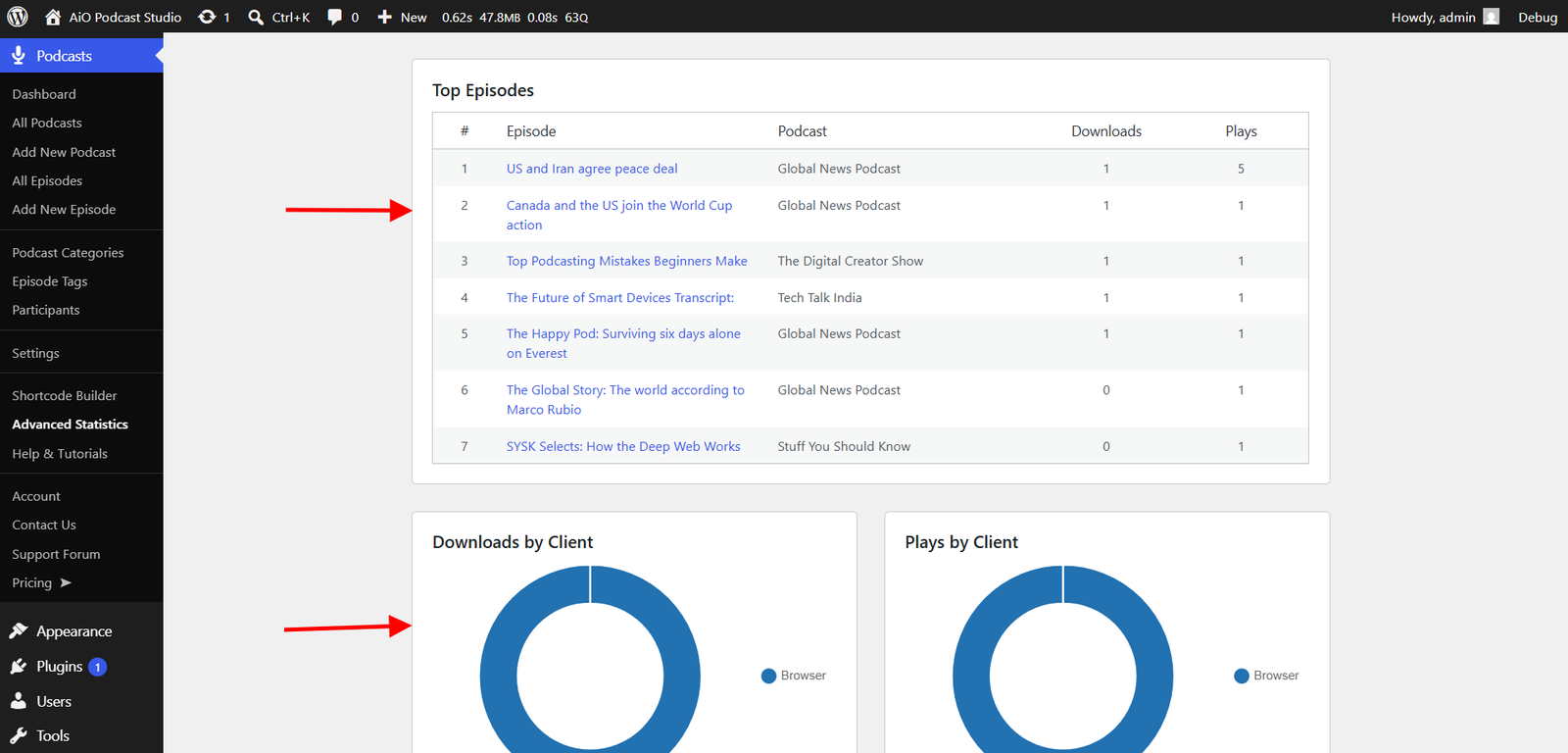
Two tables list your ten most active podcasts and ten most active episodes for the selected date range, ranked by total activity. Each row shows the download and play counts for that item. Click any podcast name in the Top Podcasts table to open the podcast dashboard for that show. Click any episode title in the Top Episodes table to open the episode dashboard for that episode.
Downloads and plays by client
Two doughnut charts show which podcast applications and browsers your audience is using — one chart for downloads and one for plays. Recognised applications include Apple Podcasts, Spotify, Overcast, Pocket Casts, Podcast Addict, Castbox, Castro, Podbean, Stitcher, iHeartRadio, and TuneIn, among others. Requests from browsers are shown as Browser, and any unrecognised clients appear as Unknown/Other.
The Podcast Dashboard
The podcast dashboard shows statistics for a single podcast. Open it by clicking a podcast name in the global dashboard’s Top Podcasts table, by using the View Statistics link in the podcast’s Publish panel, or by clicking View Stats → in the Stats column of the All Podcasts list.
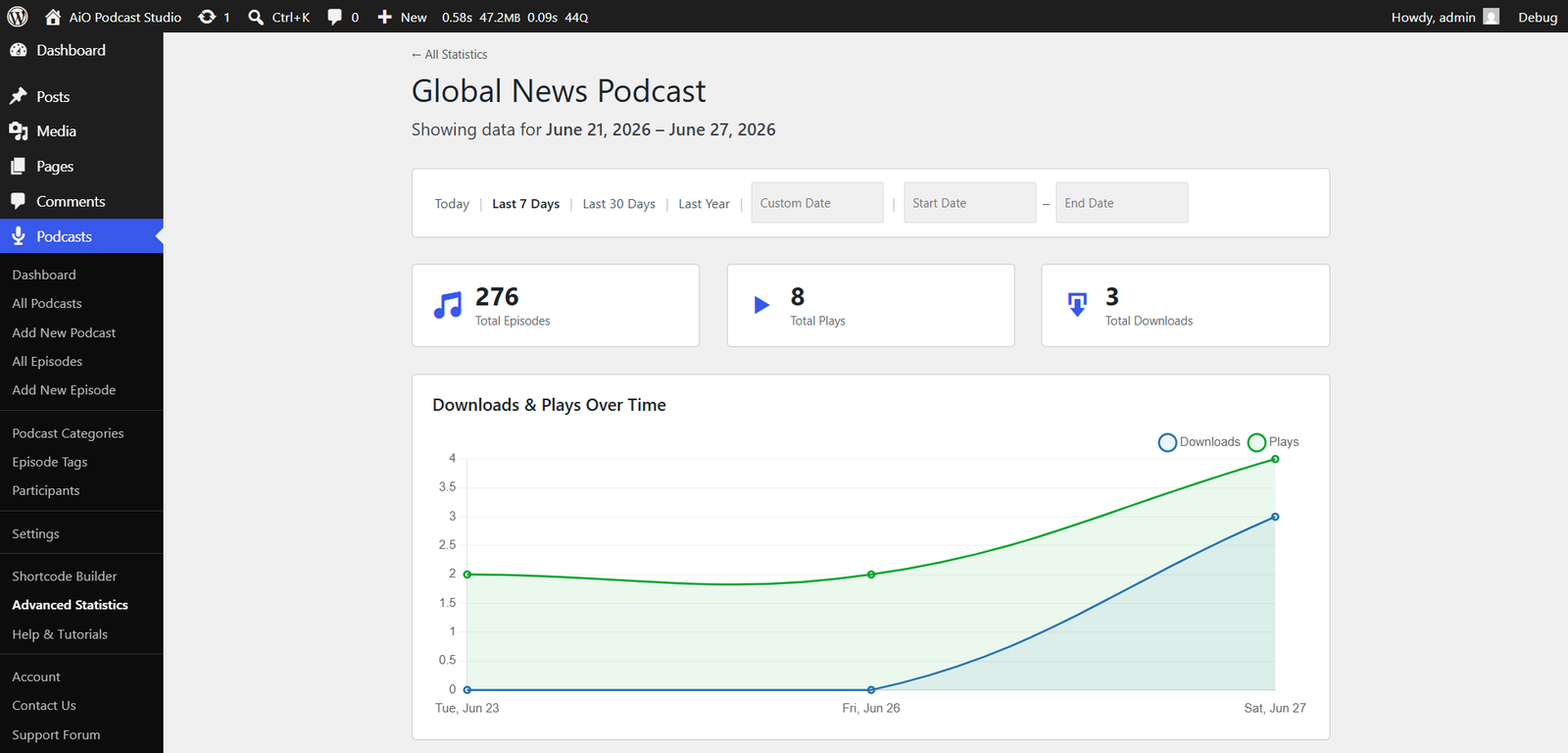
A breadcrumb link at the top of the page reads ← All Statistics and takes you back to the global dashboard at any time.
Summary cards
Three cards summarise the podcast’s activity for the selected date range: Total Episodes (the number of published episodes in this podcast), Total Plays, and Total Downloads.
Downloads and plays over time
A line chart shows the download and play trends for this podcast across the selected period. The date filter bar works the same as in the global dashboard and preserves the podcast context as you switch between ranges.
Top episodes
A table lists the ten most active episodes within this podcast for the selected date range, showing each episode’s download and play counts. Click any episode title to open the episode dashboard for that episode.
Downloads and plays by client
Two doughnut charts show the client breakdown for this podcast — which applications are downloading episodes and which are used for web plays — for the selected period.
The Episode Dashboard
The episode dashboard shows statistics for a single episode. Open it by clicking an episode title in the Top Episodes table of either the global or podcast dashboard, by using the View Statistics link in the episode’s Publish panel, or by clicking View Stats → in the Stats column of the All Episodes list.
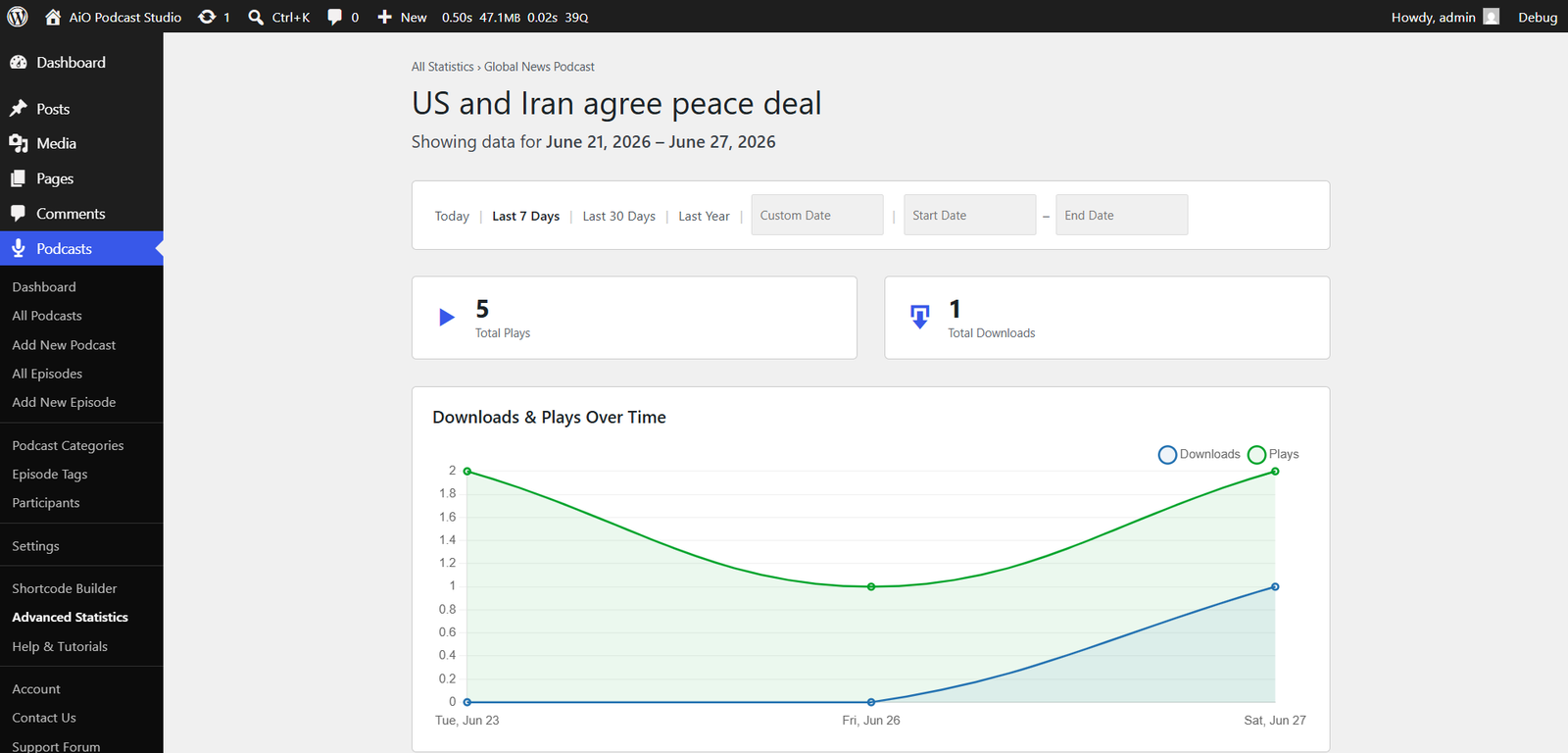
A breadcrumb trail at the top of the page shows All Statistics › Podcast Name, letting you navigate back to the global dashboard or to the parent podcast dashboard in one click.
Summary cards
Two cards show the episode’s totals for the selected date range: Total Plays and Total Downloads.
Downloads and plays over time
A line chart shows the download and play trends for this episode across the selected period. As with the other views, switching the date filter preserves the episode context.
Downloads and plays by client
Two doughnut charts break down which applications downloaded this episode and which were used to play it in the browser for the selected period. This can help you understand where individual episodes are gaining traction relative to the rest of your library.