
AiO Podcast Studio can be translated into any language, including RTL (Right-to-Left) languages such as Arabic and Hebrew. The easiest way to create a translation is through the free Loco Translate plugin, which lets you translate directly inside your WordPress admin without needing any desktop software or FTP access.
Contents
- Installing Loco Translate
- Opening the Plugin in Loco Translate
- Creating a New Language File
- Translating the Strings
- Saving the Translation
- Keeping Your Translation Up to Date
- Sharing Your Translation
Installing Loco Translate
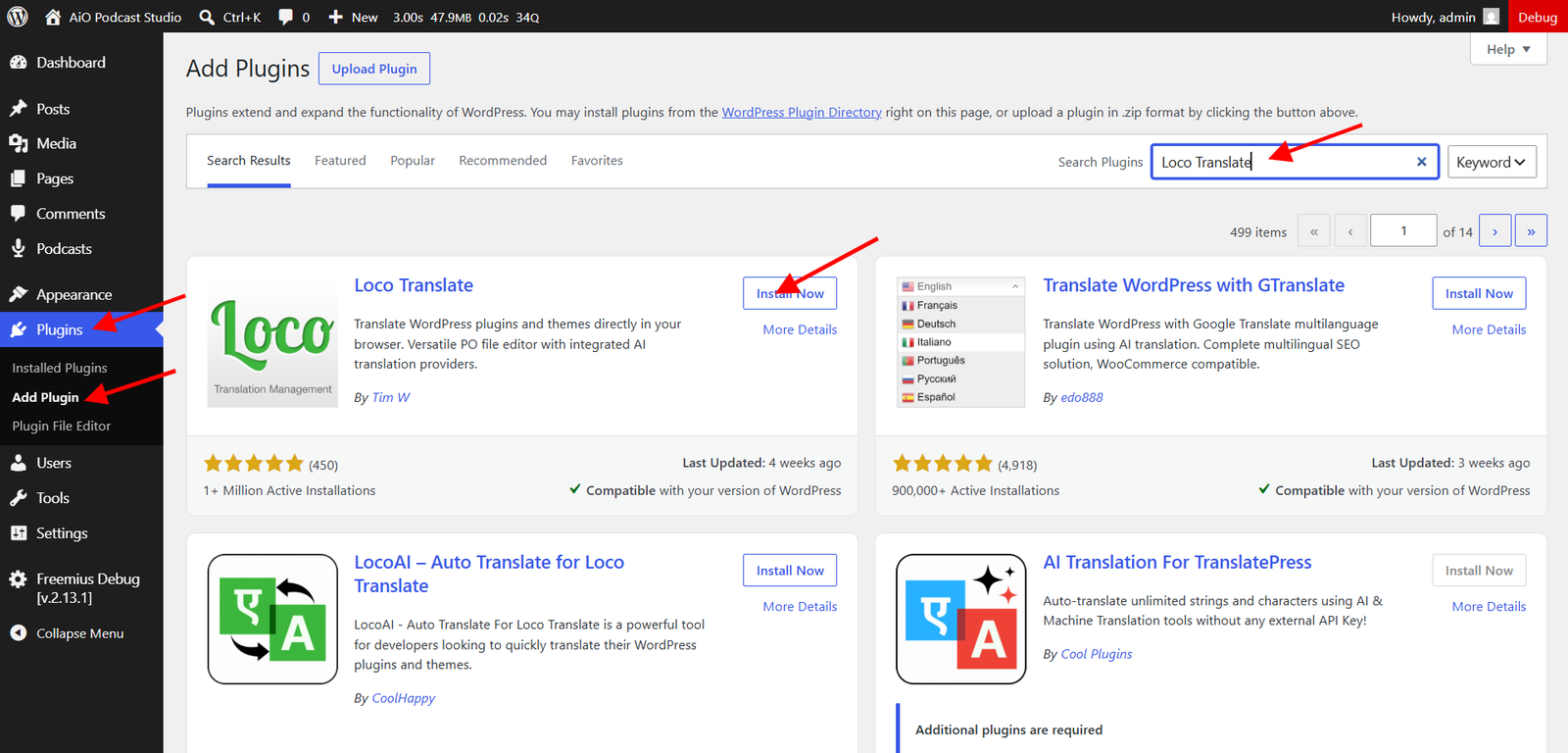
- Go to Plugins → Add New Plugin in your WordPress admin.
- Search for Loco Translate.
- Click Install Now on the Loco Translate plugin by Tim Whitlock, then click Activate.
Once activated, a Loco Translate item will appear in your WordPress admin menu.
Opening the Plugin in Loco Translate
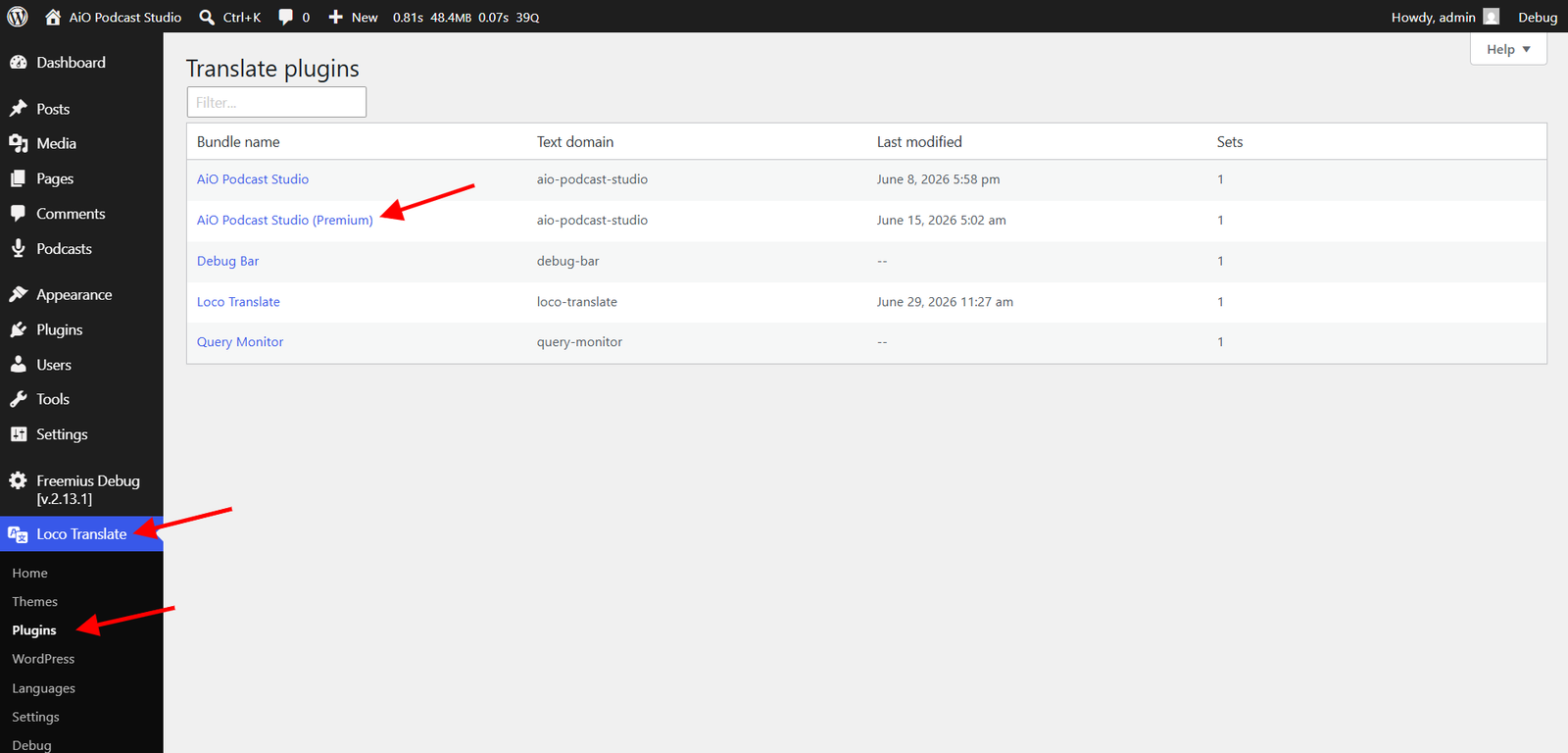
- Go to Loco Translate → Plugins.
- Find AiO Podcast Studio in the list and click on it.
You will see the plugin’s translation overview, which shows any existing language files and a button to create a new one.
Creating a New Language File
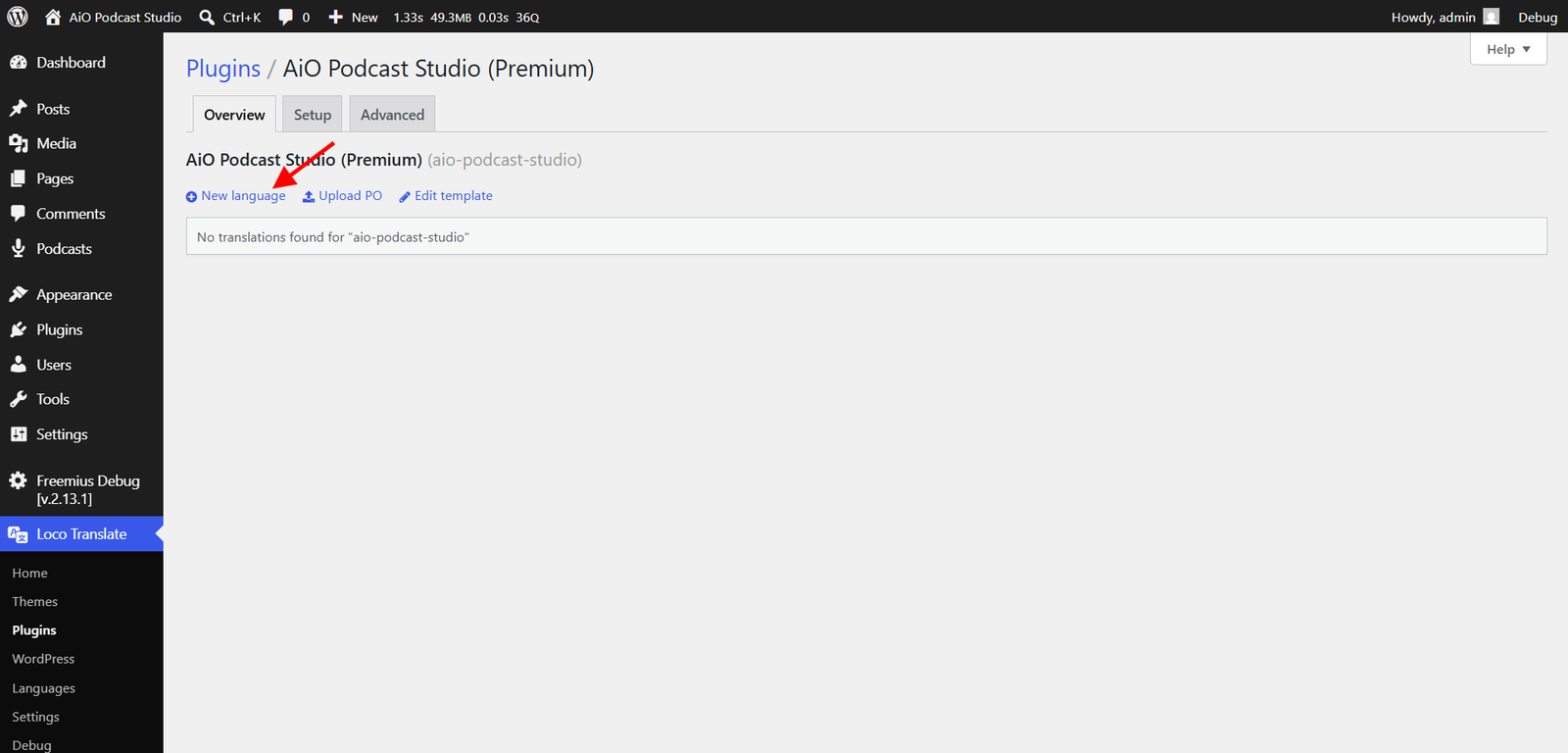
- Click the New Language button.
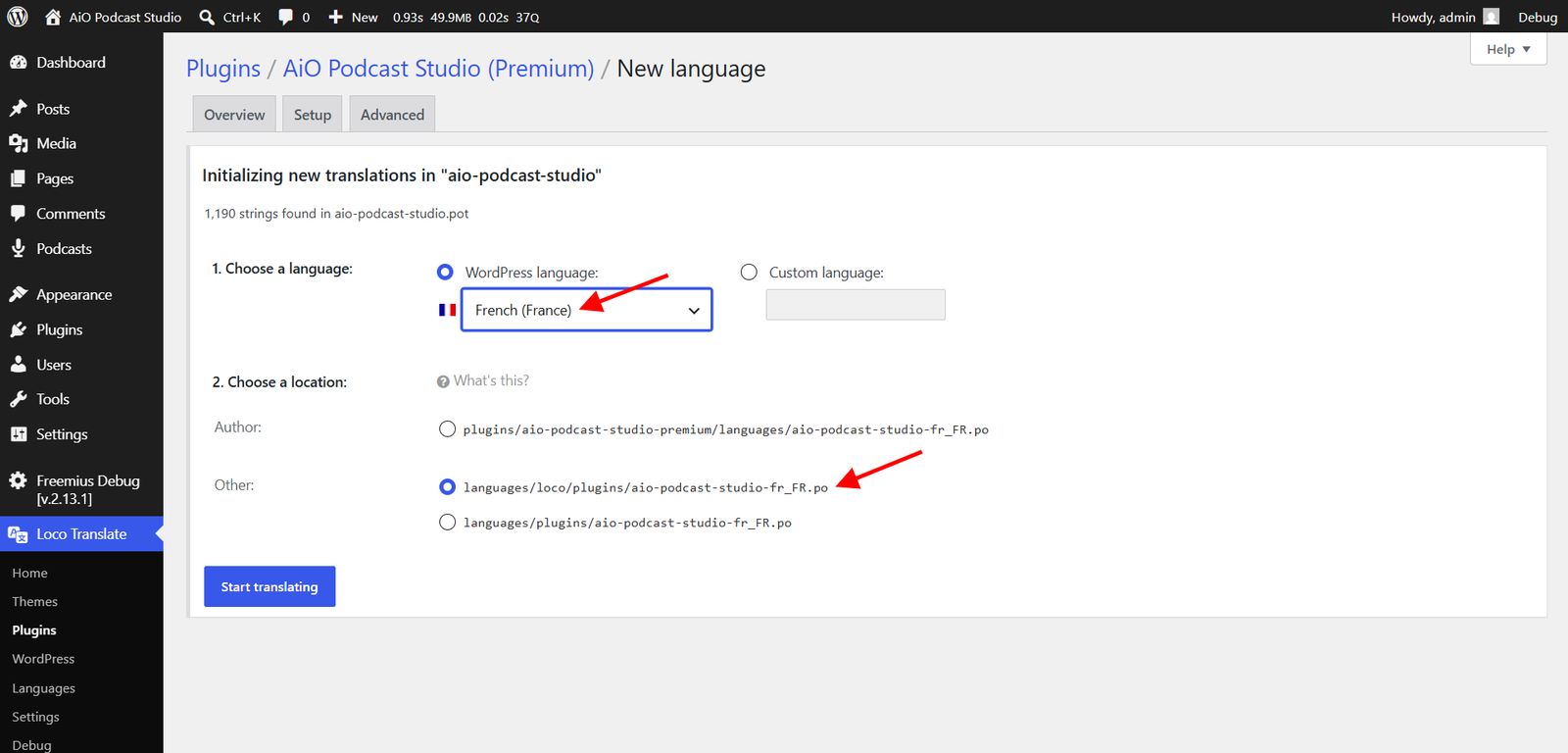
- Select your language from the Choose a language dropdown.
- Under Location, choose where the translation files will be stored. The recommended option is the wp-content/languages/ path (labelled System in Loco Translate), as files stored there are not affected by plugin updates. Loco Translate will name the files automatically using the plugin text domain and your locale code — for example,
aio-podcast-studio-fr_FR.pofor French. - Click Start translating.
Translating the Strings
The Loco Translate editor displays all of the plugin’s translatable strings in a list. Each row shows the original English text on the left and a field for your translation on the right.
- Click a string in the list to select it.
- Type your translation in the Translation field below the list.
- Continue through the remaining strings. You do not need to translate every string in a single session — the plugin falls back to English for any string that has not yet been translated.
Saving the Translation
Click the Save button at the top of the editor when you are ready to apply your translations. Loco Translate saves two files automatically: a .po file (the editable source) and a compiled .mo file (the binary that WordPress reads). Both are stored in the location you chose when creating the language file.
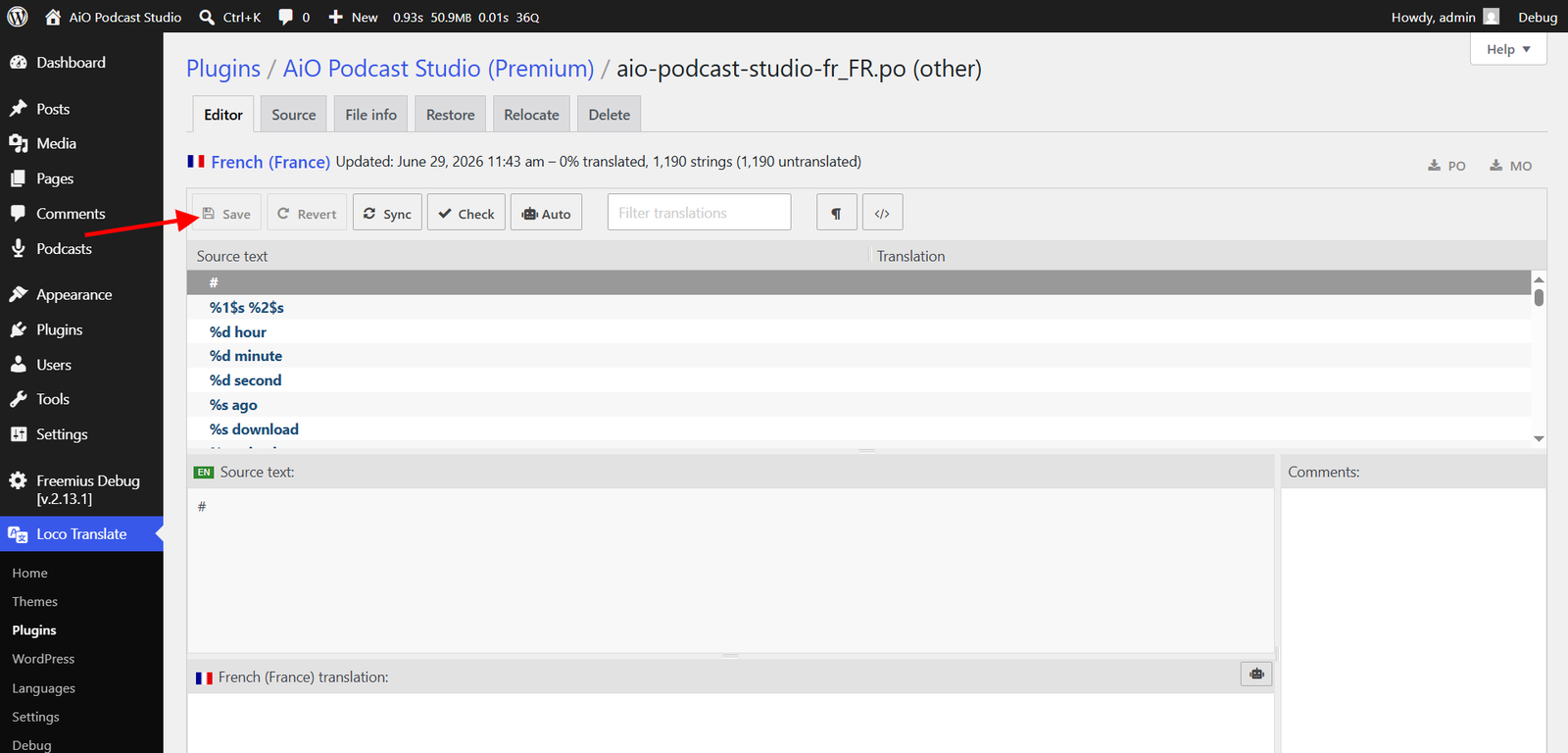
Once saved, reload any page on your site that uses the plugin and the translated strings will appear immediately, provided your WordPress site language matches the locale you translated into. You can confirm or change the site language at Settings → General → Site Language.
Keeping Your Translation Up to Date
When the plugin is updated, new or changed strings may be added. To bring those new strings into your existing translation:
- Go to Loco Translate → Plugins and click AiO Podcast Studio.
- Click the language file you want to update.
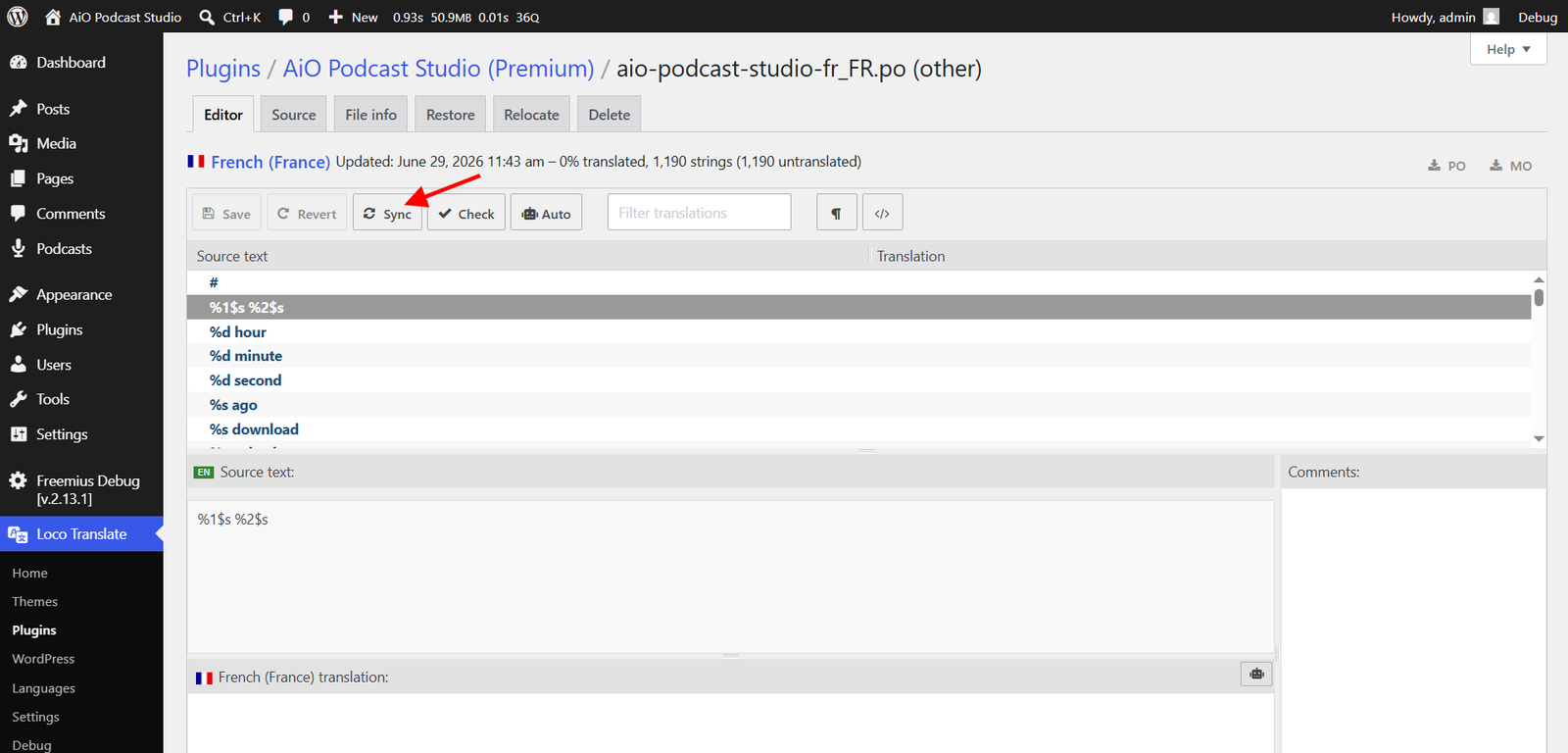
- Click the Sync button. Loco Translate will detect any new or modified strings from the plugin and add them to your translation file, leaving your existing translations untouched.
- Translate the newly added strings, then click Save.
Sharing Your Translation
If you have completed a translation and would like to share it with other users of the plugin, you are welcome to submit your .po and .mo files through our support page. Accepted translations may be bundled with a future release of the plugin so that other users speaking the same language can benefit from your work without having to translate from scratch.