
AiO Podcast Studio automatically records every episode download and play so you can see how your content is performing. Statistics are collected in real time, deduplicated to filter out repeated requests, and stored against each episode and podcast. This tutorial explains how statistics are collected, where to view them, and how to display them to visitors on your website.
Contents
- How Statistics Are Collected
- Viewing Statistics in the Admin
- Displaying Statistics on Your Website
- Statistics Log Retention
How Statistics Are Collected
The plugin tracks two types of events for each episode.
- Downloads — Recorded when a visitor or podcast app requests the episode audio file. This includes plays from apps such as Apple Podcasts, Spotify, Overcast, Pocket Casts, and others that fetch the file directly. The plugin detects which application made the request from the HTTP User-Agent header and stores it alongside the event.
- Plays — Recorded when a visitor presses the play button in the embedded web player on your website. These events are logged via the browser and counted separately from downloads.
To prevent a single visitor from being counted multiple times, the plugin deduplicates events by IP address. If the same IP address requests the same episode within a 60-minute window, only the first request is counted. No action is required on your part to enable this — deduplication is always active.
All statistics are stored in your WordPress database and are never sent to any external service.
Viewing Statistics in the Admin
Download and play totals are visible directly in the episode and podcast list screens in the WordPress admin.
Episode statistics
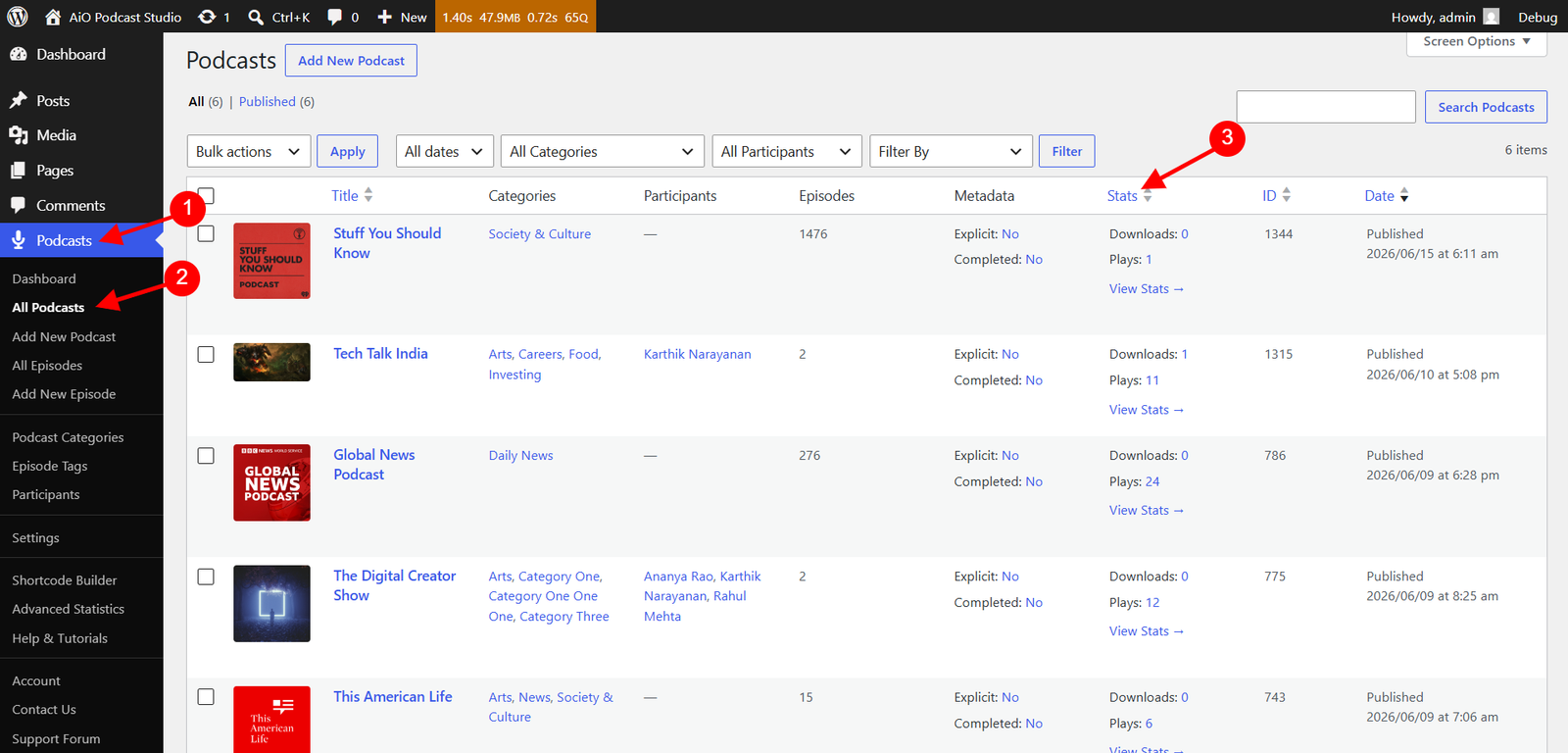
Go to Podcasts → All Episodes. The episode list includes a Stats column that shows the total downloads and total plays recorded for each episode since it was published. You can click the Stats column header to sort the episode list by total activity, which makes it easy to identify your most popular episodes.
Podcast statistics
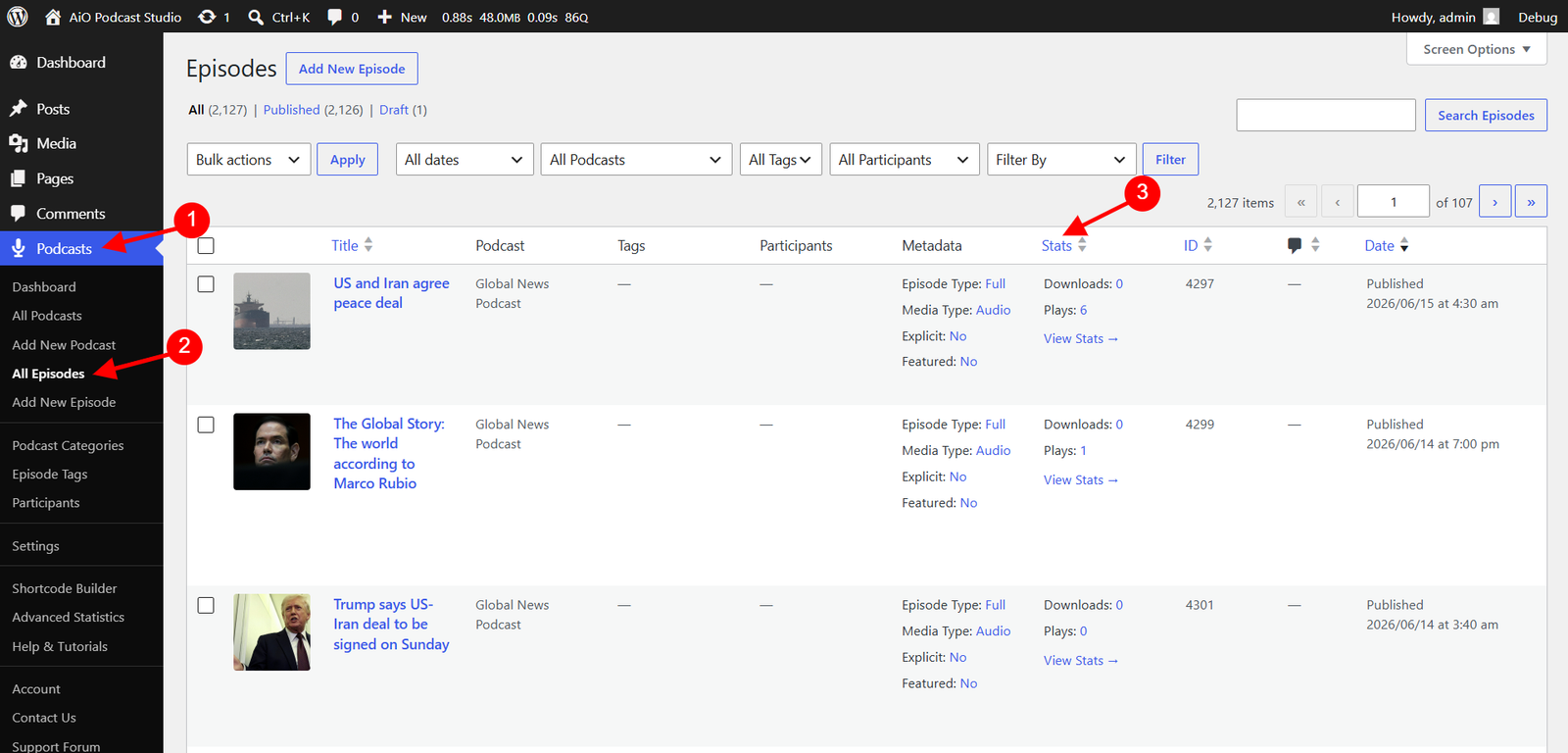
Go to Podcasts → All Podcasts. The podcast list also includes a Stats column showing the combined downloads and plays across all episodes belonging to each podcast. Clicking the column header sorts podcasts by total activity.
Displaying Statistics on Your Website
You can choose to display download and play counts to visitors on your website. These can be shown on episode cards in your listings, inside the audio player, and on the single podcast page. Each location is configured independently.
Episode cards in listings
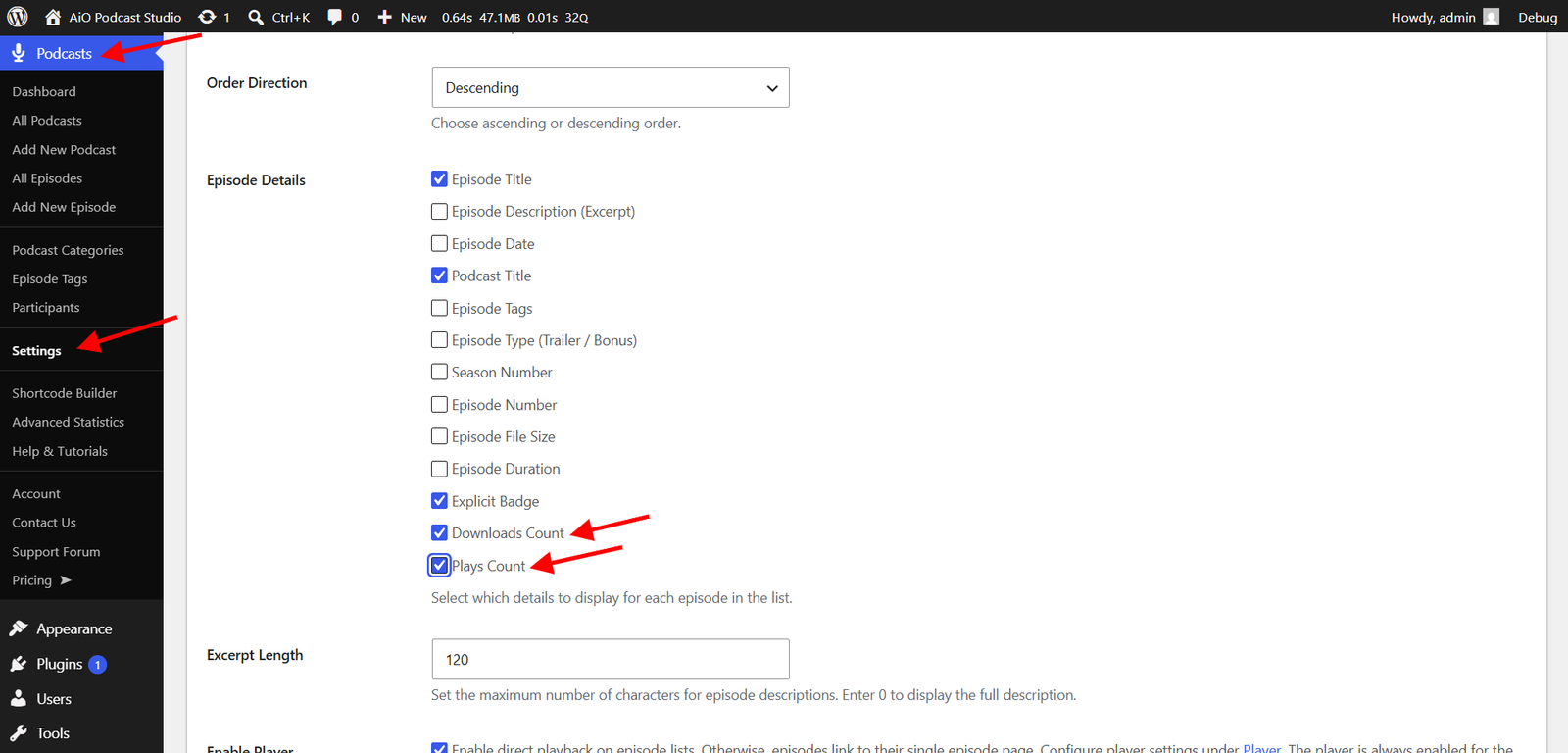
Go to Podcasts → Settings and open the Display tab. Under the Episodes List section, locate the Episode Details multicheck and enable Downloads Count, Plays Count, or both. When active, the selected counts will appear on each episode card in your episode listings.
Player
Go to Podcasts → Settings → Display → Player. Under the Episode Details section, enable Downloads Count, Plays Count, or both. The selected counts will then appear alongside the player when an episode is loaded.
Single podcast page
Go to Podcasts → Settings → Display → Podcast. Under the Podcasts List section, enable Downloads Count, Plays Count, or both. These totals reflect the combined statistics for all episodes belonging to the podcast.
Number format
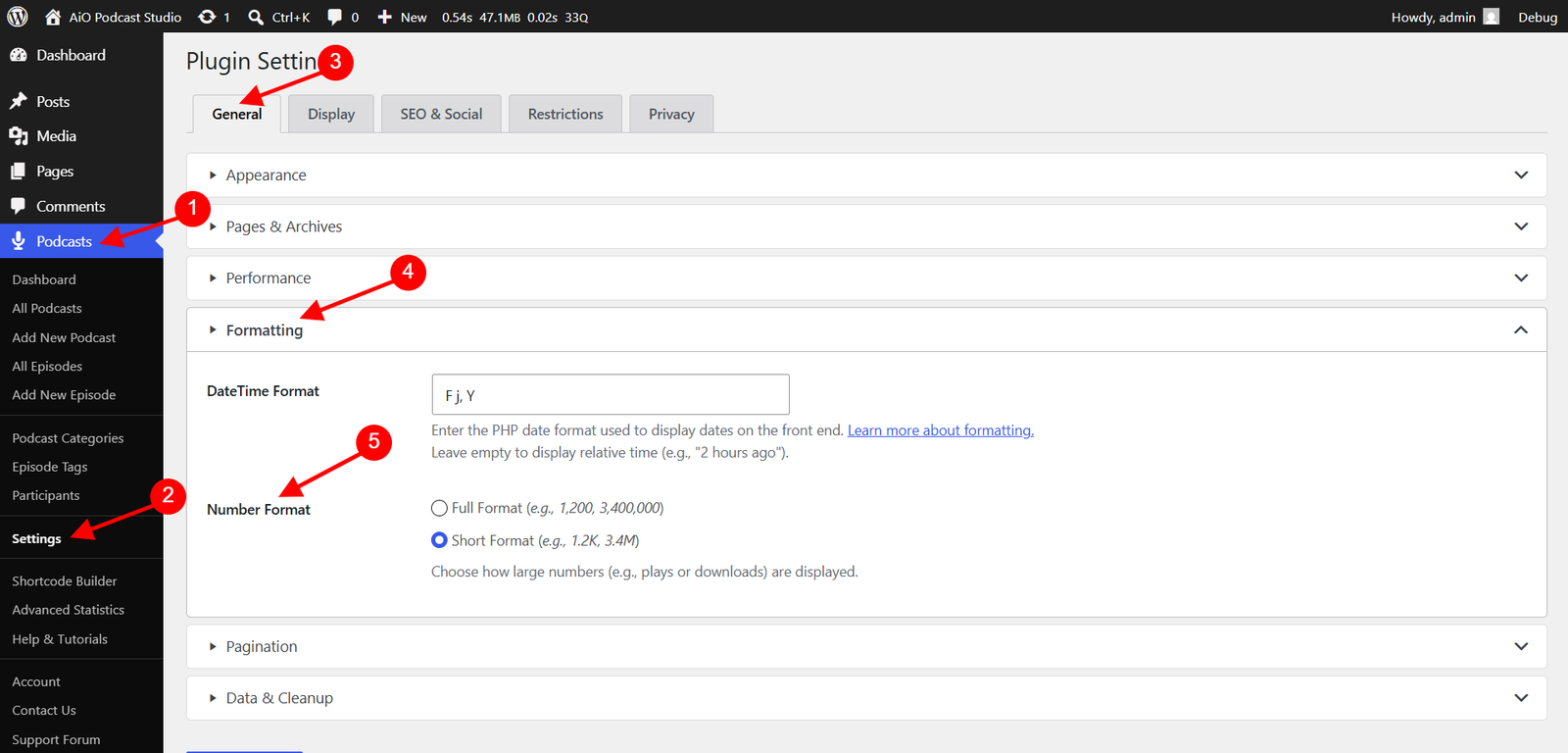
Go to Podcasts → Settings → General → Formatting Tab. Under Number Format, choose how large counts are displayed across your website. Full Format shows the complete number with thousands separators (e.g., 1,200), while Short Format abbreviates large numbers (e.g., 1.2K).
Statistics Log Retention
The plugin stores a detailed log of every individual download and play event. Over time this log can grow large. You can set a retention period to automatically remove old raw log entries while keeping your cumulative totals intact.
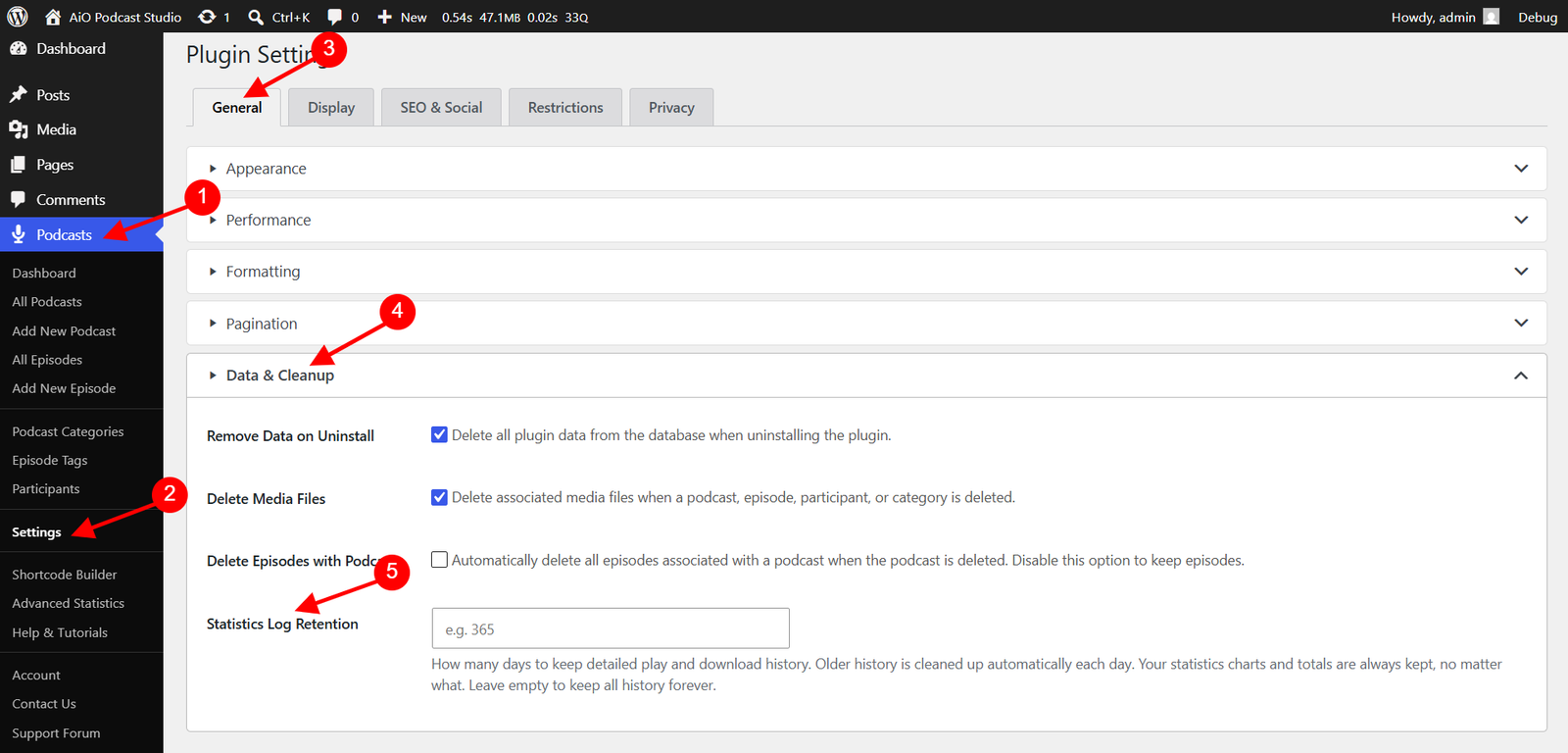
Go to Podcasts → Settings and open the General tab. Under the Cleanup section, find the Statistics Log Retention field and enter the number of days of detailed history to keep — for example, enter 365 to retain one year of raw events. The plugin will automatically clean up log entries older than this value each day.
Your all-time download and play totals are always preserved regardless of the retention setting. Only the underlying raw event log is pruned. Leave the field empty if you want to keep the full event history indefinitely.