
AiO Podcast Studio lets you organise episodes into seasons by assigning a season number to each episode. Season numbers appear on episode cards, in the audio player, and in your RSS feed. Visitors can also filter episodes by season directly on your podcast page. This tutorial explains how to set up and display seasons across your podcast.
Contents
- Assign a Season to an Episode
- Display Season Numbers on Your Website
- Let Visitors Filter by Season
- Season Numbers in Your RSS Feed
Assign a Season to an Episode
Open the episode you want to edit by going to Podcasts → All Episodes and clicking the episode title. In the Episode Info panel below the content editor, make sure the Episode Details tab is selected. Enter a number in the Season Number field to assign the episode to that season. Click Update to save.
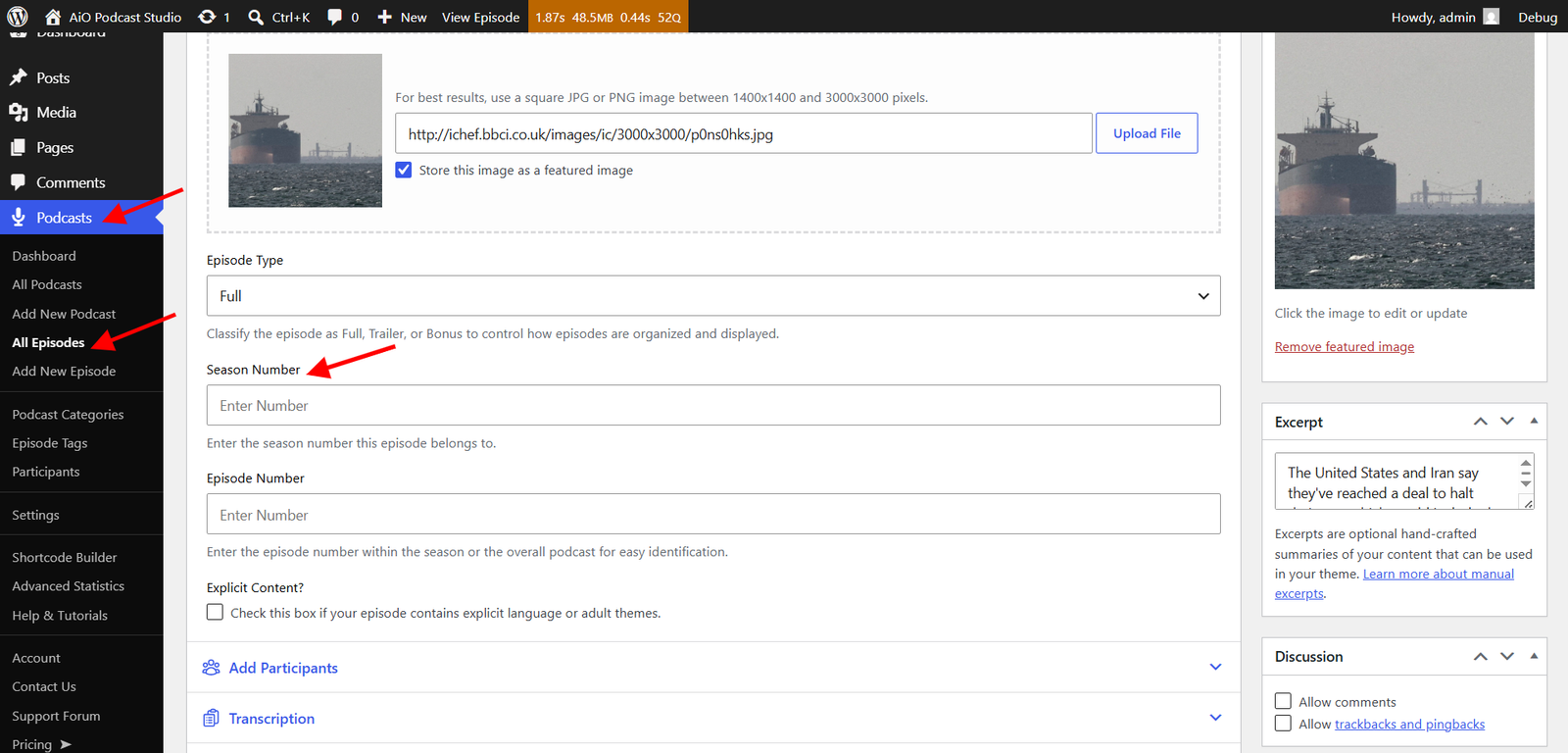
Seasons are identified by number only — there is no separate screen for creating or naming seasons. Any episode with a season number set is considered part of that season. You can assign the same number to as many episodes as needed to build out a full season.
Leave the field blank for episodes that do not belong to a season. The season number is entirely optional and can be added or changed at any time.
Display Season Numbers on Your Website
Season numbers are hidden by default and must be turned on in settings. You can show them on episode cards in your listings and inside the audio player independently.
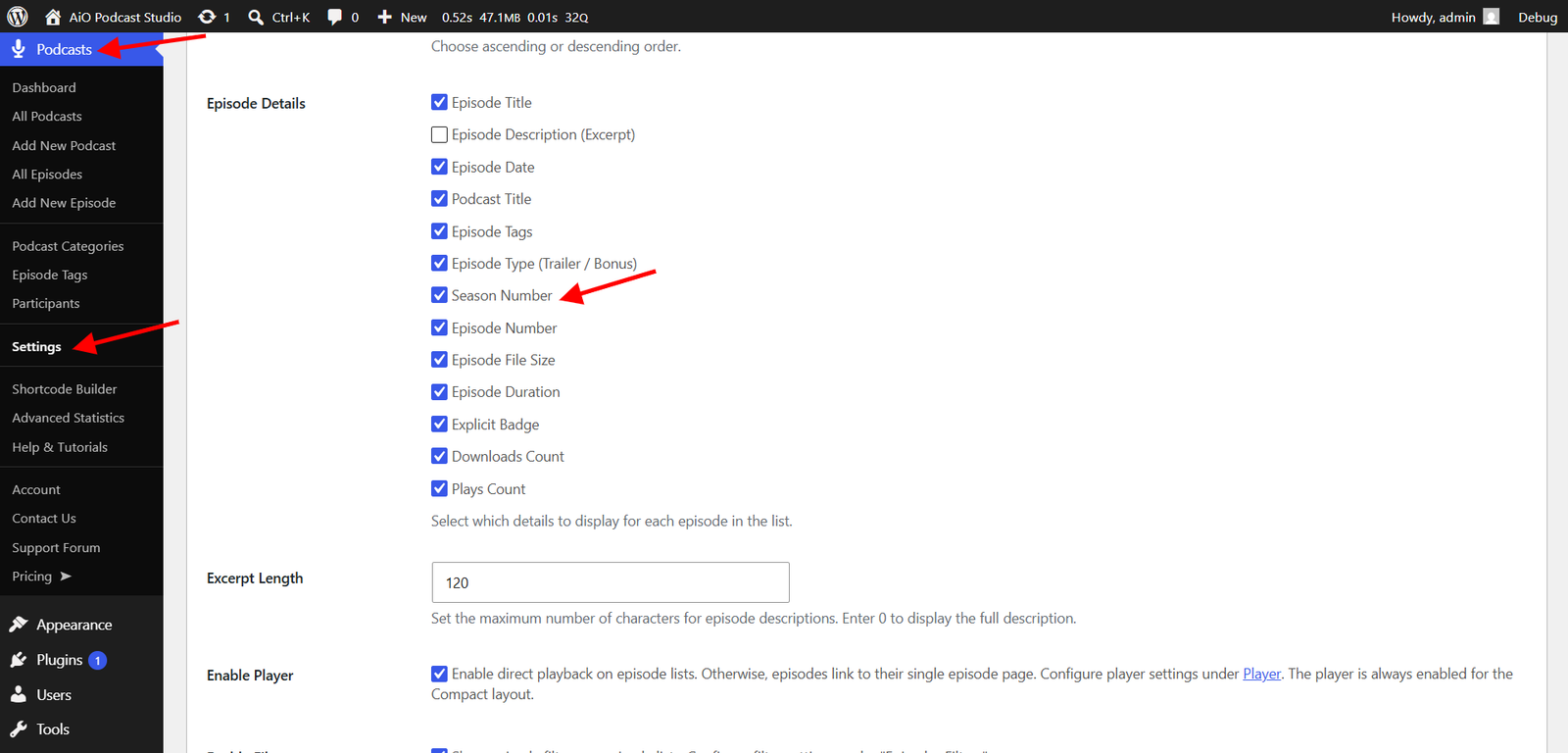
Episode listings
Go to Podcasts → Settings and open the Display tab. Under the Episodes → Episode Details, enable Season Number. When active, each episode card will show the season label — for example, Season 2 — alongside the other episode metadata.
Player
Go to Podcasts → Settings and open the Display tab. Under the Player → Episode Details, enable Season Number to display the season inside the audio player when an episode is playing.
Let Visitors Filter by Season
You can add a season filter dropdown to your episode listings so that visitors can browse episodes one season at a time. Go to Podcasts → Settings → Display and open the Episodes tab. Under the Episodes Filters options, enable Filter by Season Number.
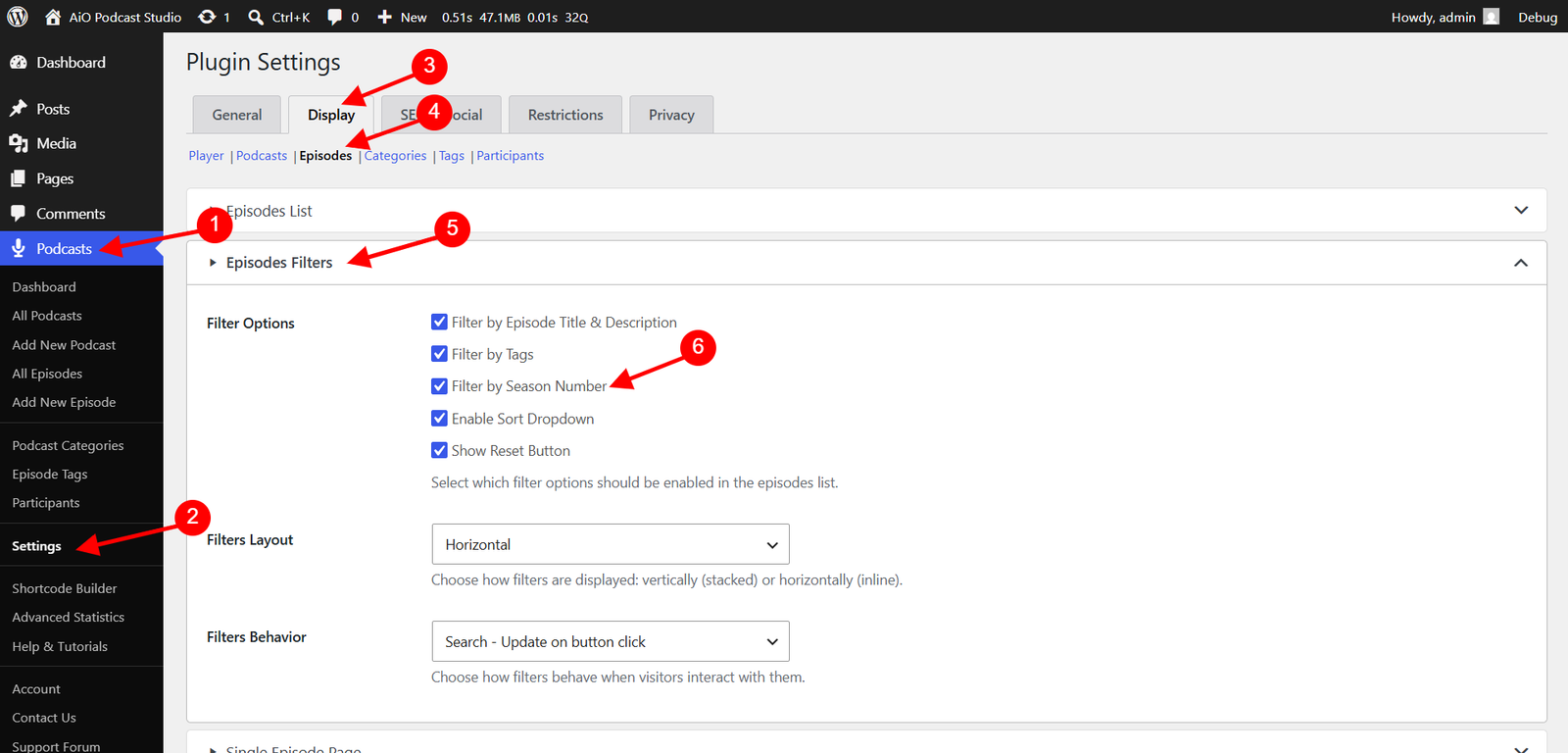
When this filter is active, a Season dropdown will appear in the episode listing filter bar. The dropdown is populated automatically from the season numbers that exist across the published episodes of a given podcast — no manual configuration is required. Visitors can select a season to narrow the listing, or choose All Seasons to reset the filter.
Season Numbers in Your RSS Feed
The season number is automatically included in your RSS feed as the <itunes:season> tag for any episode that has a season number set. Podcast directories such as Apple Podcasts read this tag to group and display episodes by season.
No additional configuration is needed — setting the season number on an episode is all that is required for it to appear in the feed. Episodes without a season number will not include the tag.