AiO Podcast Studio can import an existing podcast directly from its RSS feed. This is the fastest way to bring a podcast that is already hosted on an external platform — such as Buzzsprout, Podbean, Anchor, or Libsyn — into WordPress, along with all of its episodes, descriptions, and metadata, without re-entering anything by hand.
Contents
- Before You Begin
- Step 1 — Open the Add New Podcast Page
- Step 2 — Configure and Start the Import
- Step 3 — Wait for the Import to Complete
- Step 4 — Review the Imported Podcast
- Keeping Episodes Up to Date
- Troubleshooting
Before You Begin
To import a podcast you will need its RSS feed URL — the web address that your hosting platform uses to distribute the podcast to Apple Podcasts, Spotify, and other directories. Most podcast hosting platforms display this URL in their dashboard under a section labelled Feed, Distribution, or RSS.
The RSS feed must be publicly accessible. If your hosting platform has set the feed to private, the import will not be able to read it. Set the feed to public before proceeding.
Step 1 — Open the Add New Podcast Page
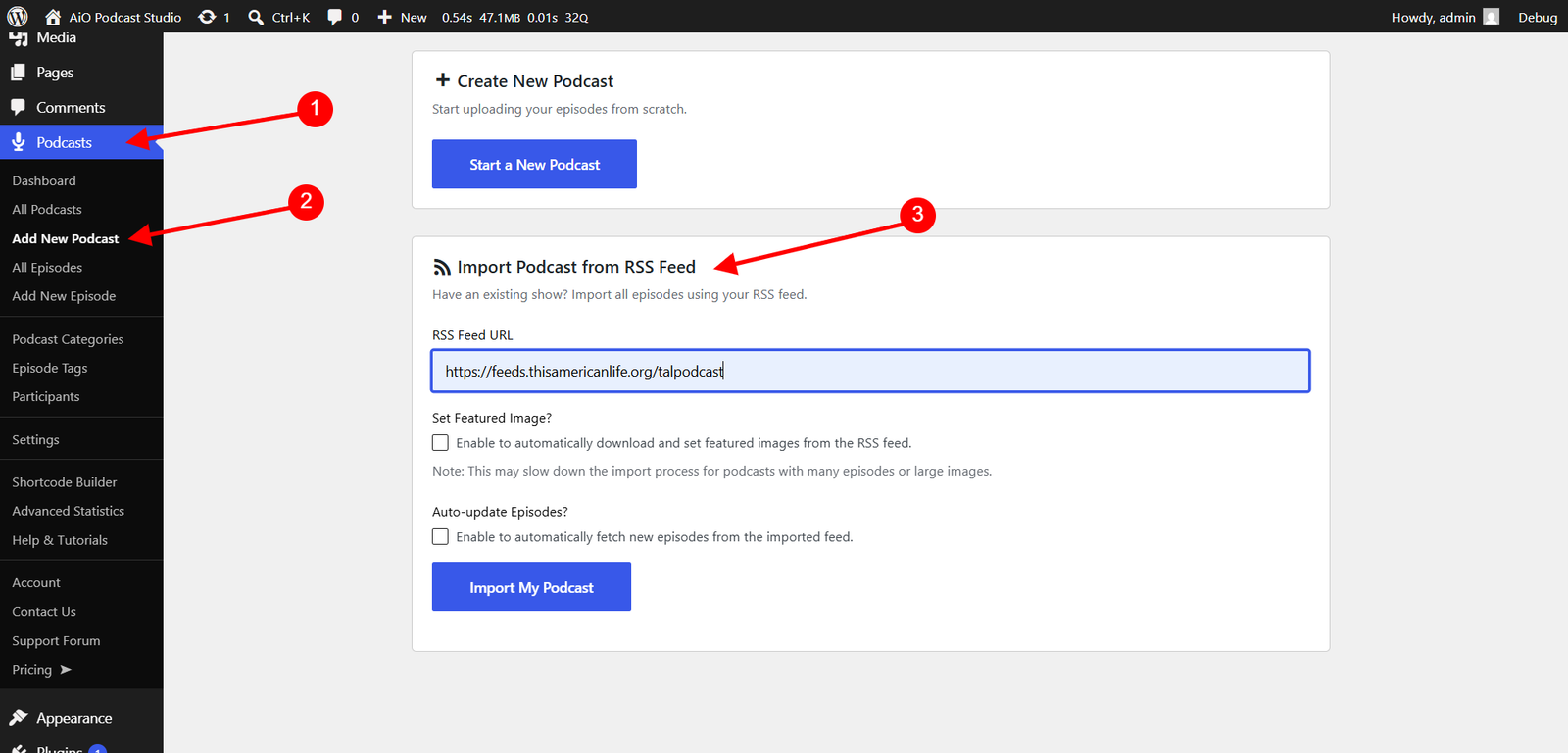
Navigate to Podcasts → Add New in your WordPress admin. The page that opens presents two options: Create New Podcast for starting from scratch, and Import Podcast from RSS Feed for bringing in an existing podcast. Select the second option to proceed with the import.
Step 2 — Configure and Start the Import
The import form contains the following fields. Fill them in before clicking the import button.
RSS Feed URL
Paste the RSS feed URL of your podcast into this field. This is the only required field. The plugin will connect to this URL, read the feed, and use it to create the podcast and all of its episodes in WordPress.
Set Featured Image?
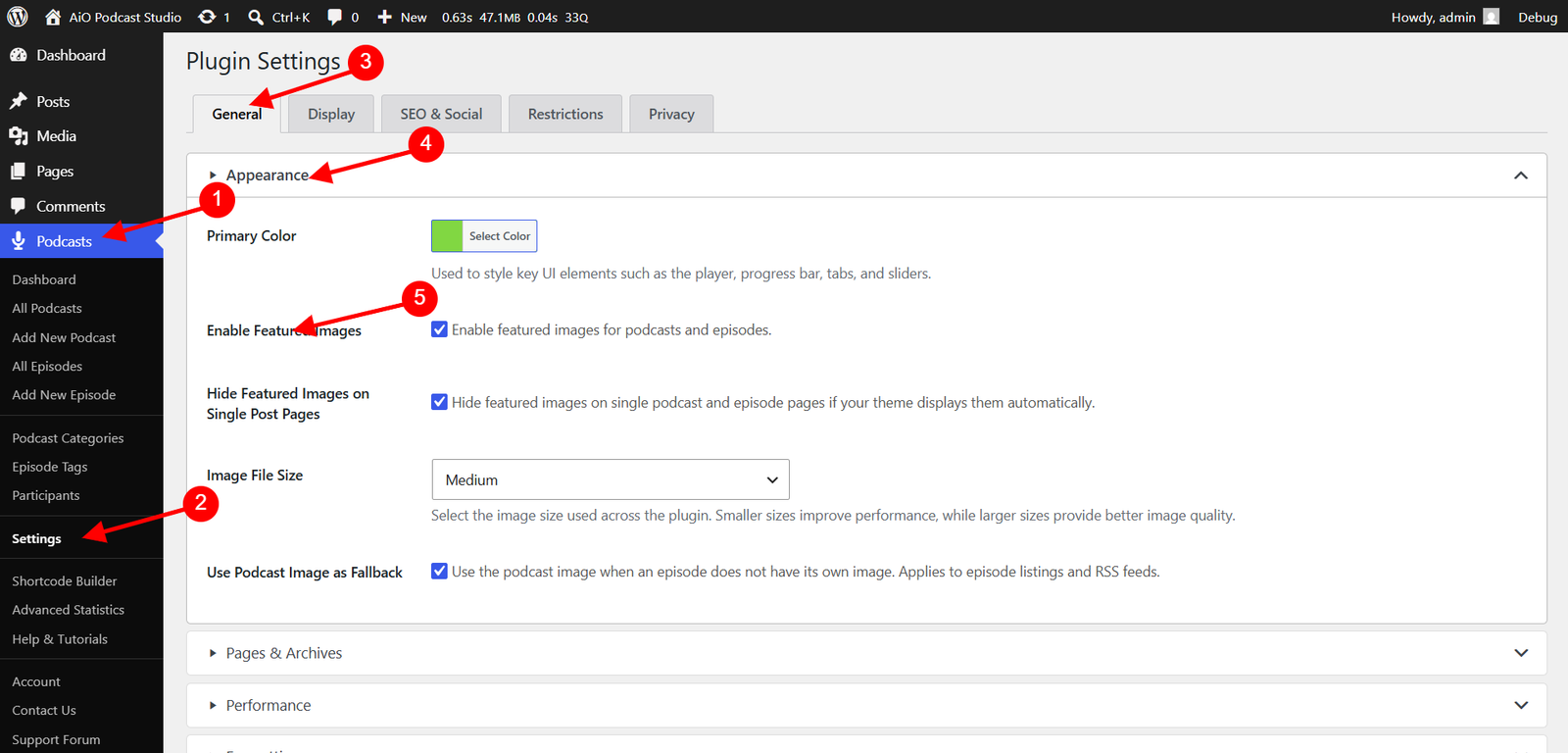
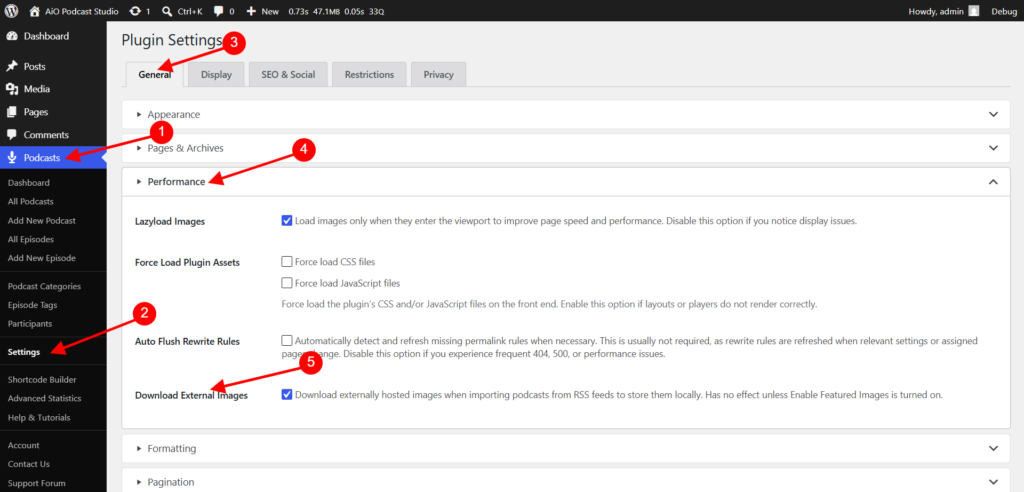
When this option is enabled, the plugin will automatically download the cover artwork from the RSS feed and assign it as the featured image for the podcast and each episode. This option is only visible if both featured images and external image downloads are enabled in Podcasts → Settings → Appearance.
Enabling this option will increase the time the import takes, particularly for podcasts with many episodes or large images. If you plan to use your own artwork, leave this option unchecked.
Auto-update Episodes?
When this option is enabled, the plugin will periodically check the RSS feed for new episodes and import them automatically. This is useful if you intend to continue publishing new episodes on your external hosting platform while maintaining a copy in WordPress.
If you enable this option, an additional field appears allowing you to set the update frequency:
- Only Once — Runs a single import and does not schedule any future checks.
- Every 1 Hour — Checks for new episodes once per hour.
- Every 1 Day — Checks for new episodes once per day.
- Every 1 Week — Checks for new episodes once per week.
- Every 1 Month — Checks for new episodes once per month.
Once the form is filled in, click Import My Podcast to begin.
Step 3 — Wait for the Import to Complete
Once the import starts, a progress message appears below the button showing how many episodes have been processed out of the total. The plugin processes episodes in batches, so the counter will update several times for larger feeds. Do not close the browser tab or navigate away while the import is running, as this will interrupt the process.
When all episodes have been processed, a confirmation message will appear and the page will automatically redirect to the podcast edit screen where you can review and edit the imported content.
Step 4 — Review the Imported Podcast
After the import completes you will land on the podcast edit screen. The podcast title, description, cover image, language, and categories will have been populated from the RSS feed. Review these details and make any adjustments needed before the podcast appears on your website.
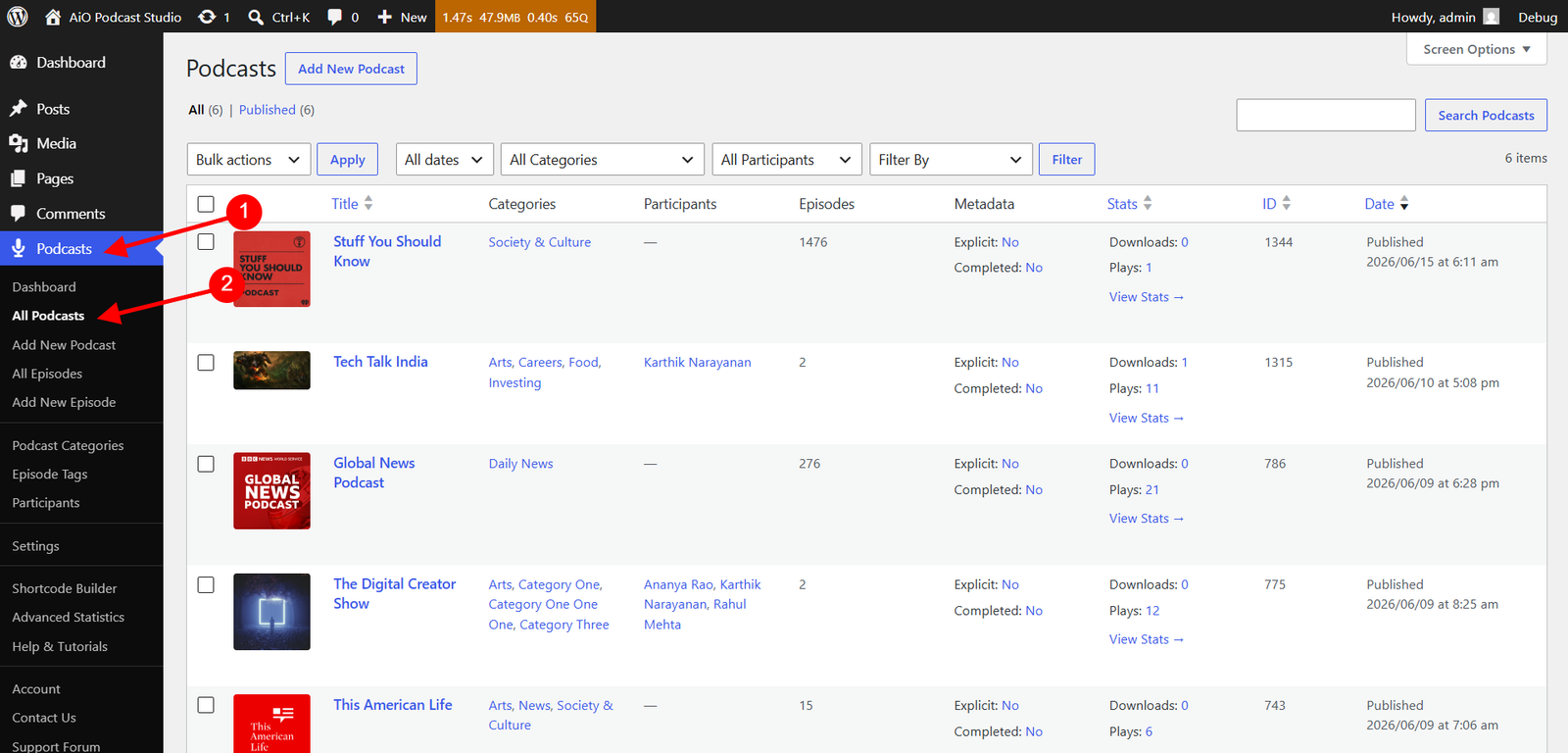
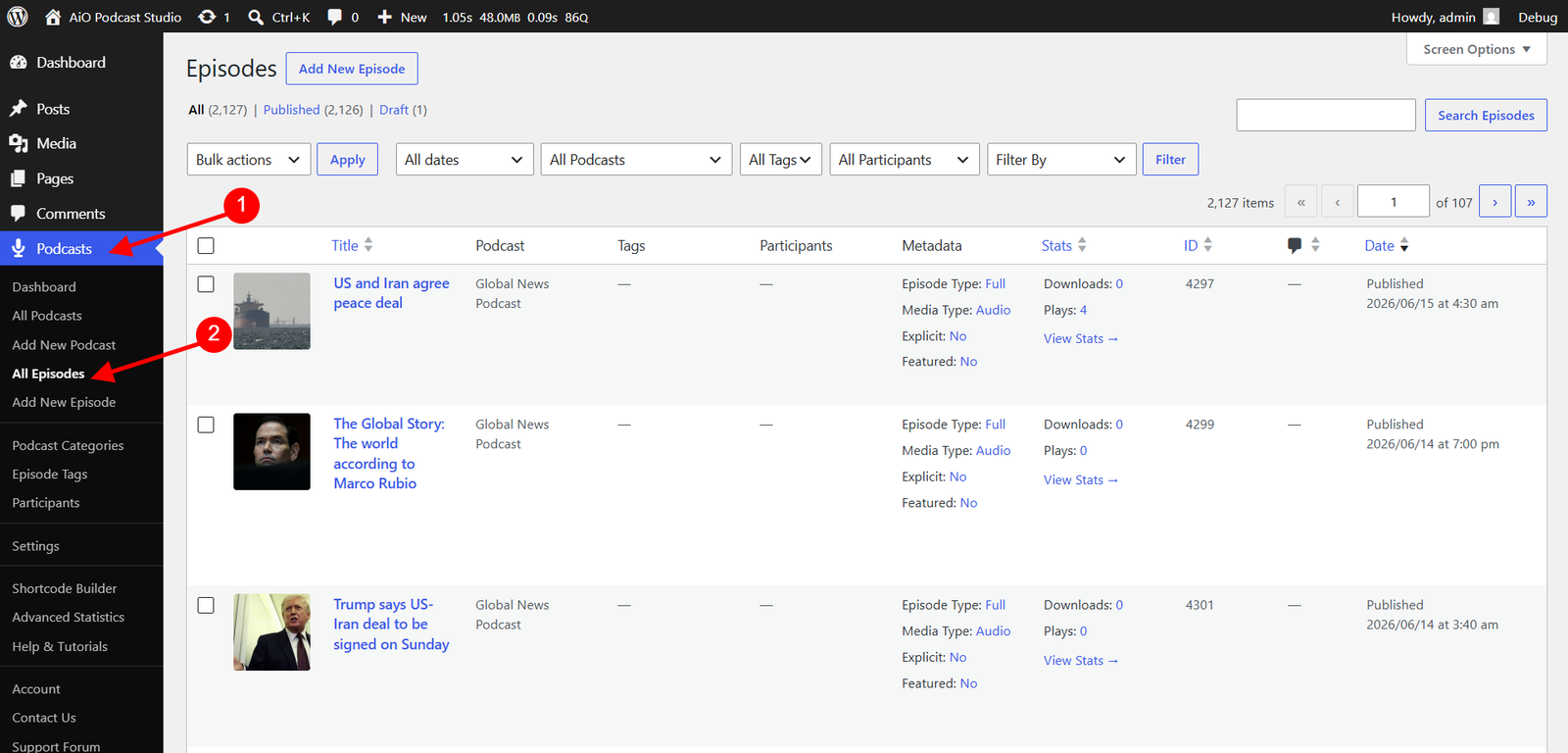
To verify that episodes were imported correctly, navigate to Podcasts → Episodes. All episodes from the feed should appear in the list, each with its title, description, audio file, duration, and publication date. You can open any episode individually to edit its content.
Keeping Episodes Up to Date
If you enabled auto-update during the initial import, new episodes published to your external hosting platform will be detected and imported automatically according to the frequency you selected. No further action is required.
You can also trigger a manual check for new episodes at any time. Open the podcast edit screen, locate the Import Options accordion, and click Check for New Episodes. The plugin will connect to the RSS feed immediately and import any episodes that have been published since the last import.
The Import Options accordion also contains the following settings, which can be adjusted after the initial import:
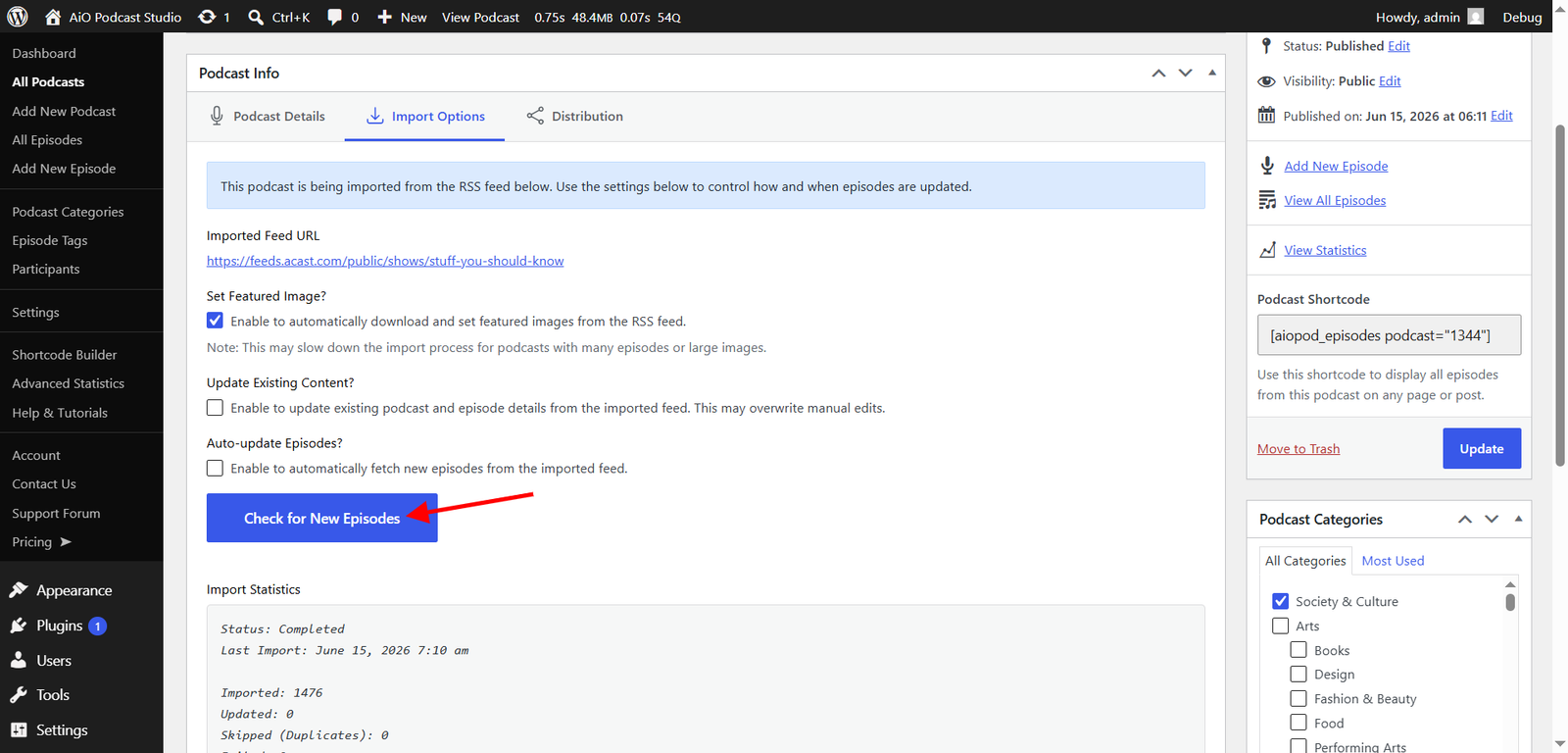
- Set Featured Image? — Enable or disable automatic artwork downloads for future imports.
- Update Existing Content? — When enabled, the next import run will overwrite the current podcast and episode details with the latest data from the feed. This may replace any manual edits you have made to the content.
- Auto-update Episodes? — Toggle automatic episode checks on or off.
- Auto-update Frequency — Change how often the feed is checked for new episodes.
- Import Statistics — A log of previous import runs, showing how many episodes were imported, updated, skipped as duplicates, or failed in each run.
Troubleshooting
The import fails immediately with a feed error
Confirm the feed URL is correct by opening it in a web browser. If it loads in the browser but not in the importer, your server may be blocking outbound HTTP requests. Contact your hosting provider to confirm that WordPress can make external HTTP connections.
Some episodes are listed as duplicates and skipped
The plugin detects duplicates using the GUID and audio file URL from each episode in the feed. If an episode has already been imported, it will be counted as a duplicate and skipped rather than imported a second time. This is normal behaviour and prevents duplicate episodes from appearing on your site.
The import page becomes unresponsive on a large feed
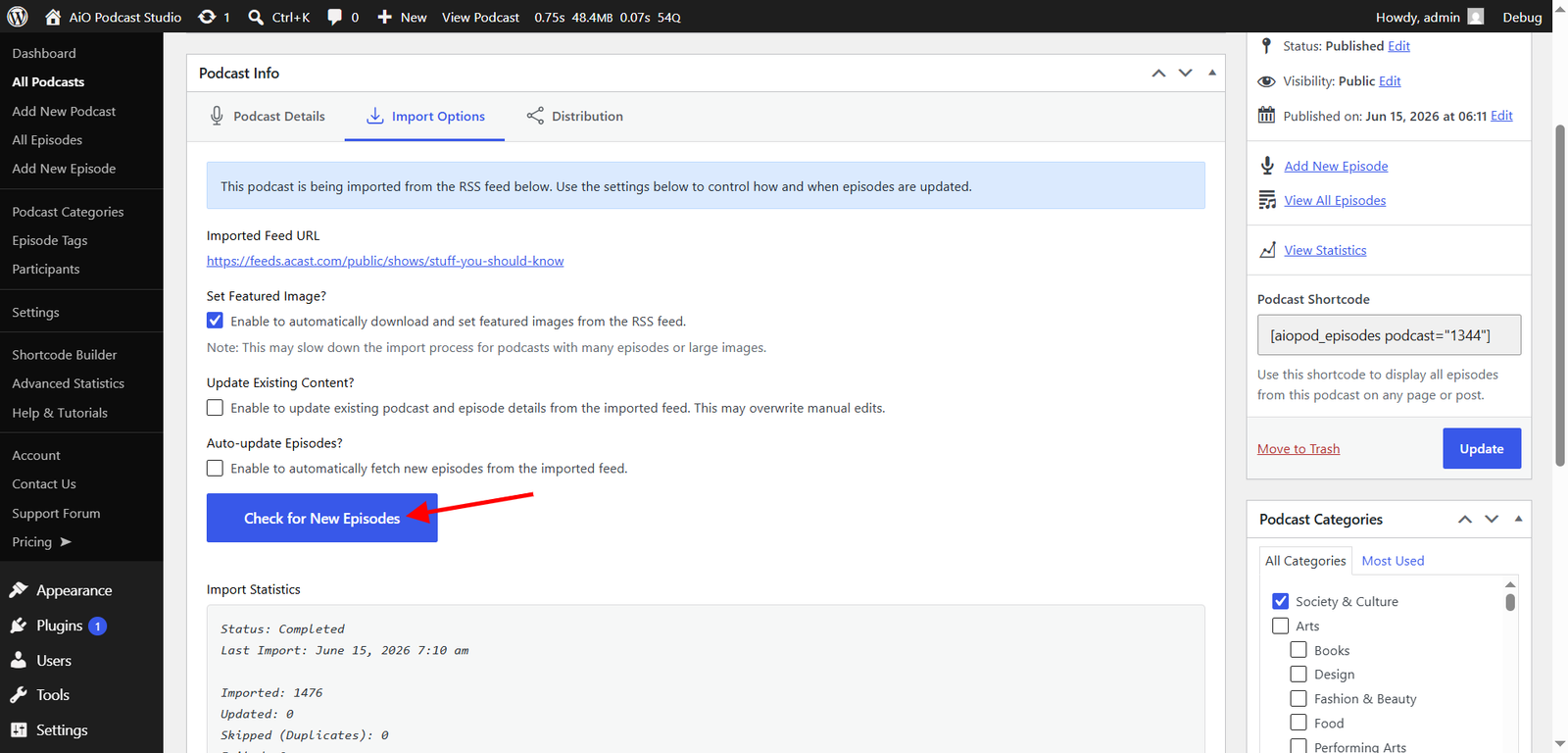
On shared hosting with strict PHP execution time limits, very large feeds may take longer than the server allows for a single browser session. If the import stops partway through, return to Podcasts → All Podcasts, open the imported podcast, and use the Check for New Episodes button in the Import Options accordion. The plugin will skip already-imported episodes and continue from where it left off.
Episode artwork is not appearing
Featured image downloads require both the Enable Featured Images and Download External Images options to be active in Podcasts → Settings → Appearance and Podcasts → Settings → Performance respectively. If either setting is disabled, the Set Featured Image? option will not appear in the import form and artwork will not be downloaded. Enable both settings and then use Check for New Episodes to re-process the feed with image downloads enabled.