
Chapters let your listeners jump to key moments in an episode directly from the player. Each chapter has a timestamp and a label, and they appear as a clickable menu in the episode player on your site. This tutorial explains how to enable the chapters feature and add chapters to any episode.
Contents
- How Chapters Work
- Enabling the Chapters Control
- Adding Chapters to an Episode
- Managing Your Chapters
How Chapters Work
When chapters are enabled for an episode, a Chapters button appears in the episode player controls. Clicking the button opens a menu that lists every chapter you have defined, showing each chapter’s label and its start time. Selecting a chapter from the menu immediately moves the player to that point in the audio. This gives listeners a way to navigate long episodes without scrubbing through the timeline manually.
Chapters must be set up in two places: the Chapters control must be enabled in the global player settings, and chapters must be added individually to each episode where you want to use them.
Enabling the Chapters Control
Before chapters will appear in the player, the Chapters control must be switched on in the plugin’s global player settings.
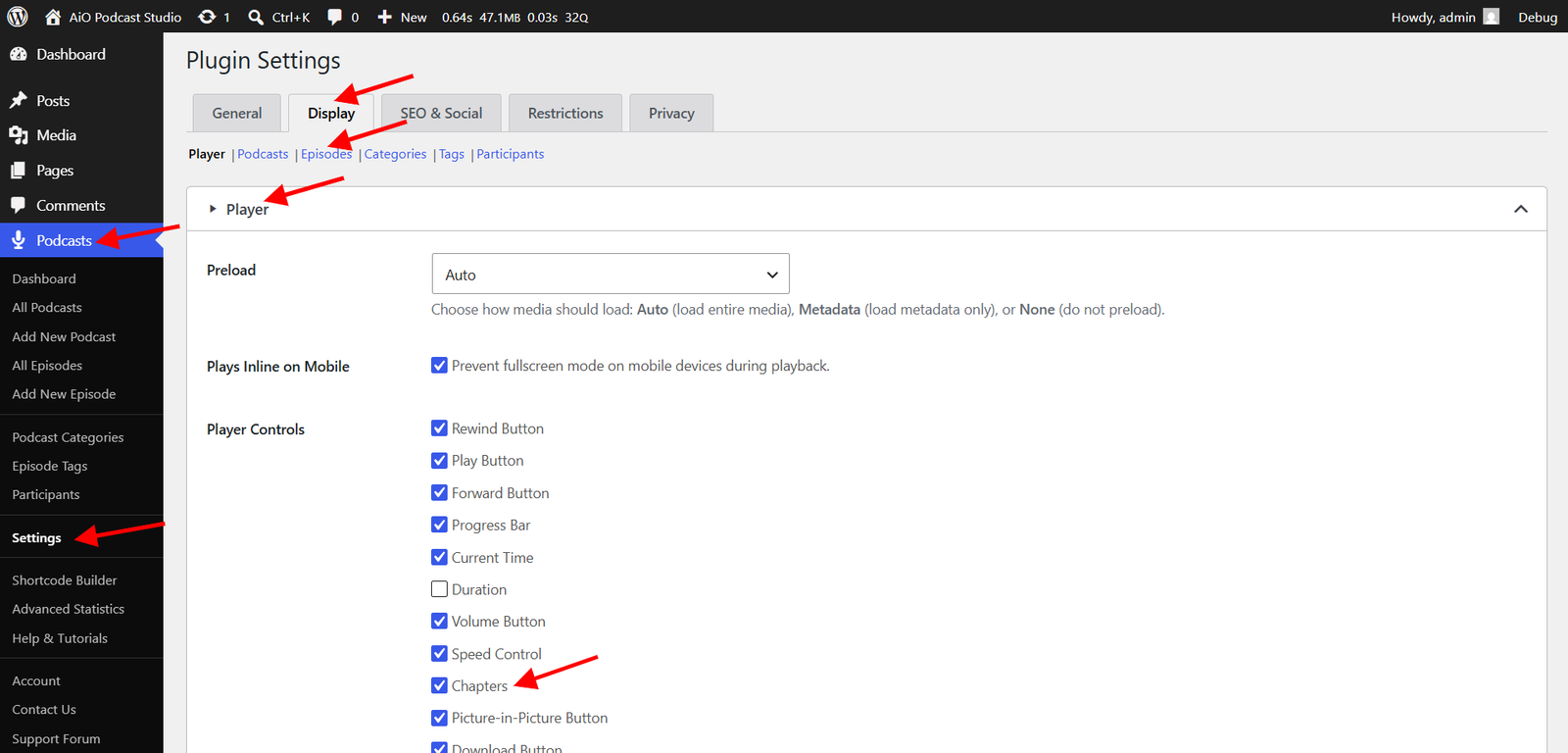
- Go to Podcasts → Settings → Display Tab in your WordPress admin.
- Click the Player Section.
- Find the Player Controls setting and check the Chapters option.
- Click Save Changes.
Once saved, the player will display the Chapters button for any episode that has chapters enabled and at least one chapter defined.
Adding Chapters to an Episode
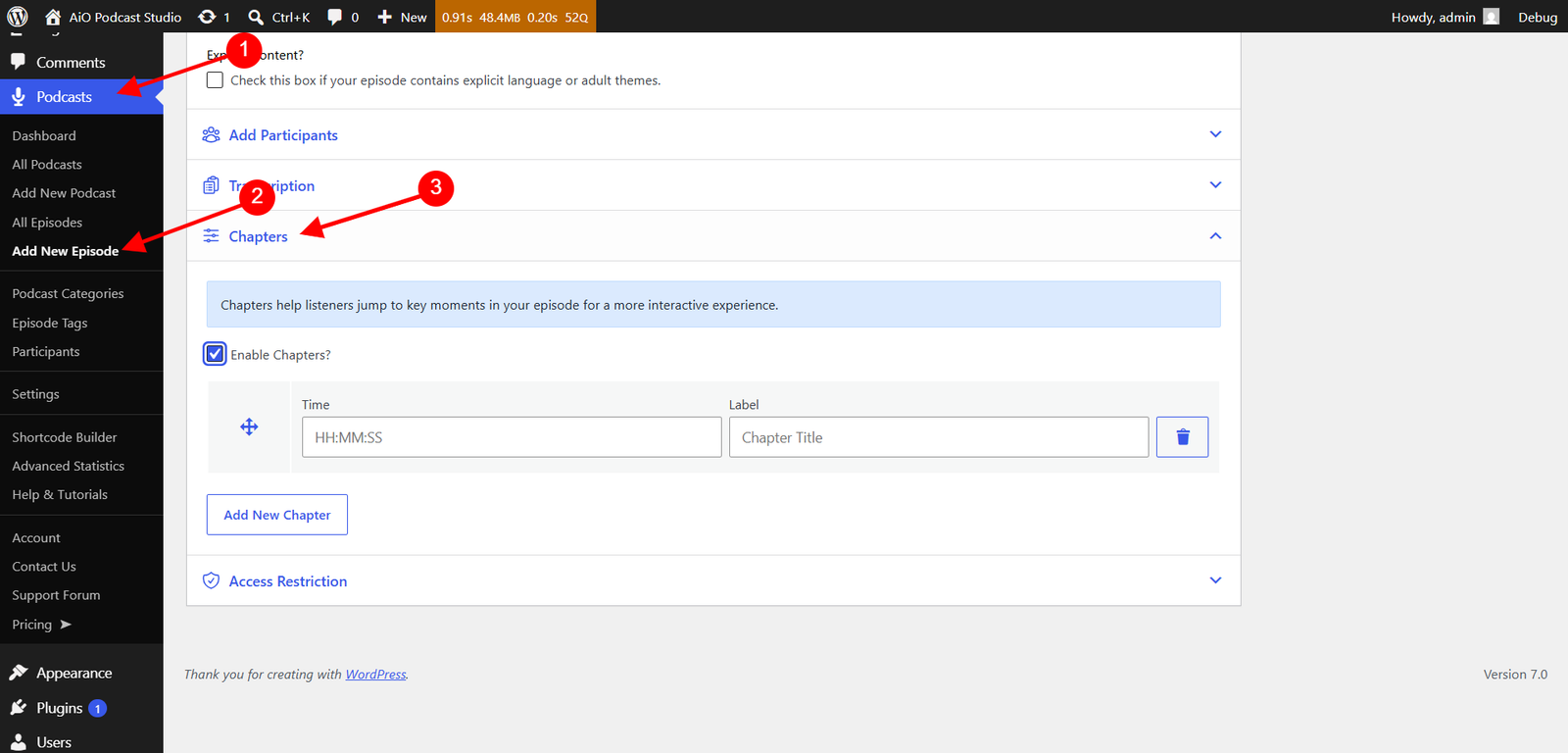
- Open the episode in the WordPress editor by going to Podcasts → All Episodes and clicking the episode title.
- Scroll down to the Episode Info meta box and click the Chapters accordion to expand it.
- Check the Enable Chapters? checkbox. The chapters table will appear below the checkbox.
- Click Add New Chapter. A new row will appear in the table with two fields.
- Enter the chapter’s start time in the Time field using the format HH:MM:SS. For example, enter 00:05:30 for a chapter that starts at five minutes and thirty seconds into the episode.
- Enter a short, descriptive title for the chapter in the Label field. This is the text that will appear in the player’s chapters menu.
- Repeat steps 4 through 6 for each additional chapter you want to add.
- Click Update or Publish to save the episode.
Managing Your Chapters
After adding your chapters you can reorder or remove them at any time without leaving the episode editor.
- Reorder chapters — Click and hold the drag handle on the left side of any row and drag it up or down to the desired position. The player will display chapters in the order they appear in the table.
- Delete a chapter — Click the trash icon on the right side of the row you want to remove. The row is removed immediately from the table.
- Disable chapters — Uncheck the Enable Chapters? checkbox to hide the chapters menu from the player without deleting the chapter data. Your chapters will be preserved and can be re-enabled at any time.
Remember to click Update after making any changes to ensure they are saved.