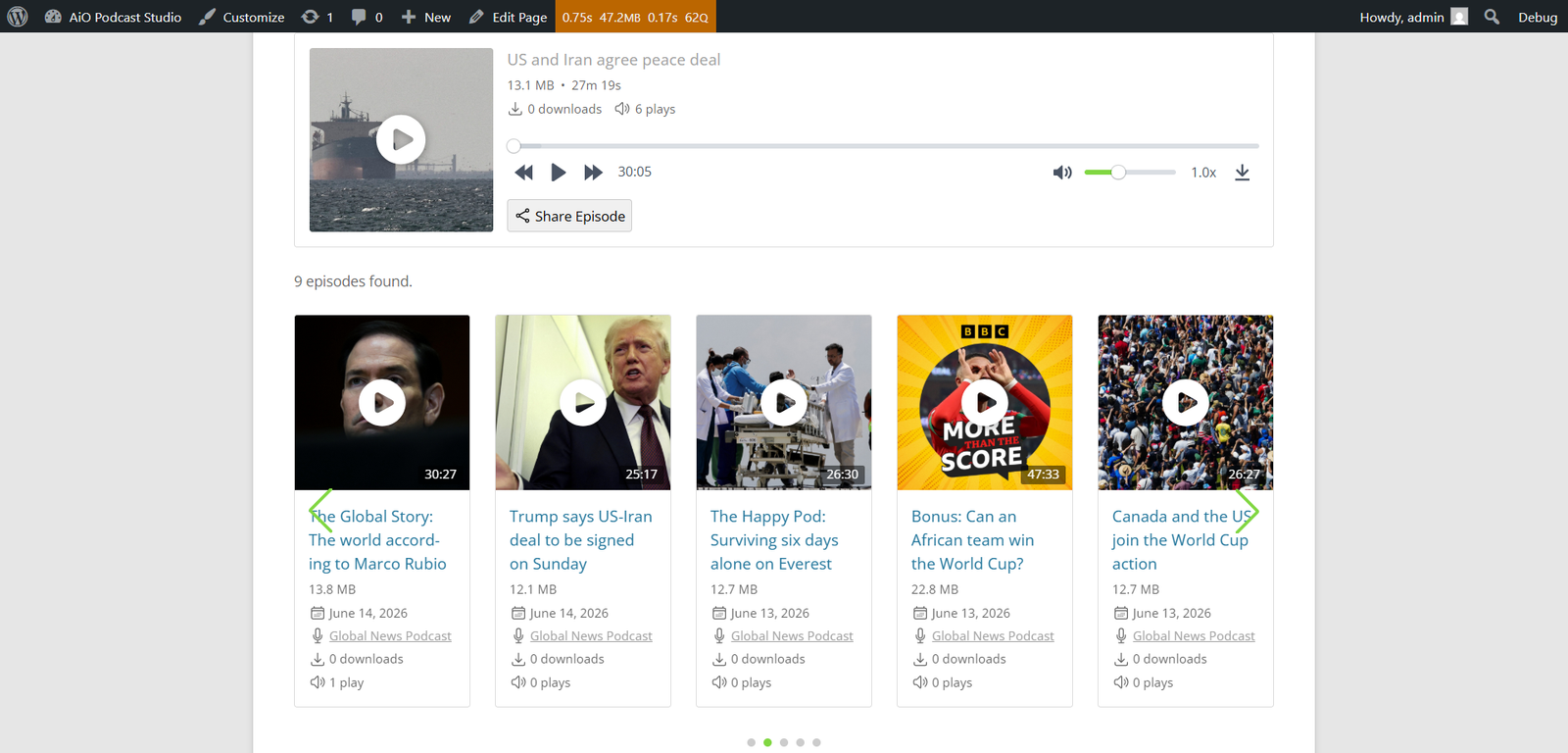
AiO Podcast Studio offers four layout options for displaying your episode listings: Grid, List, Compact, and Slider. Each layout presents episodes differently and suits different page designs. You can switch between layouts at any time from the settings screen without affecting your episode content.
Contents
Choosing a Layout
Go to Podcasts → Settings and open the Display tab. Under the Episodes List section, locate the Select Layout dropdown and choose one of the four options: Grid, List, Compact, or Slider. Click Save Changes. The new layout will apply immediately to all episode listings on your website.
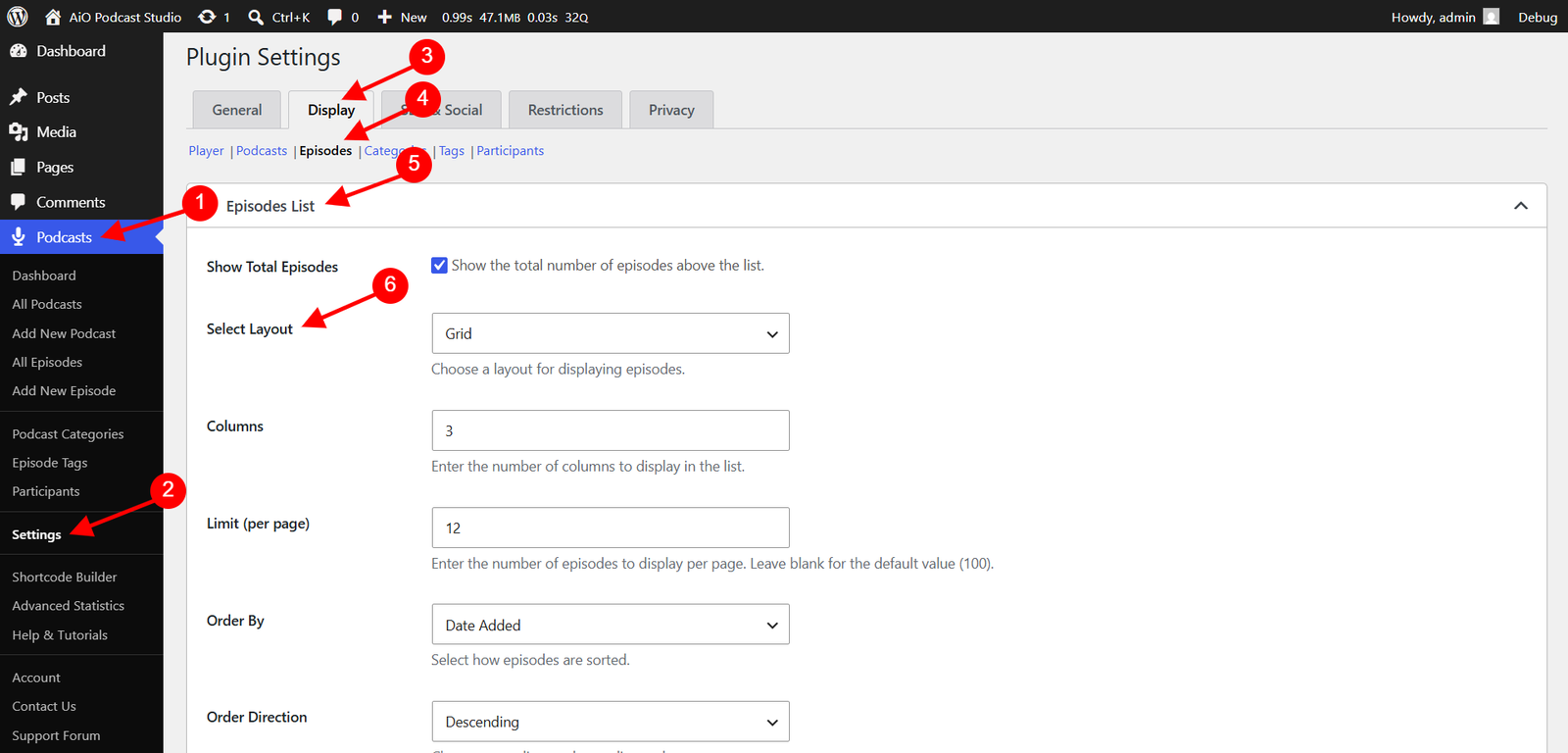
Additional settings appear depending on which layout you select. These are described in detail in the sections below.
Grid Layout
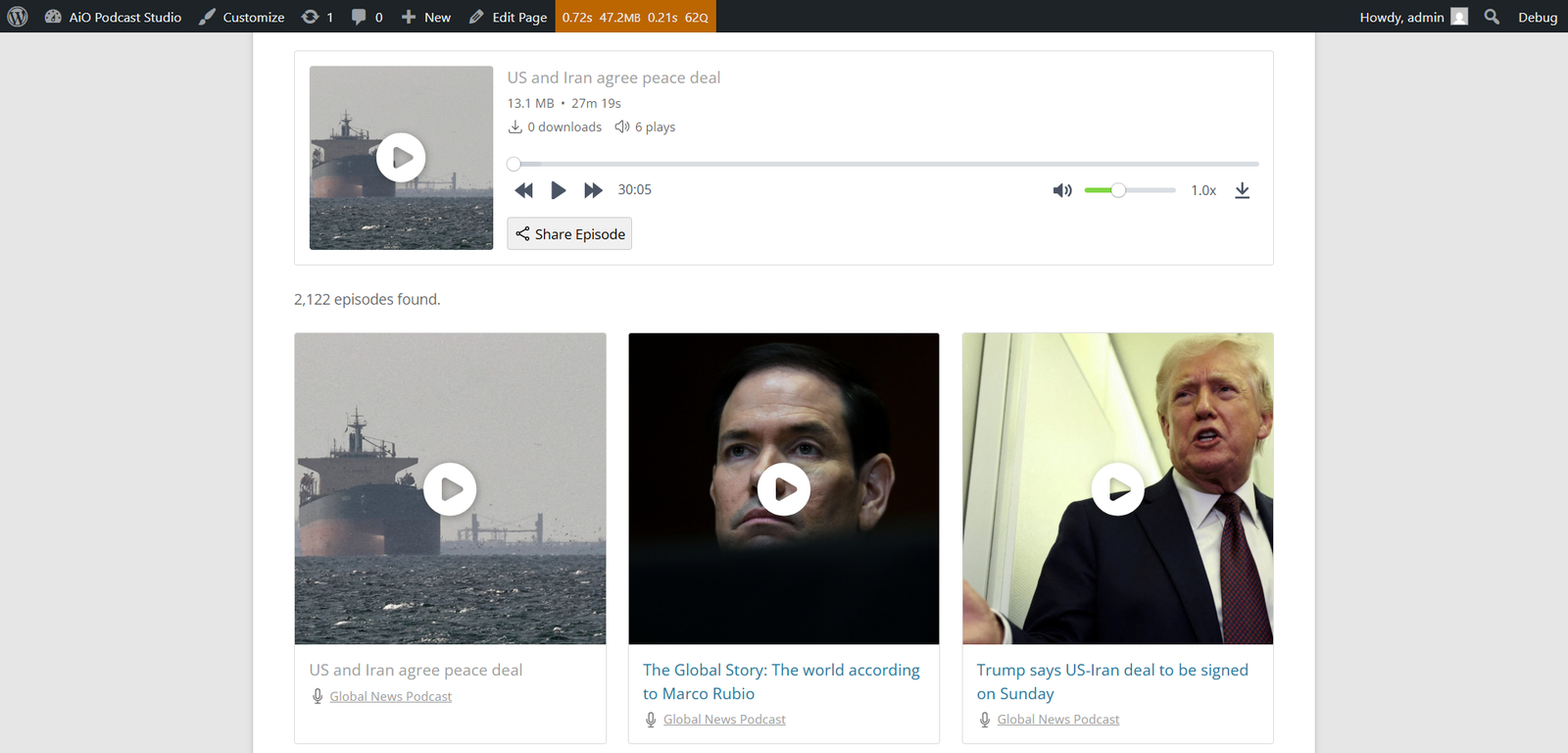
The Grid layout displays episodes as cards arranged in rows and columns. It is a good choice when episodes have artwork and you want a visually rich listing that makes use of the full page width.
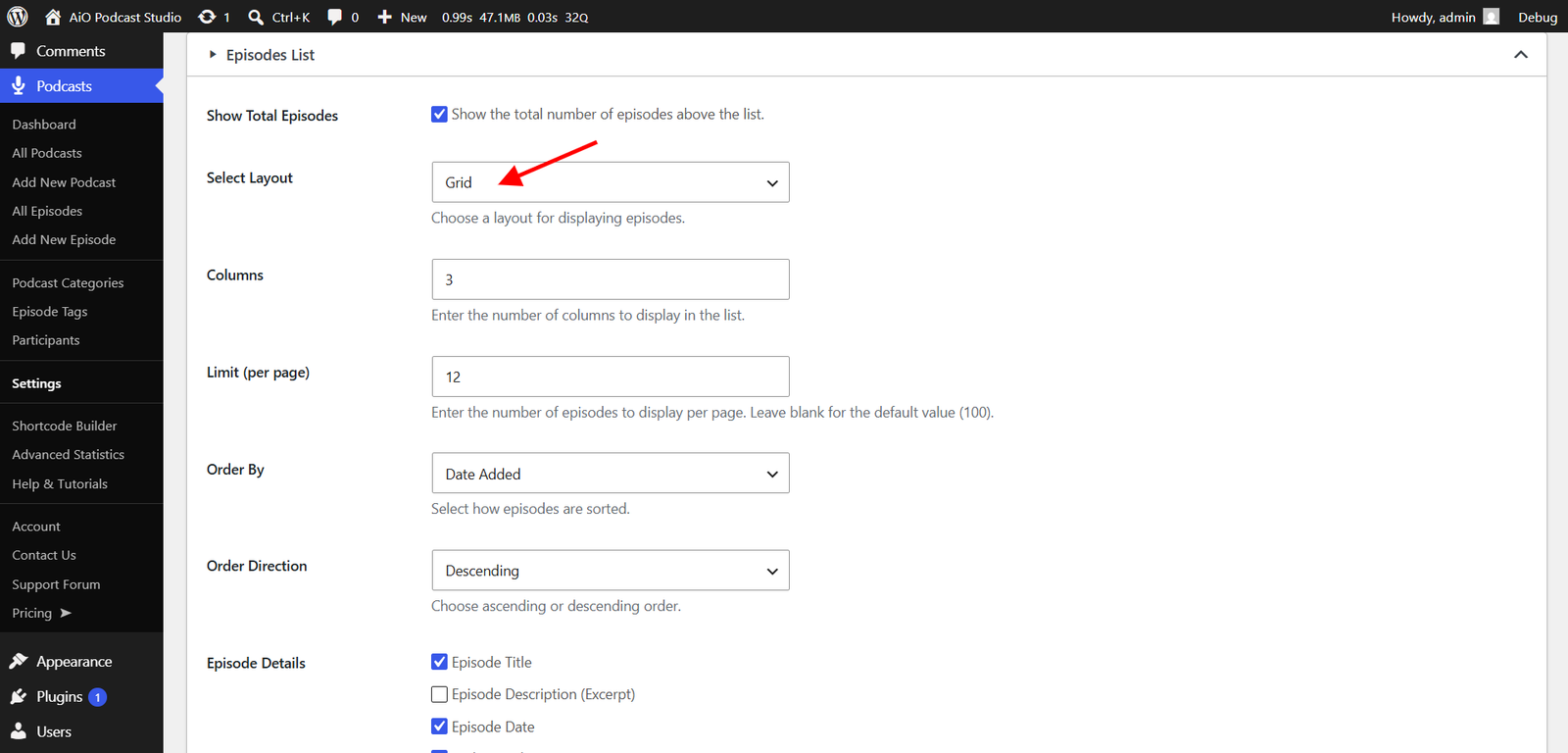
When Grid is selected, the following additional setting becomes available:
- Columns — Enter the number of columns to display. The grid adjusts to show that many episode cards per row. A value between 2 and 4 is typical for most page widths.
The Grid layout also supports an optional embedded player above the episode grid. Enable the Enable Player option to allow visitors to play episodes directly on the listing page without navigating to the individual episode page. Filters can also be shown above the grid by enabling the Enable Filters option.
List Layout
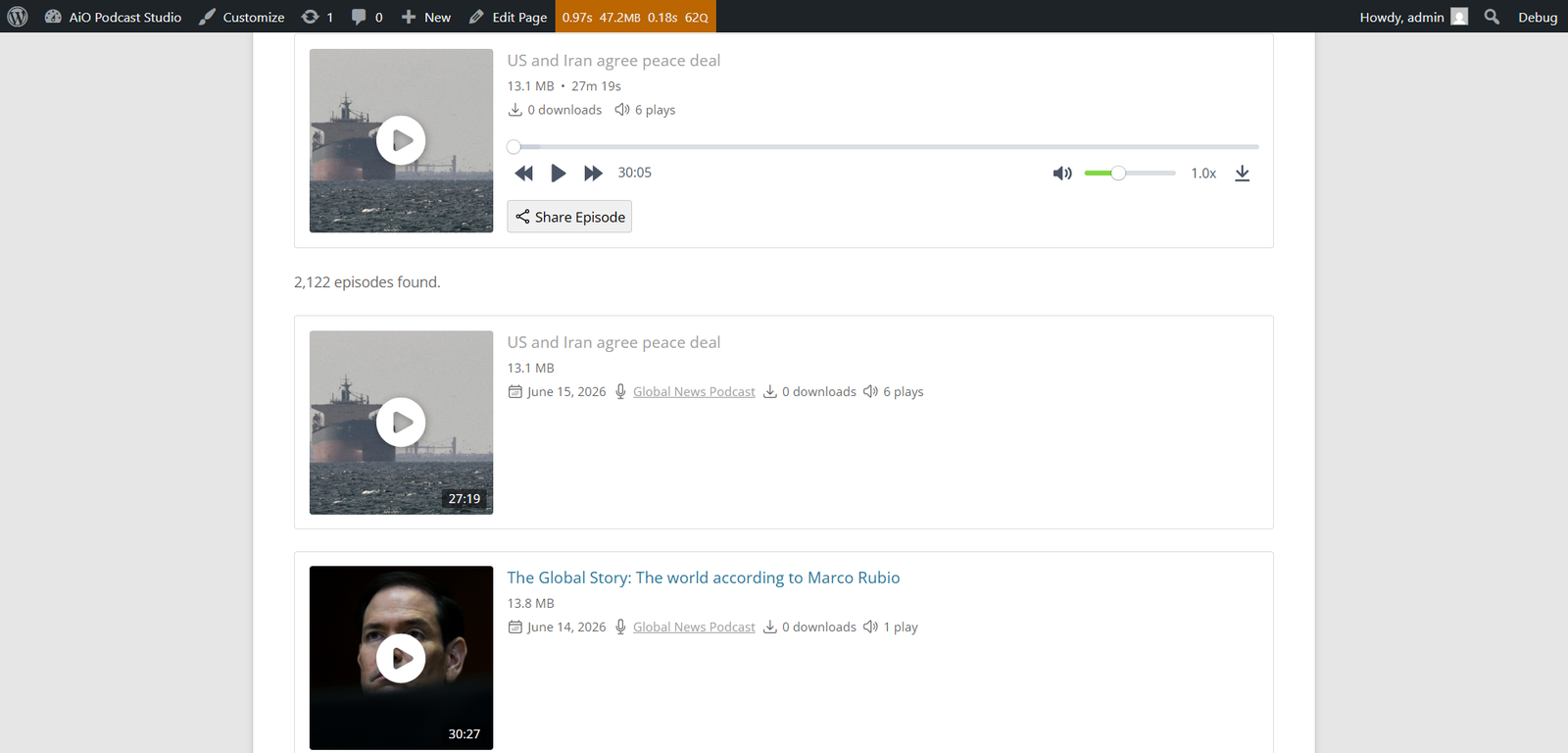
The List layout displays episodes as a single column of cards stacked vertically. Each card shows the episode artwork alongside the title and metadata, making it easy to scan a long episode archive. This layout works well on both wide and narrow pages.
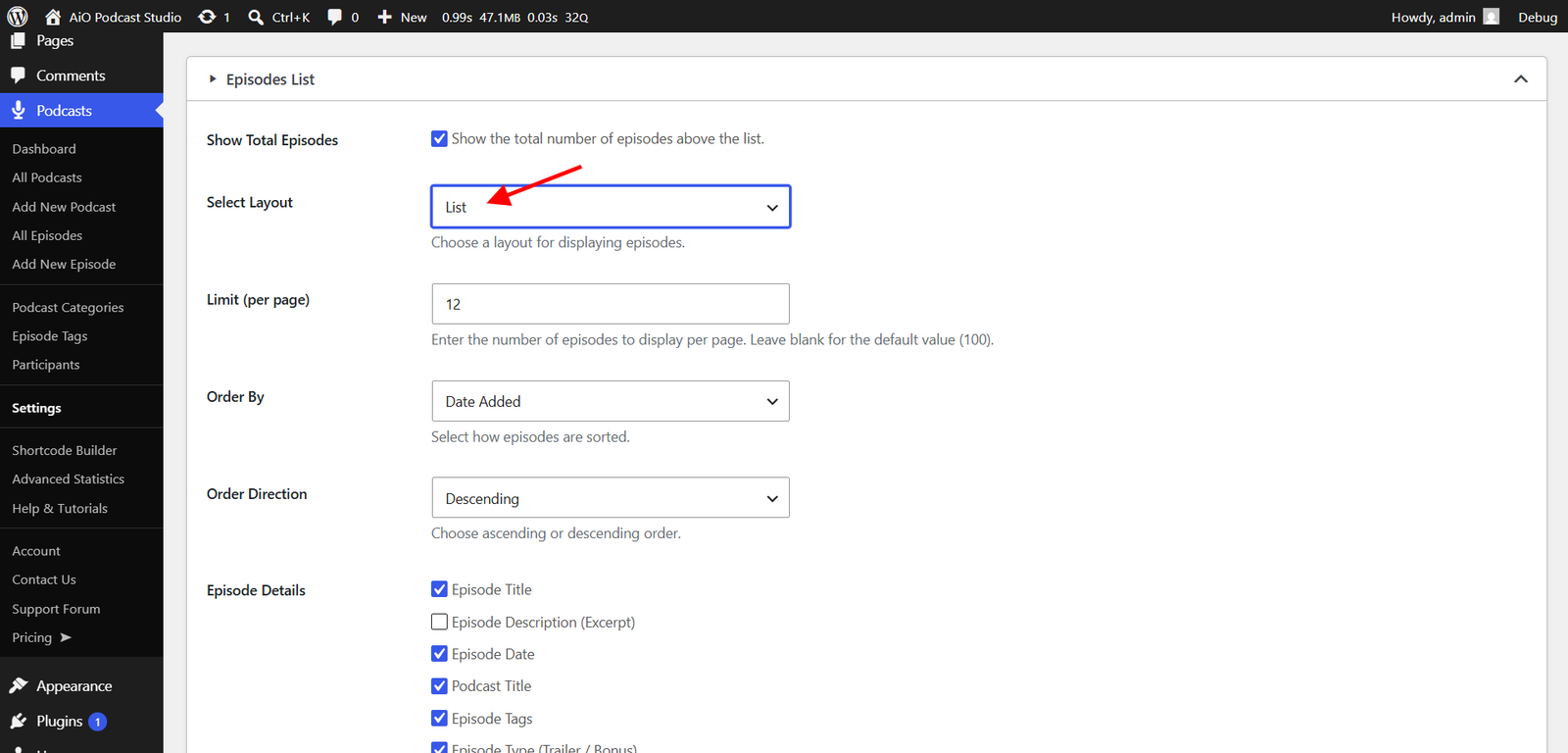
When List is selected, the following additional setting becomes available:
- Columns — Enter the number of columns. For a traditional single-column list, set this to 1. Increasing the value behaves similarly to the Grid layout.
Like the Grid layout, the List layout supports an optional embedded player above the list and an optional filter bar. Enable Enable Player and Enable Filters as needed under the same Episodes List settings section.
Compact Layout
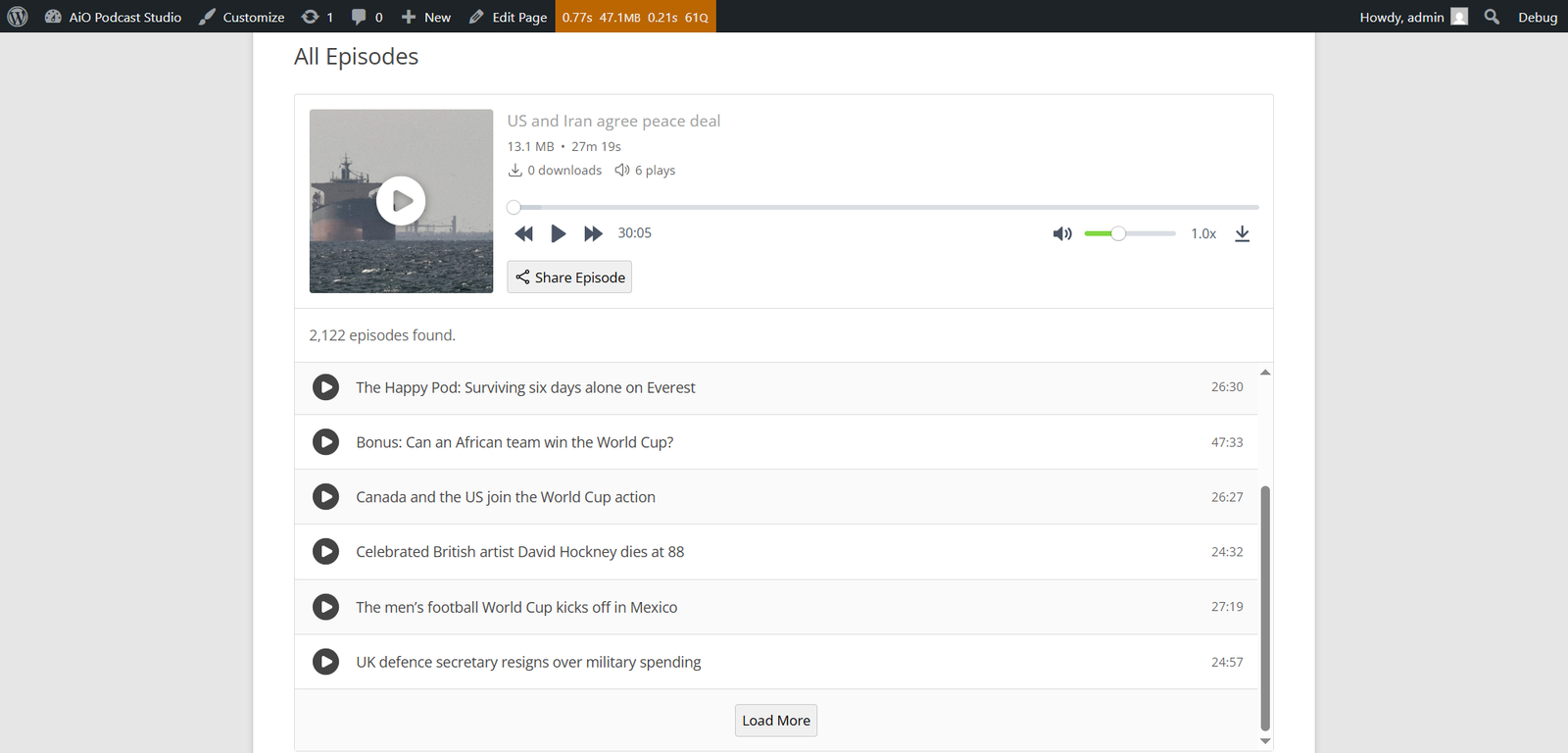
The Compact layout presents episodes as a dense scrollable list, with each row showing only the episode title and duration. An embedded audio player is always shown above the list. When a visitor clicks the play button on a row, the player above loads that episode and begins playback — the visitor never leaves the page. This layout is ideal for podcasts with many episodes where you want listeners to browse and play without navigating away.
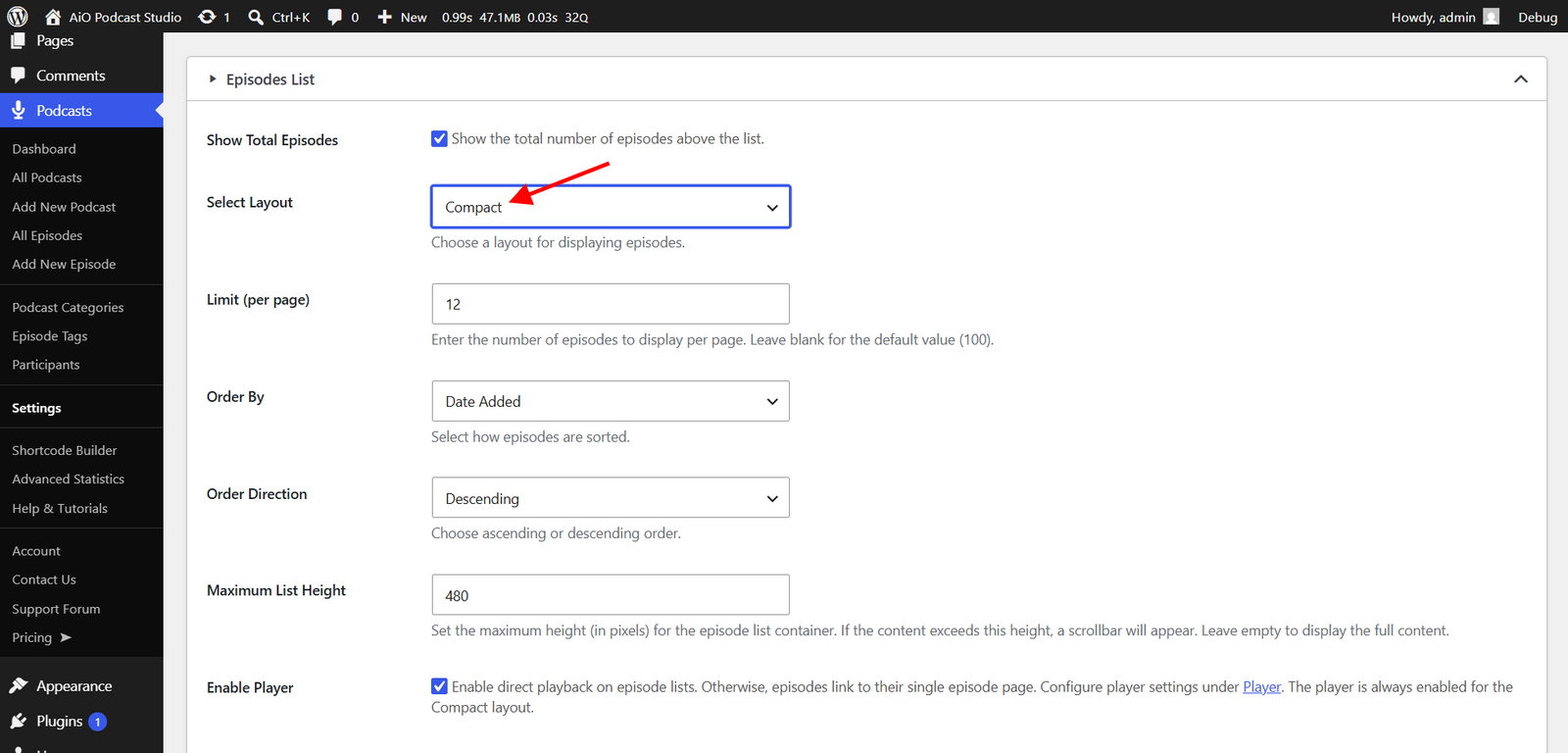
When Compact is selected, the following additional setting becomes available:
- Maximum List Height — Enter a height in pixels to cap the scrollable episode list container. If the list of episodes is taller than this value, a scrollbar appears so the list does not push down the rest of the page. Leave this field empty to display the full list without a height limit.
The Compact layout also respects the Autoplay Next Episode and Loop options configured in the player settings. When Autoplay Next Episode is enabled, the player automatically advances to the next episode in the list when the current one finishes. See the Configuring the Podcast Player tutorial for details on these options.
Slider Layout
The Slider layout displays episode cards in a horizontal carousel that visitors can swipe or navigate through. It is well suited for highlighting a curated selection of episodes or for embedding a compact episode showcase on a homepage or landing page.
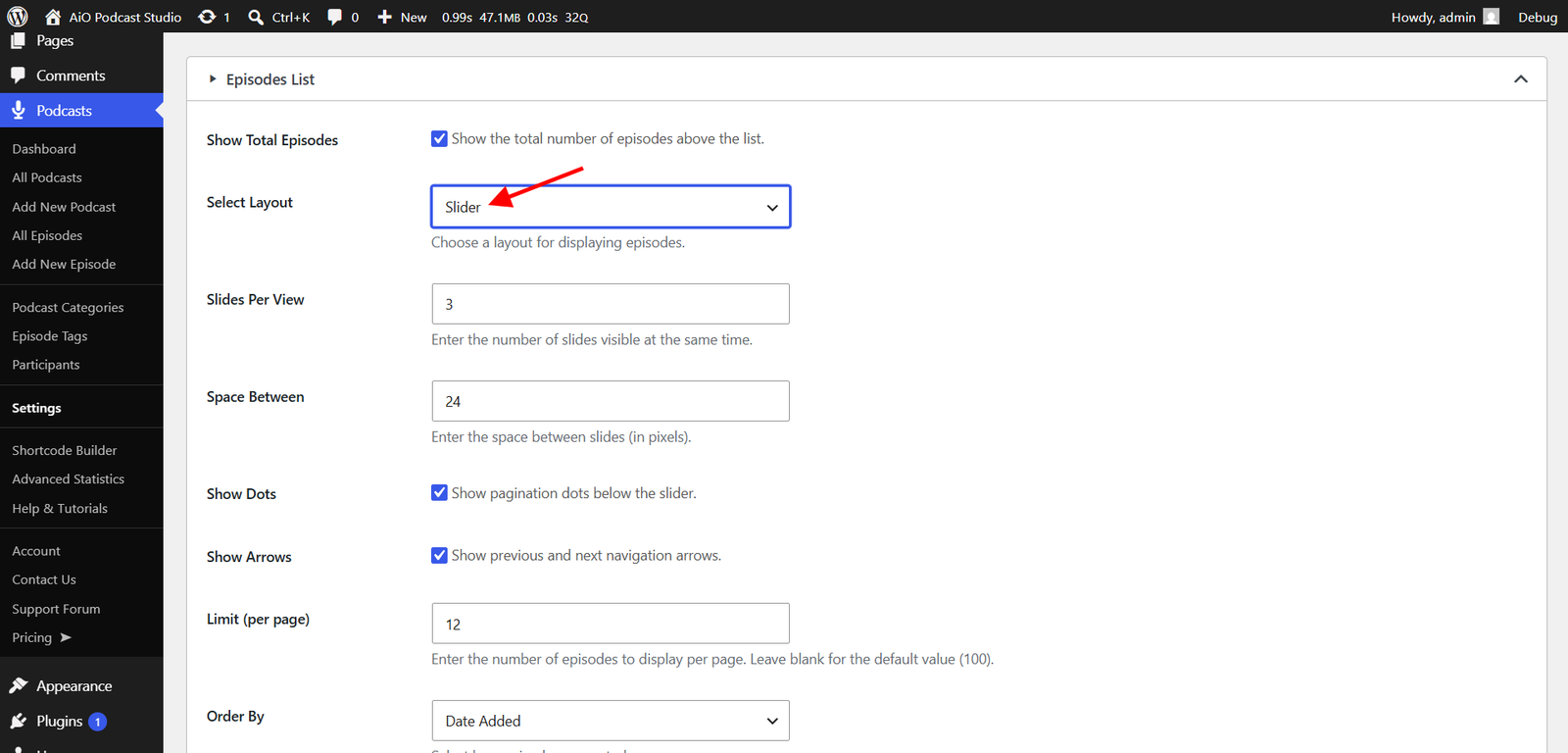
When Slider is selected, the following additional settings become available:
- Slides Per View — Enter the number of episode cards visible at the same time within the slider. A value of 3 is the default and works well on full-width sections.
- Space Between — Enter the gap between slides in pixels. The default is 24 pixels.
- Show Dots — Displays pagination dots below the slider so visitors can see how many slides exist and jump to a specific position.
- Show Arrows — Displays previous and next navigation arrows on either side of the slider for visitors who prefer to click rather than swipe.
An optional embedded player can be displayed above the slider by enabling the Enable Player option. When enabled, clicking an episode card in the slider loads that episode into the player above. The Slider layout also supports the Autoplay Next Episode and Loop player settings, which control what happens when an episode finishes playing.