
Participants in AiO Podcast Studio are the people who contribute to your podcasts and episodes — hosts, guests, co-hosts, producers, and any other contributors. The plugin gives you a central participant directory where you create and maintain each person’s profile. Once a profile exists, you can attach that participant to any podcast or episode and assign them a specific role, such as Host or Guest.
Contents
- Add a New Participant
- Edit an Existing Participant
- Delete a Participant
- Assign Participants to a Podcast
- Assign Participants to an Episode
Add a New Participant
Navigate to Podcasts → Participants. The left side of the page shows the Add New Participant form. Fill in the fields and click Add New Participant. The new profile will appear immediately in the list on the right.
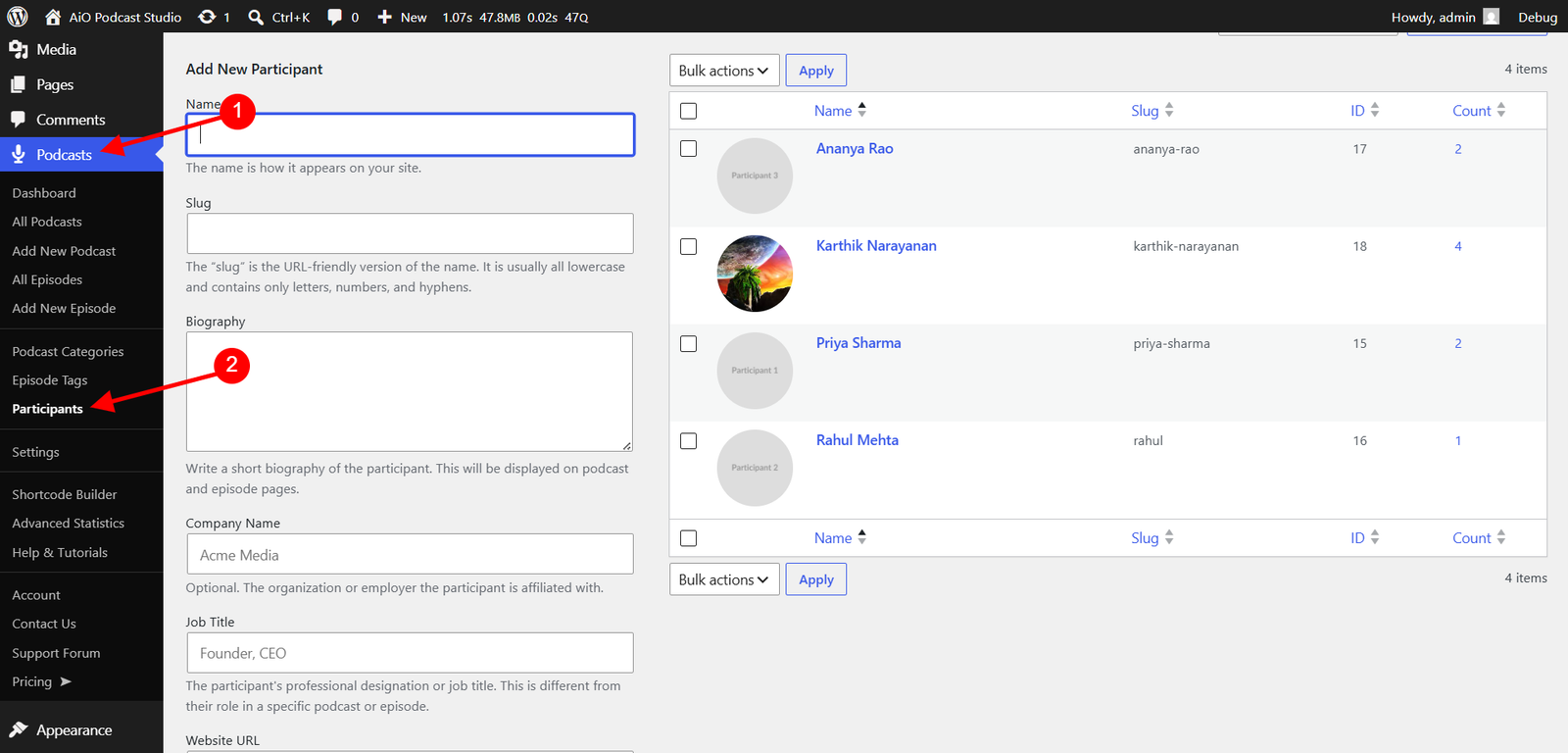
Required field
- Name — The participant’s full name as it will appear on your website. This is the only field required to create a participant.
Optional fields
- Slug — The URL-friendly version of the participant’s name, used in their public profile address. If left blank, WordPress generates one automatically from the name.
- Biography — A short biography of the participant. This will be displayed on podcast and episode pages where the participant is listed.
- Company Name — The organisation or employer the participant is affiliated with.
- Job Title — The participant’s professional designation (e.g., Founder, CEO). This is different from the role they are assigned in a specific podcast or episode.
- Website URL — A link to the participant’s personal or professional website.
- Facebook Page URL — The participant’s official Facebook profile or page.
- Twitter / X Profile URL — The participant’s official Twitter / X profile.
- Instagram Profile URL — The participant’s official Instagram profile.
- LinkedIn Page URL — The participant’s official LinkedIn profile or company page.
- YouTube Channel URL — The participant’s official YouTube channel.
- Profile Image — A photo to represent this participant. Click Upload Image to select or upload a file from your Media Library. The recommended size is 400×400 pixels. This image is displayed on participant cards and profile pages on the front end.
Edit an Existing Participant
All existing participant profiles are listed in the table on the right side of the Podcasts → Participants page. The table shows each participant’s profile image, name, slug, and ID.
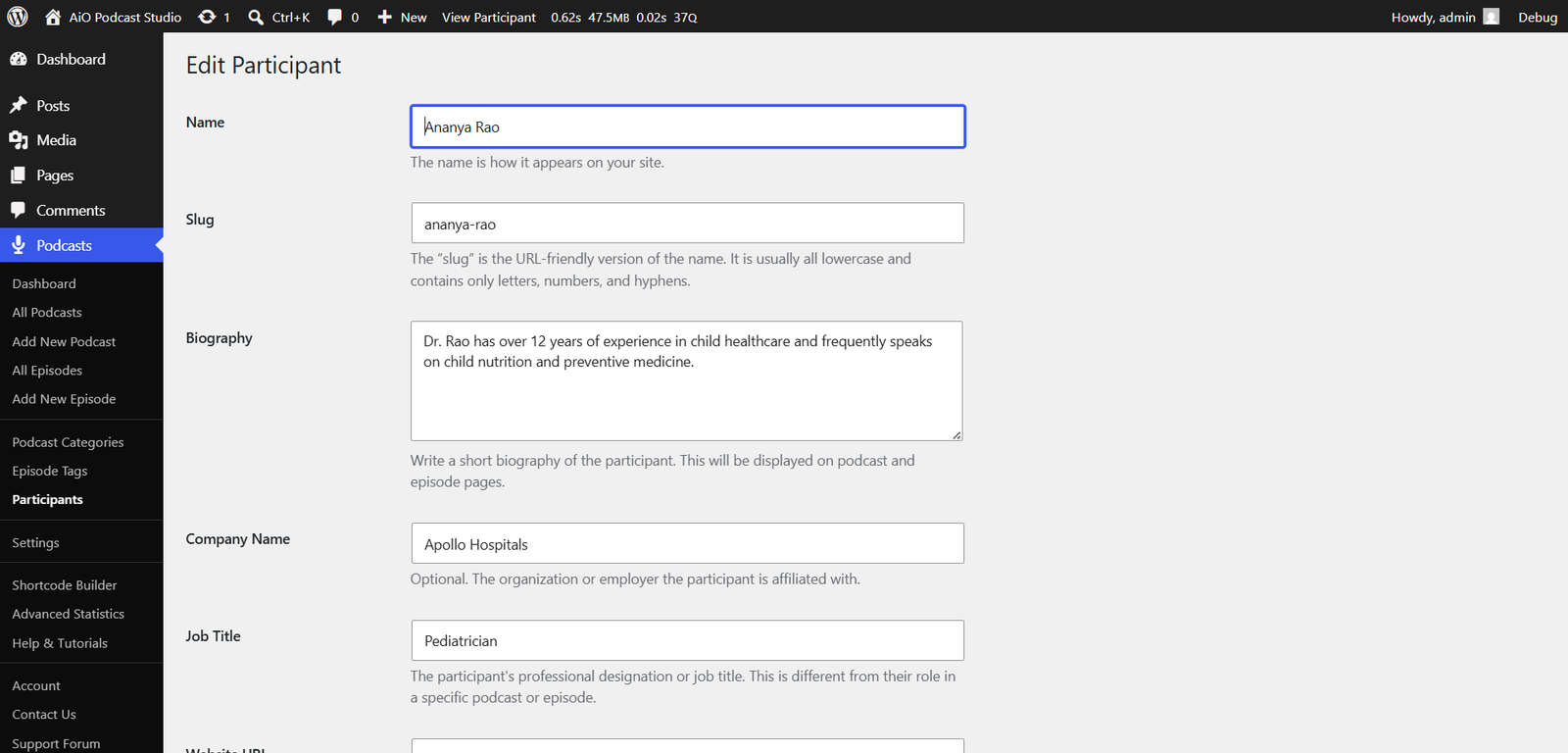
Hover over a participant’s name and click Edit. The edit screen opens with the same fields as the creation form — all pre-filled with the current values. Make your changes and click Update to save them.
To remove a profile image, click Remove Image and then click Update.
Delete a Participant
Hover over a participant’s name in the list and click Delete. WordPress will ask you to confirm before proceeding. Deleting a participant removes their profile permanently, including their profile image. They will no longer appear on any podcast or episode pages where they were previously assigned. The podcasts and episodes themselves are not affected.
To delete multiple participants at once, select their checkboxes in the list, open the Bulk Actions dropdown, choose Delete, and click Apply.
Assign Participants to a Podcast
Participants can be attached to an entire podcast so they appear as contributors across all of its episodes. Open the podcast you want to edit by going to Podcasts → All Podcasts and clicking its title. Locate the Participants section within the podcast form.
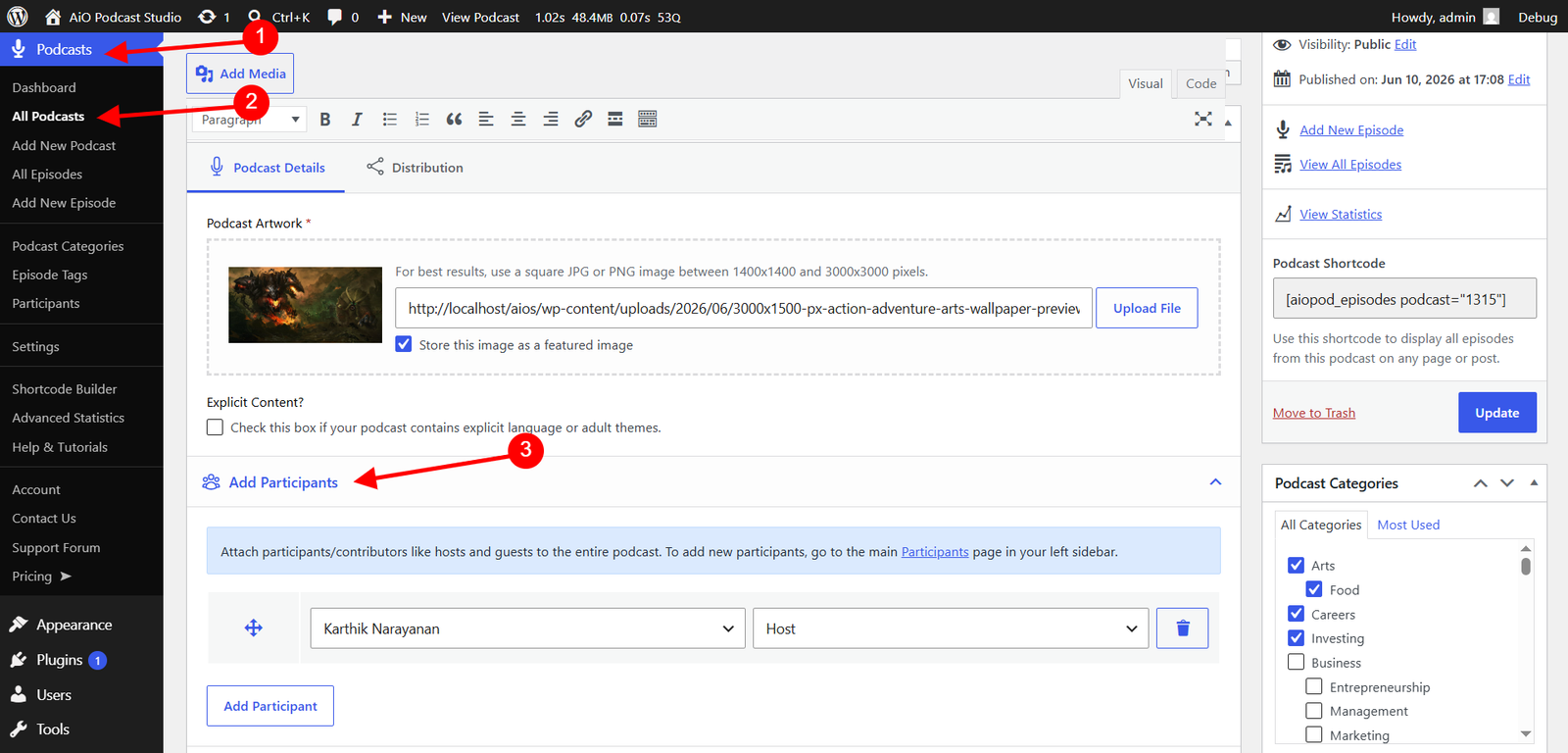
Click Add Participant. Use the first dropdown to select a participant from your directory, then use the second dropdown to assign their Role (e.g., Host, Guest). Repeat for each additional participant. To reorder participants, drag and drop the rows using the move handle on the left. To remove a participant from the list, click the trash icon on that row. When finished, click Update to save.
If a participant does not appear in the dropdown, make sure their profile has been created first on the Podcasts → Participants page.
Assign Participants to an Episode
Participants can also be assigned at the individual episode level, which is useful for guests who appear in specific episodes only. Open the episode you want to edit by going to Podcasts → Episodes and clicking its title. Locate the Participants section within the episode form.
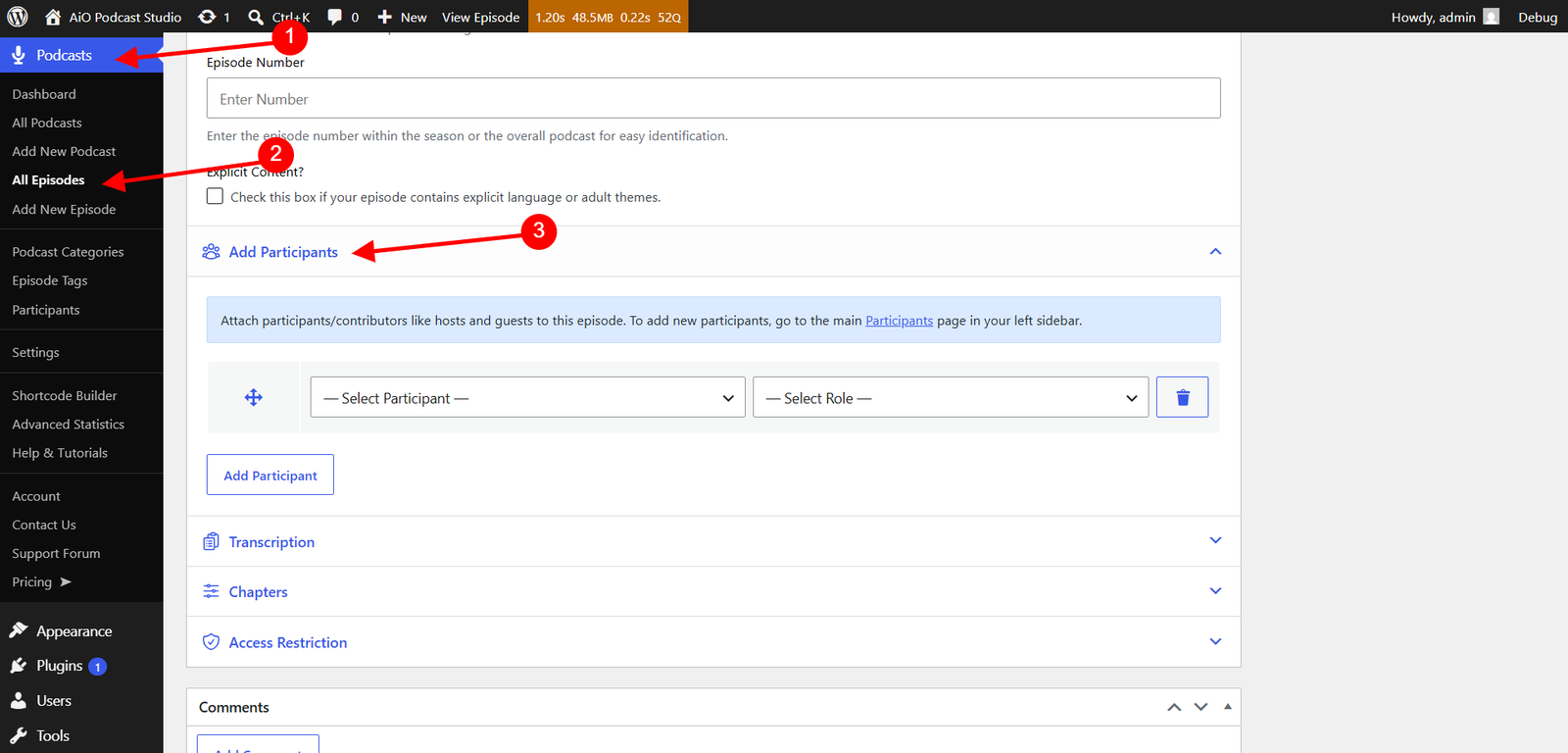
Click Add Participant, select a participant from the first dropdown, and assign their role from the second dropdown. You can add, reorder, and remove participants using the same controls described in the previous section. Click Update to save.
A participant can be assigned to both a podcast and individual episodes at the same time. Assigning them at the podcast level indicates their general contribution to the show, while assigning them at the episode level reflects their involvement in a specific recording.