
Episode Tags in AiO Podcast Studio are labels you attach to individual episodes to describe their topics, guests, or themes. Unlike podcast categories — which organise your shows into a directory structure — tags are freeform and can be created on the fly. Visitors can browse all episodes that share a tag, and you can add a tag filter to your episode listings so listeners can narrow down content by topic.
Contents
- Add and Manage Tags
- Assign Tags to an Episode
- Display Tags in Episode Listings
- Let Visitors Filter by Tag
- Tags List Page
- Single Tag Page
Add and Manage Tags
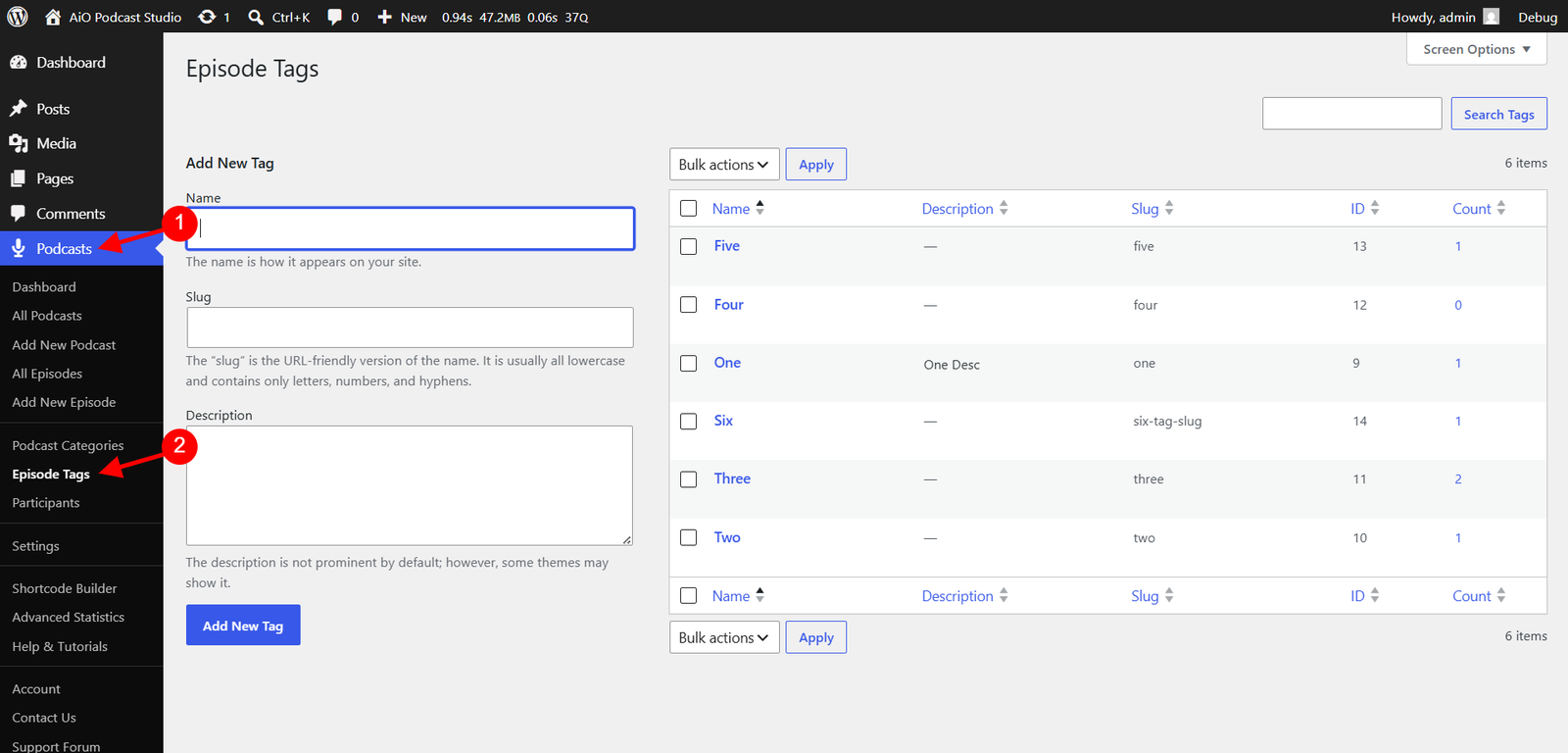
Navigate to Podcasts → Episode Tags. The left side of the page shows the Add New Tag form and the right side shows all existing tags in a list.
Required field
- Name — The display name of the tag as it will appear on your website and in the tag list. This is the only field required to create a tag.
Optional fields
- Slug — The URL-friendly version of the tag name, used in the tag’s web address. If left blank, WordPress generates one automatically from the name.
- Description — A short description of the tag. This can be displayed on the tag’s public page depending on the template in use.
Once the fields are filled in, click Add New Tag. The tag will appear immediately in the list on the right.
Editing and deleting tags
Hover over a tag name in the list and click Edit to update its name, slug, or description. Click Update to save. To remove a tag, hover over its name and click Delete. Deleting a tag unassigns it from any episodes that were using it — the episodes themselves are not deleted. To delete multiple tags at once, select their checkboxes, open the Bulk Actions dropdown, choose Delete, and click Apply.
Assign Tags to an Episode
Open the episode you want to tag by going to Podcasts → All Episodes and clicking the episode title. In the right-hand sidebar, locate the Episode Tags panel. You can add tags in two ways:
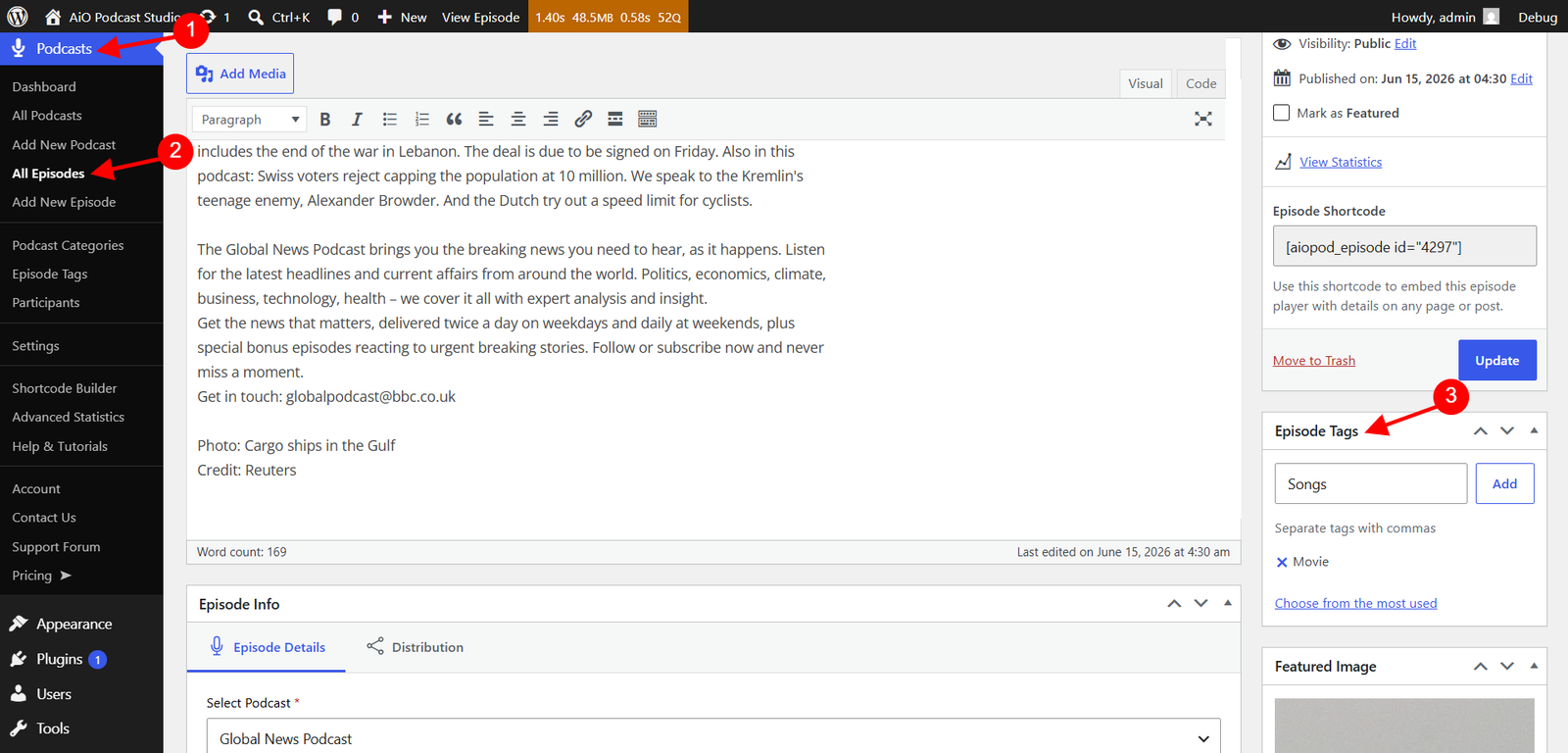
- Type a tag name and press Enter or click Add. If the tag already exists it will be assigned to the episode; if it does not exist it will be created automatically.
- Click Choose from the most used tags to select from a list of your most frequently used tags.
You can assign multiple tags to a single episode. Click Update to save.
Display Tags in Episode Listings
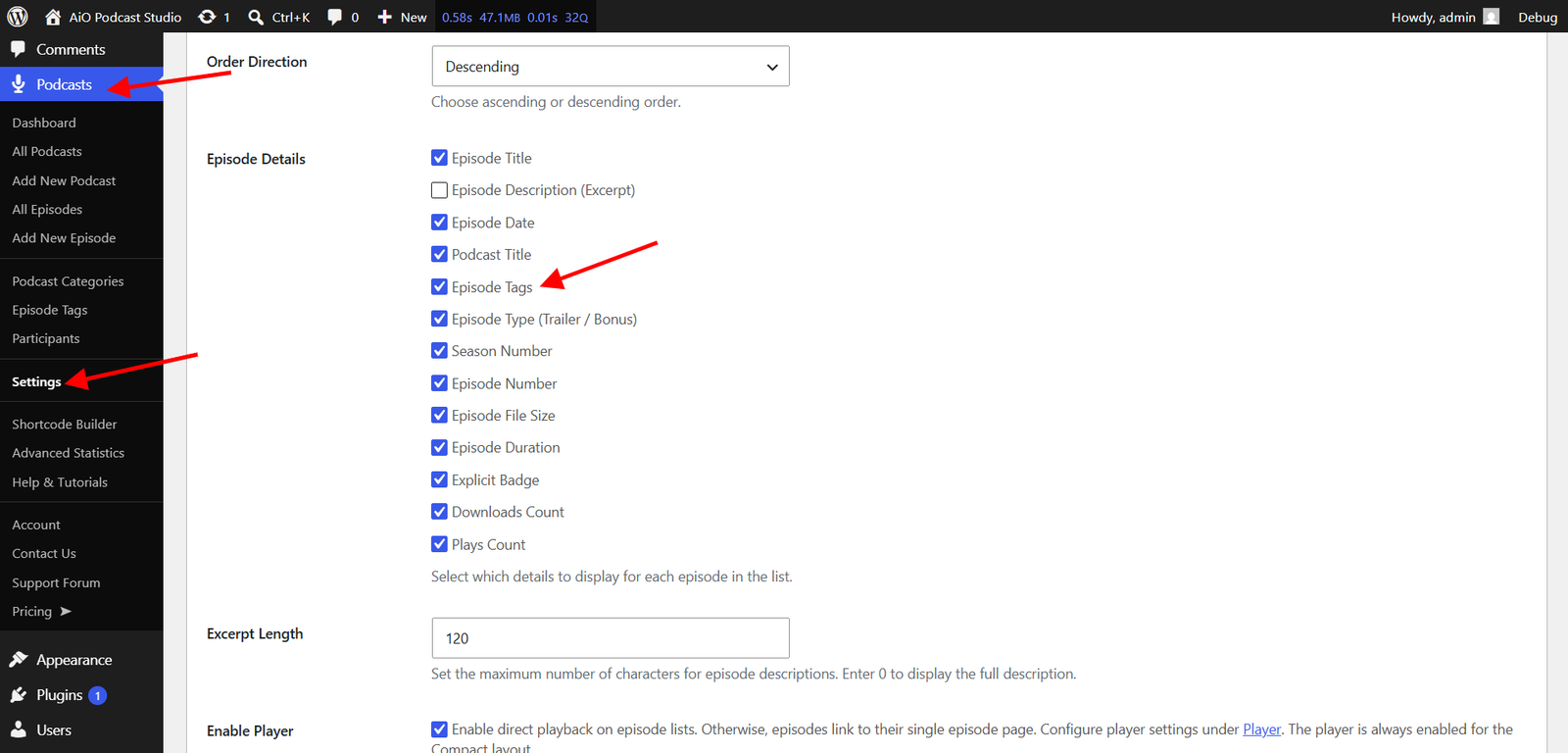
Tag links are hidden on episode cards by default and must be turned on in settings. Go to Podcasts → Settings and open the Display tab. Under the Episodes section, enable Episode Tags. When active, each episode card will show its assigned tags as clickable links. Clicking a tag link takes the visitor to the tag’s public page, which lists all episodes with that tag.
Let Visitors Filter by Tag
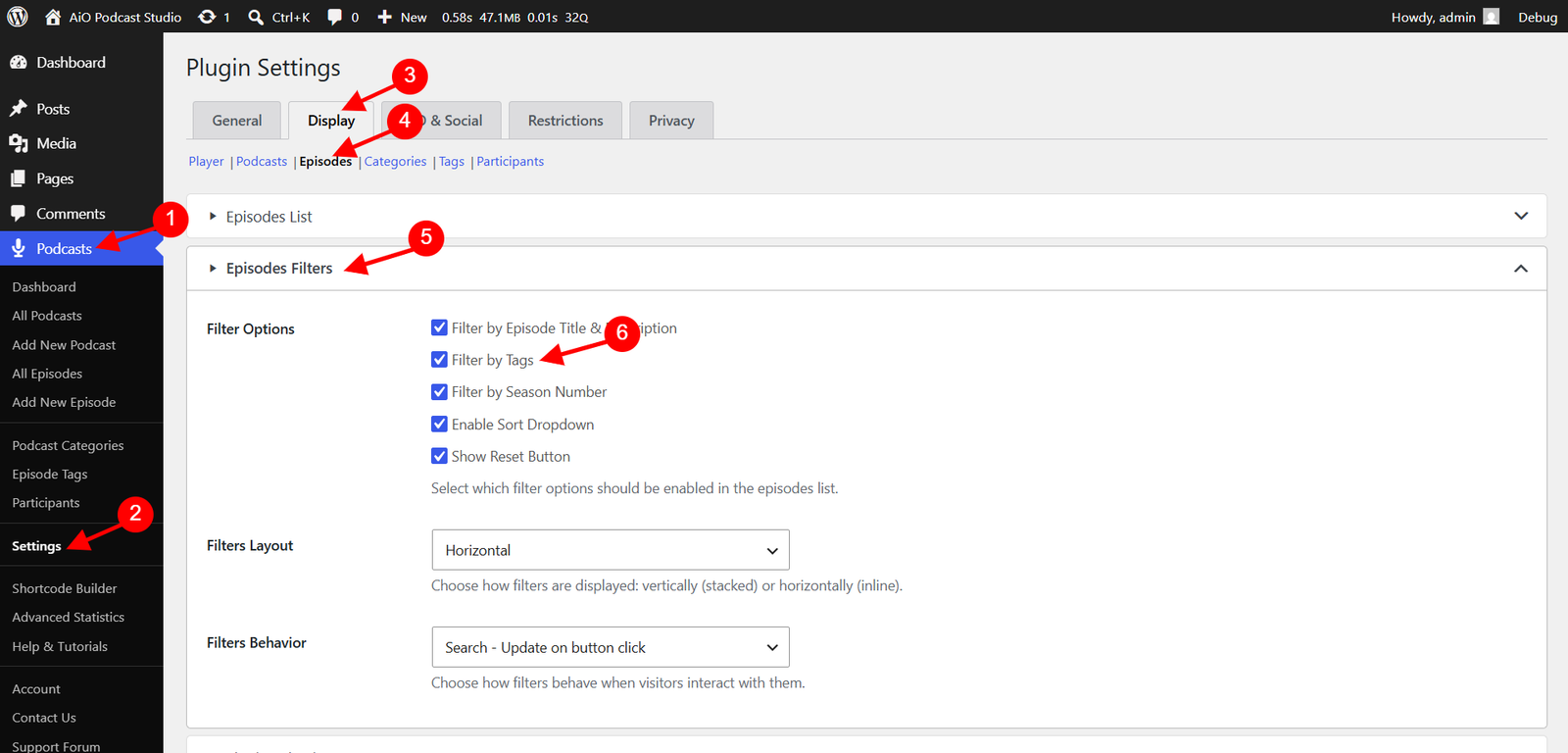
You can add a tag filter to your episode listings so visitors can narrow episodes down by topic. Go to Podcasts → Settings and open the Display tab. Under Episodes → Episodes Filters, enable Filter by Tags. A tag filter control will then appear in the episode listing filter bar on your website, allowing visitors to select a tag and see only the episodes assigned to it.
Tags List Page
You can display all your episode tags on a dedicated page using the [aiopod_tags] shortcode. The appearance of this listing is controlled in Podcasts → Settings → Display → Tags → Tags List. The following options are available:
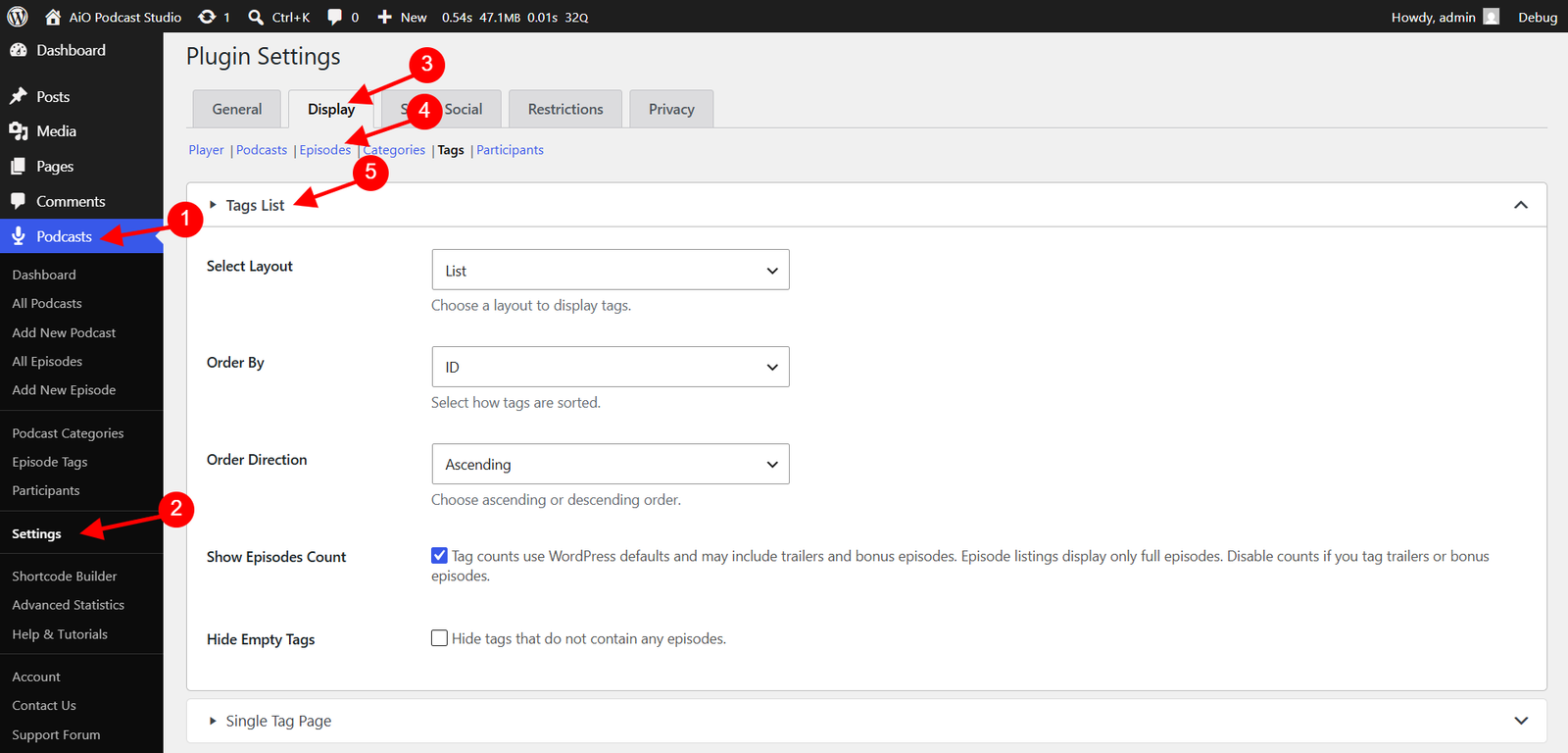
- Select Layout — Choose between Tag Cloud, List, or Dropdown to control how the tags are presented.
- Order By — Sort tags by ID, Name, or Count (number of episodes).
- Show Episodes Count — Display the number of episodes next to each tag. Note that tag counts use WordPress defaults and may include trailer and bonus episodes, while episode listings display only full episodes. Disable this option if you have tagged trailer or bonus episodes and want to avoid the discrepancy.
- Hide Empty Tags — Exclude tags that have no episodes assigned to them.
Single Tag Page
Each tag has its own public page that lists all episodes assigned to it. To enable this, first create a WordPress page, add the [aiopod_tag] shortcode to its content, and publish it. Then go to Podcasts → Settings → General Tab → Pages and Archives → Single Tag Page and select that page from the Single Tag Page dropdown. The plugin will use this page to display episodes whenever a visitor clicks a tag link.
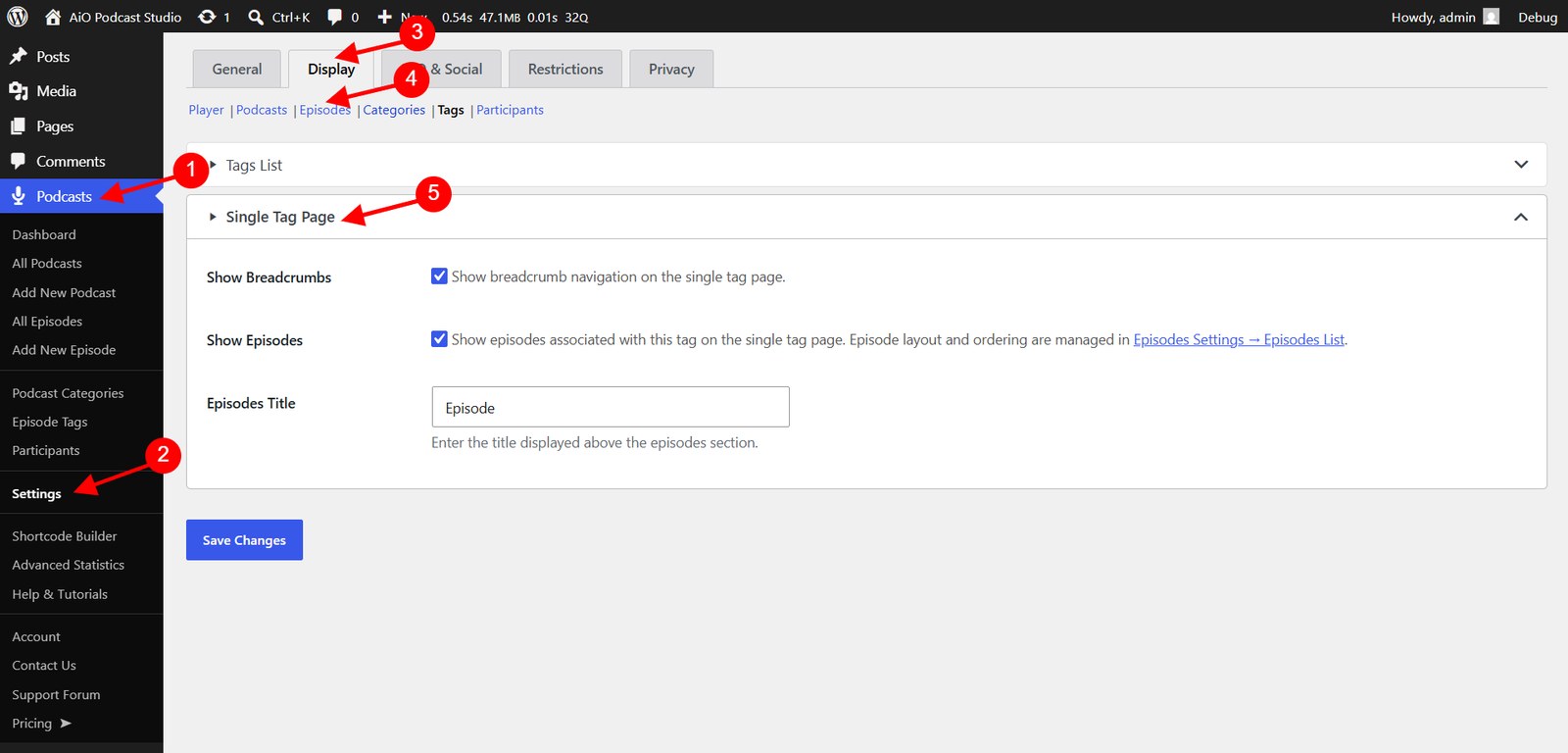
Then go to Podcasts → Settings → Display → Tags → Single Tag Page
The following display options are available for the single tag page:
- Show Breadcrumbs — Display breadcrumb navigation at the top of the tag page to help visitors understand where they are on the site.
- Show Episodes — Display the list of episodes associated with the tag on the single tag page. Episode layout and ordering follow the settings configured in Episodes Settings → Episodes List.