
The AiO Podcast Studio player is the embedded media player that appears on your website for each episode. All player settings are managed from a single location in the admin. This tutorial covers every option available under the Player settings section, from video dimensions and playback behaviour to controls, episode metadata, and keyboard shortcuts.
To open the player settings, go to Podcasts → Settings, open the Display tab, and scroll to the Player section.
Contents
- Video Dimensions
- Playback Behaviour
- Player Controls
- Episode Details and Social Buttons
- Keyboard Shortcuts
Video Dimensions
These two settings control the size of the player when it renders a video episode. They have no effect on audio episodes.
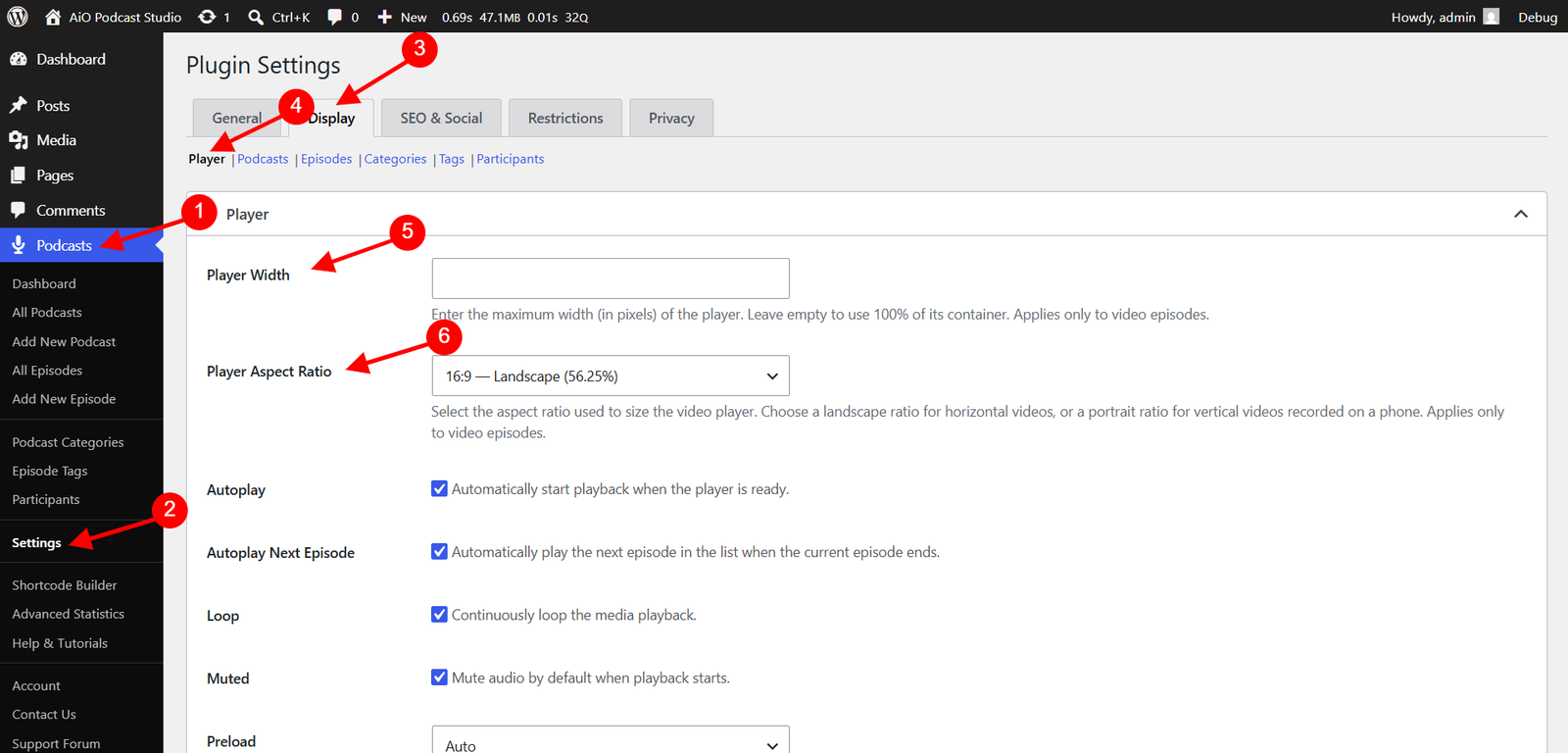
- Player Width — Enter the maximum width of the video player in pixels. For example, entering 800 constrains the player to 800 pixels wide while still allowing it to shrink on smaller screens. Leave the field empty to let the player fill 100% of its container.
- Player Aspect Ratio — Select the ratio that matches the shape of your video content. Available options are 21:9 — Ultrawide, 16:9 — Landscape, 4:3 — Classic Landscape, 1:1 — Square, 4:5 — Portrait, and 9:16 — Vertical. For most standard recordings 16:9 — Landscape is the correct choice. For vertical videos filmed on a phone, choose 9:16 — Vertical.
These global settings apply to every video episode on your site. If a specific shortcode needs different dimensions, the same two fields are also available in the Shortcode Builder under the Player section, where they override the global values for that shortcode only.
Playback Behaviour
These settings control how the player behaves when a visitor loads or interacts with an episode.
- Autoplay — When enabled, the player begins playing as soon as it is ready. Note that most browsers block autoplay with audio unless the visitor has previously interacted with the page. For video, autoplay is more likely to work when combined with the Muted setting.
- Autoplay Next Episode — When enabled, the player automatically loads and plays the next episode in the list as soon as the current episode finishes.
- Loop — When enabled, the current episode restarts from the beginning as soon as it ends, repeating indefinitely.
- Muted — When enabled, the player starts with the audio muted. Visitors can unmute at any time using the volume control. This setting is commonly used together with Autoplay to satisfy browser autoplay policies.
- Preload — Controls how much of the media file is loaded before the visitor presses play. Auto loads the entire file in the background, Metadata loads only the file duration and basic information, and None loads nothing until the visitor initiates playback. Metadata is recommended for most sites as it improves page load performance while still showing the duration on the player.
- Plays Inline on Mobile — When enabled, video episodes play within the page on mobile devices rather than opening in the device’s native fullscreen video player. Enable this if you want the video to remain embedded on the page during playback on phones and tablets.
Player Controls
The Player Controls multicheck determines which buttons and interactive elements appear on the player. Check each control you want to show and uncheck any you want to hide.
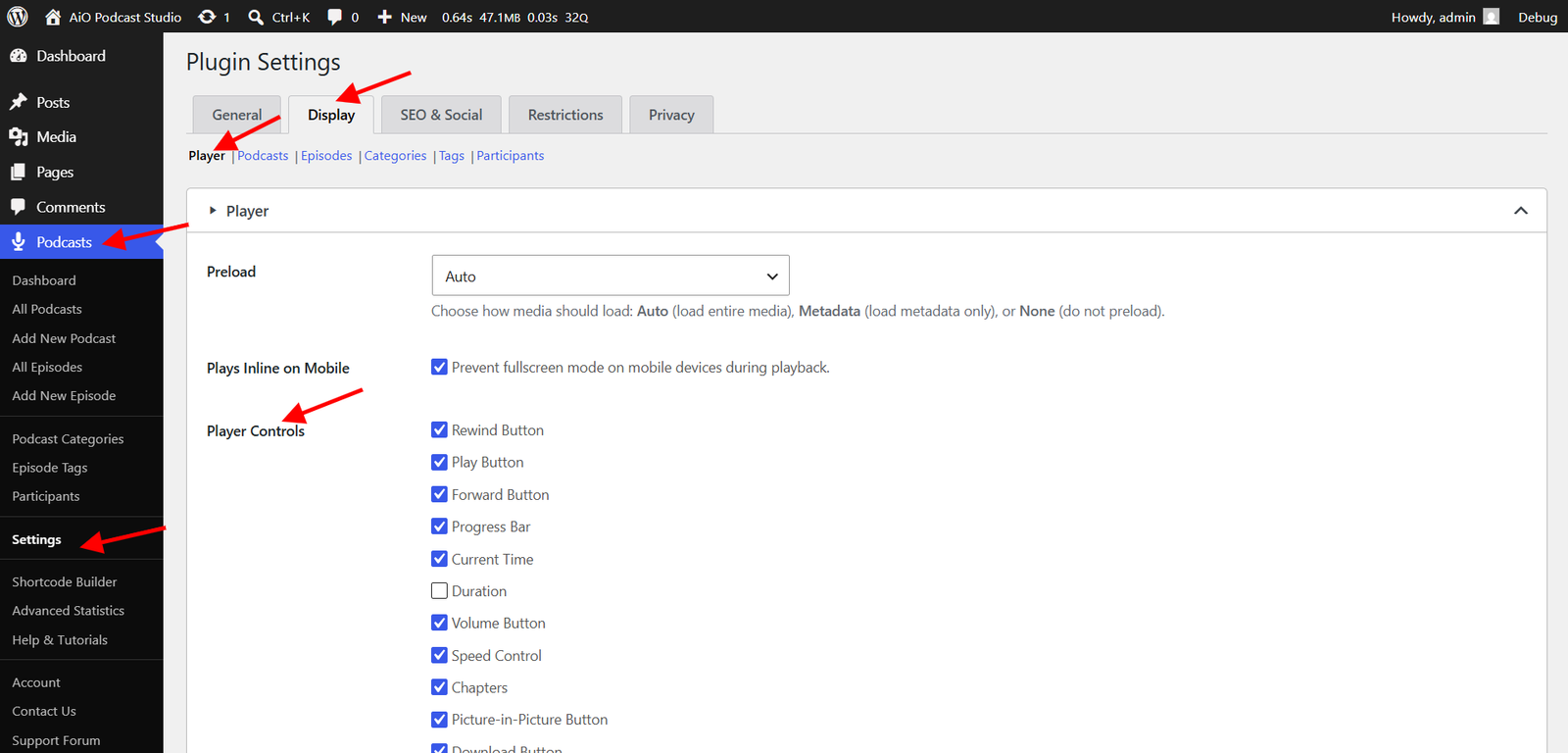
- Rewind Button — A button that jumps backward in the episode by a fixed amount.
- Play Button — A play/pause toggle button displayed in the player control bar. A large centred play button is always shown regardless of this setting.
- Forward Button — A button that jumps forward in the episode by a fixed amount.
- Progress Bar — A scrubber bar showing playback position and allowing the visitor to seek to any point in the episode.
- Current Time — Displays the elapsed playback time.
- Duration — Displays the total length of the episode.
- Volume Button — A mute toggle button and, on desktop, a volume slider.
- Speed Control — A button that lets visitors choose a playback speed: 0.5×, 0.75×, 1×, 1.5×, or 2×.
- Chapters — Displays chapter markers on the progress bar if chapters have been added to the episode. See the episode edit screen to add chapter data.
- Picture-in-Picture Button — Allows visitors to pop the video out into a floating window that stays visible while they scroll or navigate the page. Applies to video episodes only.
- Download Button — Shows a button that lets visitors download the episode file directly.
- Fullscreen Button — Allows visitors to expand the player to fill the entire screen. Applies primarily to video episodes.
Episode Details and Social Buttons
Episode Details
The Episode Details multicheck controls which pieces of episode metadata appear alongside the player. Check any combination of the following.
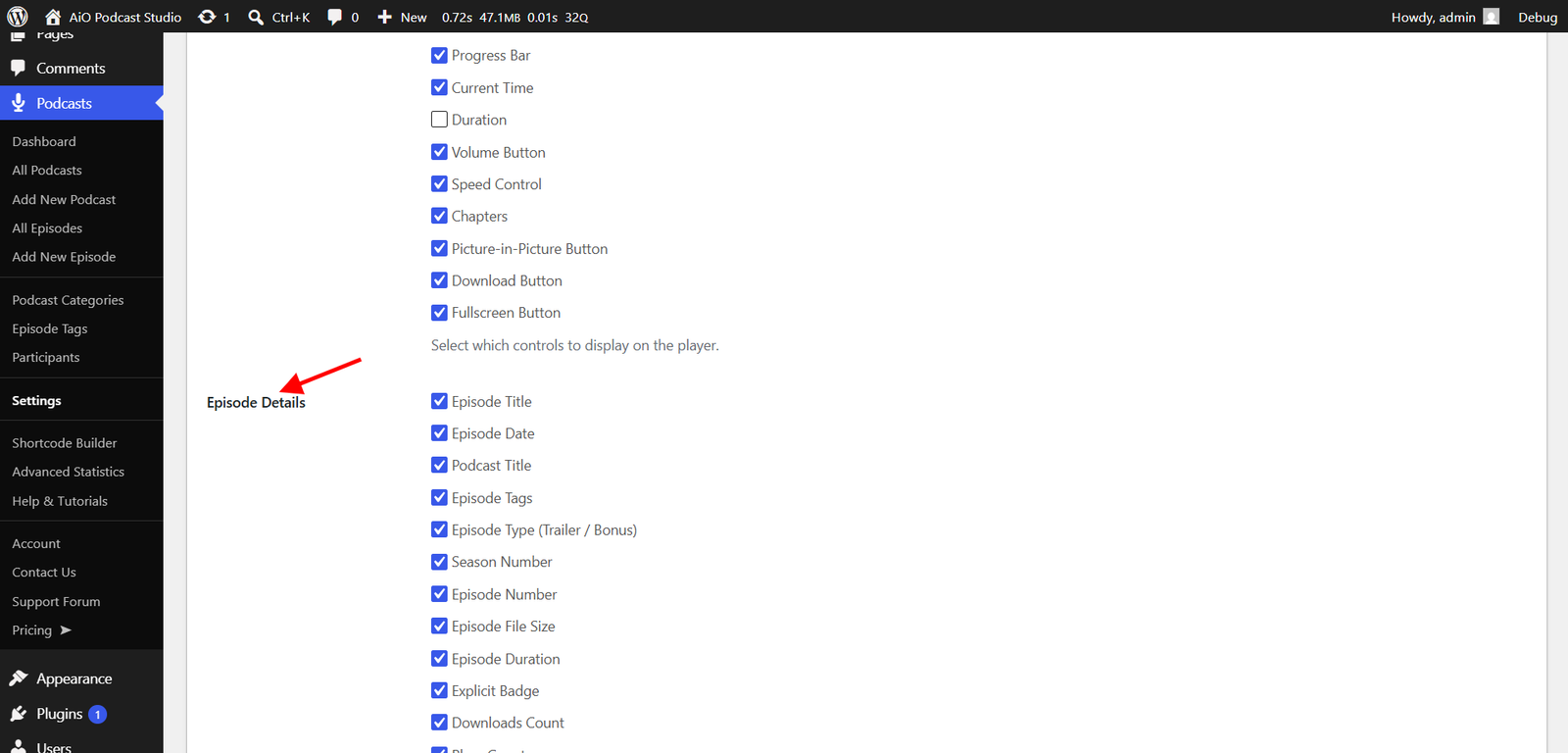
- Episode Title — The title of the episode, linked to its single episode page.
- Episode Date — The publication date of the episode.
- Podcast Title — The name of the podcast the episode belongs to, linked to the podcast page.
- Episode Tags — Any tags assigned to the episode.
- Episode Type (Trailer / Bonus) — A label indicating whether the episode is a trailer or bonus episode. Full episodes are not labelled.
- Season Number — The season the episode belongs to, if set.
- Episode Number — The episode number within its season or series, if set.
- Episode File Size — The size of the episode file, formatted automatically (e.g., 48 MB).
- Episode Duration — The total runtime of the episode, formatted as hours, minutes, and seconds.
- Explicit Badge — A label shown when the episode is marked as containing explicit content.
- Downloads Count — The total number of times the episode has been downloaded.
- Plays Count — The total number of times the episode has been played through the web player.
Social Media Buttons
The Social Media Buttons multicheck controls which action buttons appear on the player below the episode metadata.
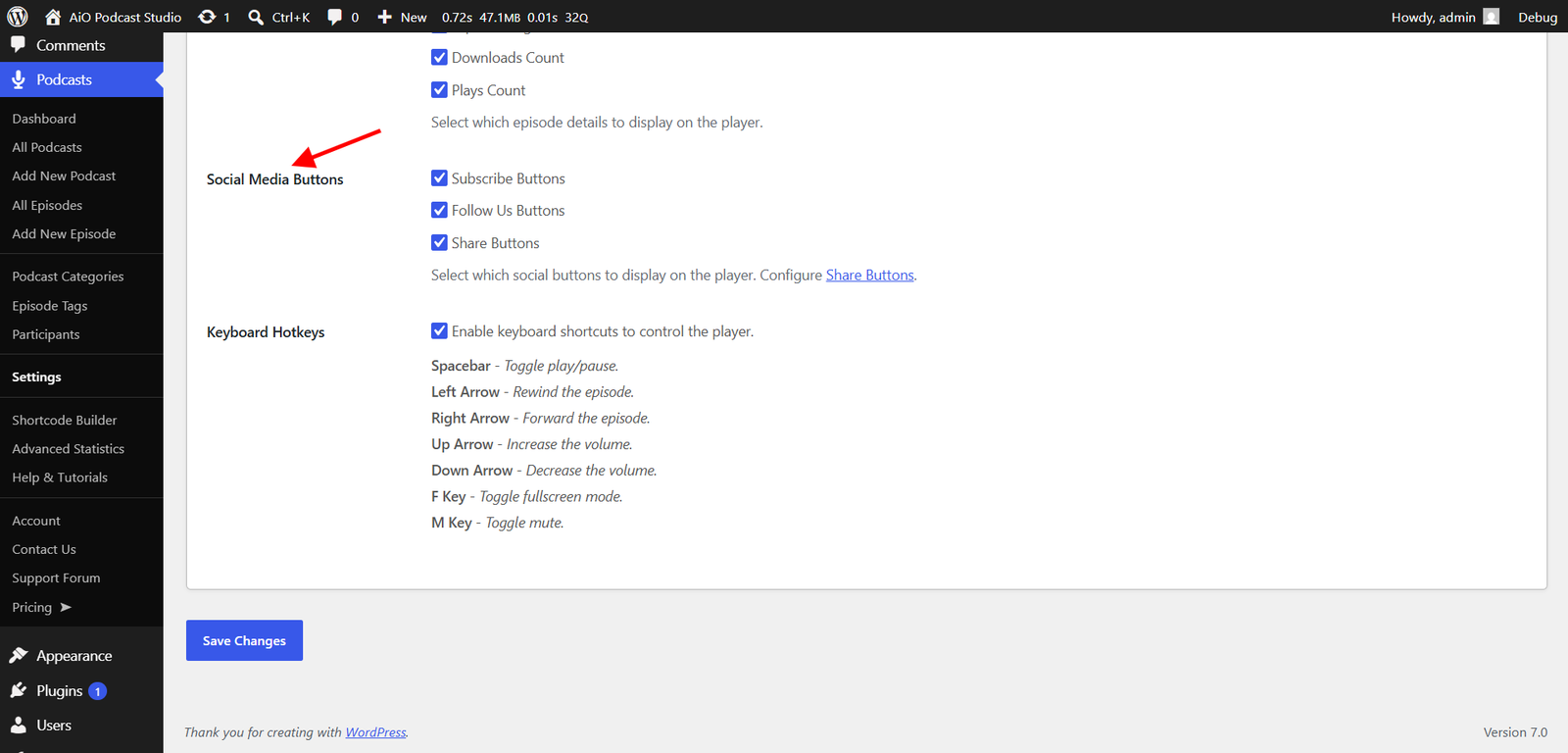
- Subscribe Buttons — Shows a Subscribe button that opens a modal listing the podcast platform links configured for the episode’s podcast.
- Follow Us Buttons — Shows a Follow Us button that opens a modal with the social media links configured for the podcast.
- Share Buttons — Shows a Share Episode button that opens a modal with links for sharing the episode on social platforms.
Keyboard Shortcuts
Enable Keyboard Hotkeys to allow visitors to control the player using their keyboard. When active, the following shortcuts are available.
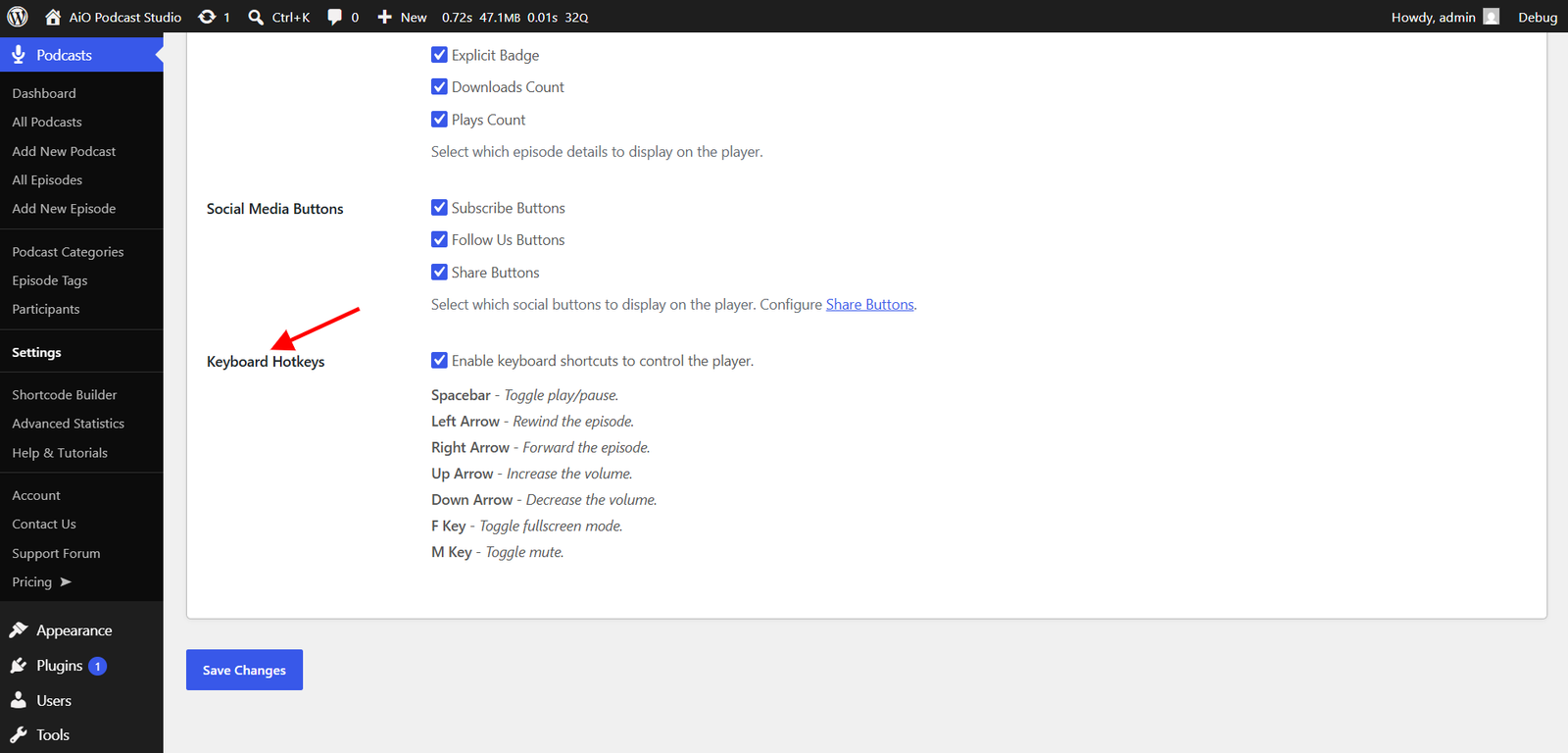
- Spacebar — Toggle play and pause.
- Left Arrow — Rewind the episode.
- Right Arrow — Fast-forward the episode.
- Up Arrow — Increase the volume.
- Down Arrow — Decrease the volume.
- F — Toggle fullscreen mode.
- M — Toggle mute.
Once all settings are configured, click Save Changes at the bottom of the settings page to apply them.