
The audio player in AiO Podcast Studio is fully configurable from a single settings screen. You can control how playback behaves, which buttons appear in the player interface, what episode information is shown alongside the player, which social buttons are included, and whether keyboard shortcuts are active. All of these options are found in Podcasts → Settings → Display → Player.
Contents
Playback Settings
These options control how the player behaves when a page loads and during playback.
- Autoplay — Automatically starts playback as soon as the player is ready when a visitor loads the page. Note that most browsers block autoplay unless the visitor has previously interacted with the site.
- Autoplay Next Episode — When the current episode finishes, the player automatically begins playing the next episode in the listing. Useful for sequential podcast formats where listeners are likely to continue to the next episode.
- Loop — Continuously repeats the current episode when it reaches the end instead of stopping.
- Muted — Starts playback with audio muted by default. The visitor can unmute at any time using the volume control.
- Preload — Controls how much of the audio file is loaded before the visitor presses play. Auto loads the entire file in advance, Metadata loads only the file information such as duration, and None does not load anything until the visitor initiates playback. Metadata or None are recommended to reduce unnecessary bandwidth usage.
- Plays Inline on Mobile — Prevents the player from automatically entering fullscreen mode on mobile devices when playback begins, keeping the episode page visible behind the player.
Player Controls
Under Player Controls, choose which buttons and interface elements appear directly on the player. Each item can be enabled or disabled independently.
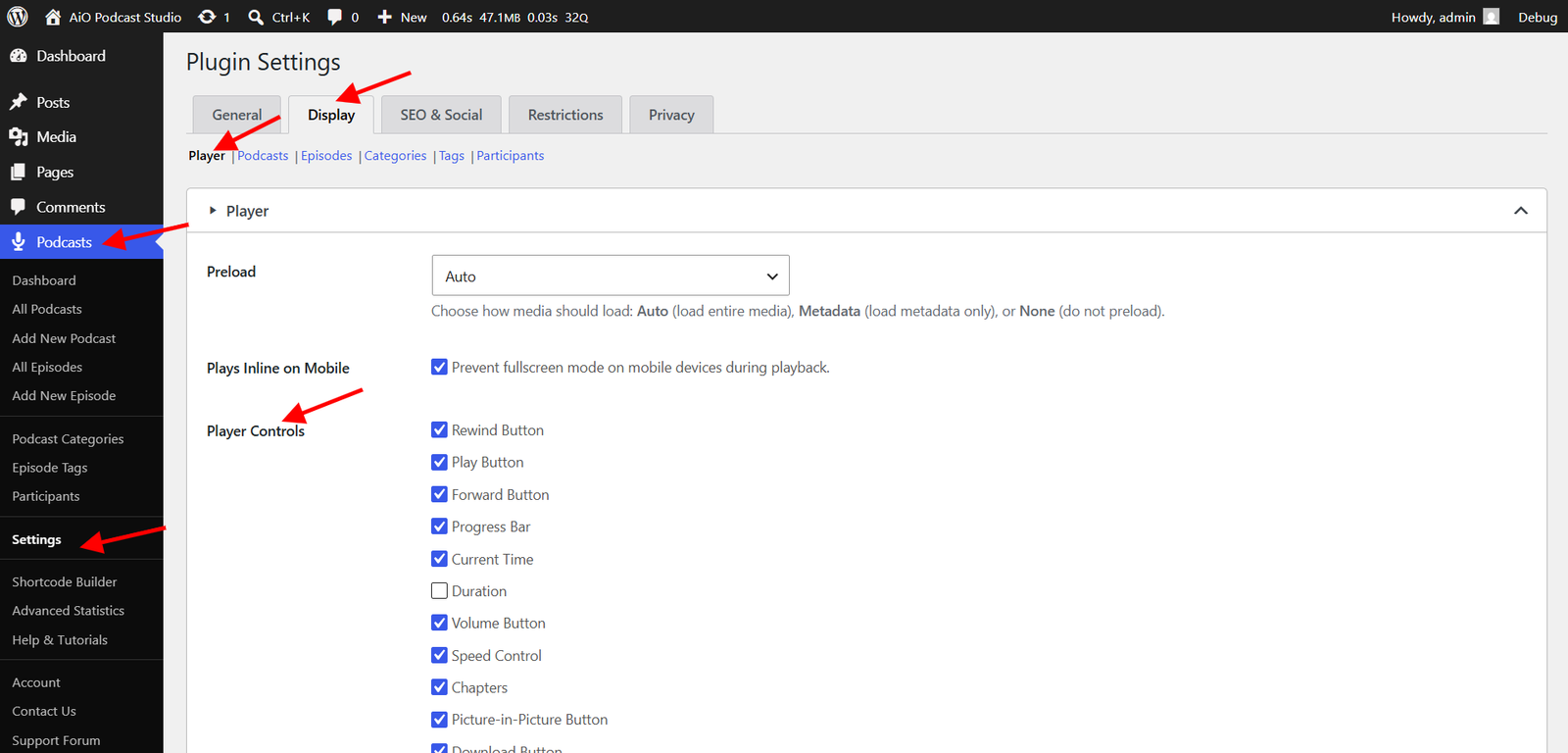
- Rewind Button — A button to jump back a set number of seconds in the episode.
- Play Button — The primary play/pause control. It is recommended to keep this enabled.
- Forward Button — A button to skip forward a set number of seconds in the episode.
- Progress Bar — A scrubber bar that shows how far through the episode the listener is and allows them to jump to any point.
- Current Time — Displays the elapsed playback time.
- Duration — Displays the total length of the episode.
- Volume Button — A button to adjust or mute the audio volume.
- Speed Control — Allows the listener to change the playback speed (e.g., 1×, 1.5×, 2×).
- Chapters — Shows a chapters menu on the player when the episode has chapters defined. Also enables clickable timestamps in transcripts. See the Adding Episode Transcripts tutorial for details.
- Picture-in-Picture Button — Allows the player to float in a small overlay window while the listener navigates to other browser tabs.
- Download Button — Adds a button that lets visitors download the episode audio file directly from the player.
- Fullscreen Button — Expands the player to fill the entire screen.
Episode Details
Under Episode Details, choose which metadata fields appear alongside the player on the episode page. Each item can be enabled or disabled independently.
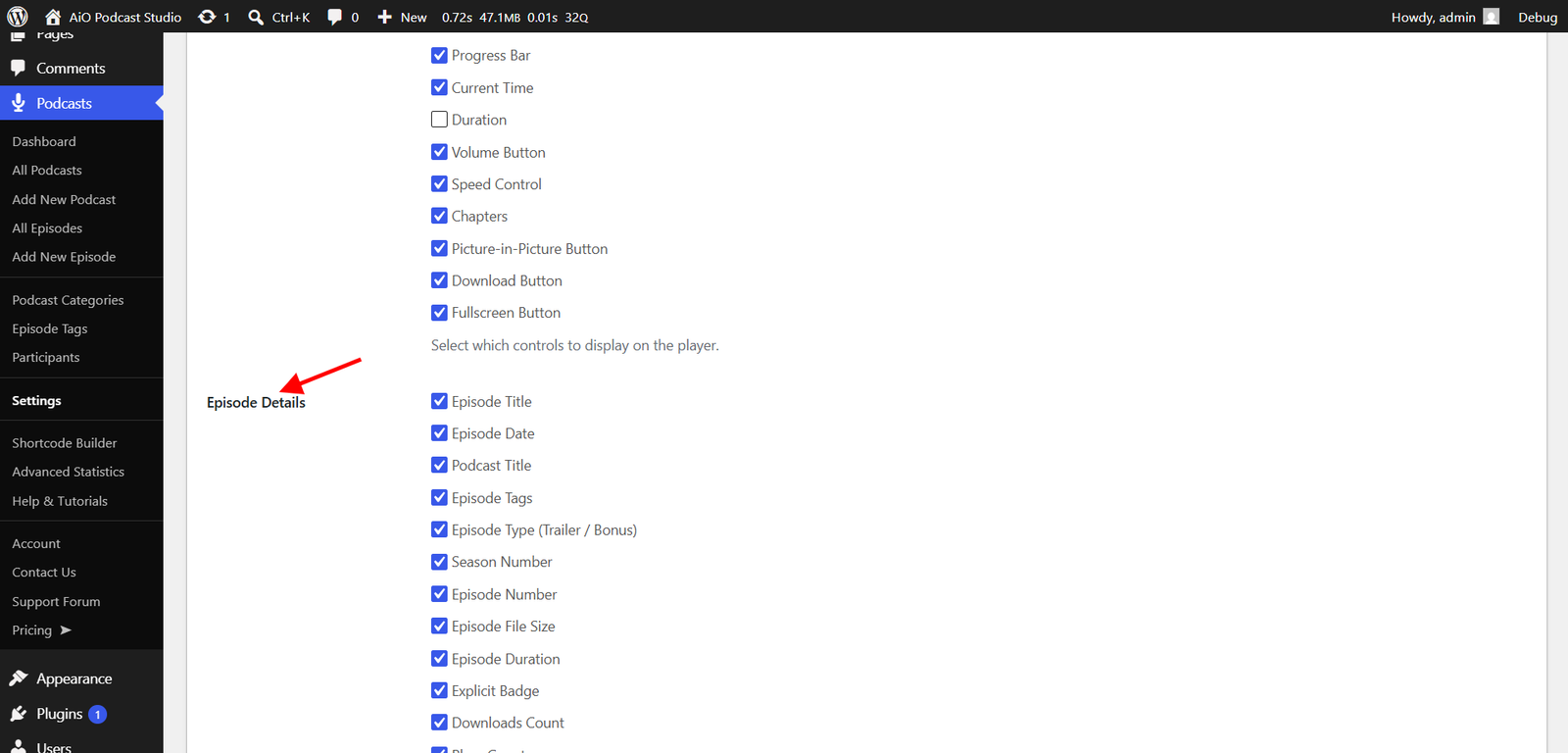
- Episode Title — The title of the episode.
- Episode Date — The published date of the episode.
- Podcast Title — The name of the podcast the episode belongs to.
- Episode Tags — The tags assigned to the episode, displayed as clickable links.
- Episode Type (Trailer / Bonus) — A label shown for Trailer and Bonus episodes. Full episodes do not display a label.
- Season Number — The season the episode belongs to.
- Episode Number — The episode’s number within the series or season.
- Episode File Size — The size of the audio file in bytes.
- Episode Duration — The total runtime of the episode.
- Explicit Badge — A badge indicating that the episode contains explicit content.
- Downloads Count — The number of times the episode has been downloaded.
- Plays Count — The number of times the episode has been played.
Social Media Buttons
Under Social Media Buttons, choose which social action buttons appear on the player. Each group can be enabled or disabled independently. The buttons themselves are configured separately in the SEO & Social settings.
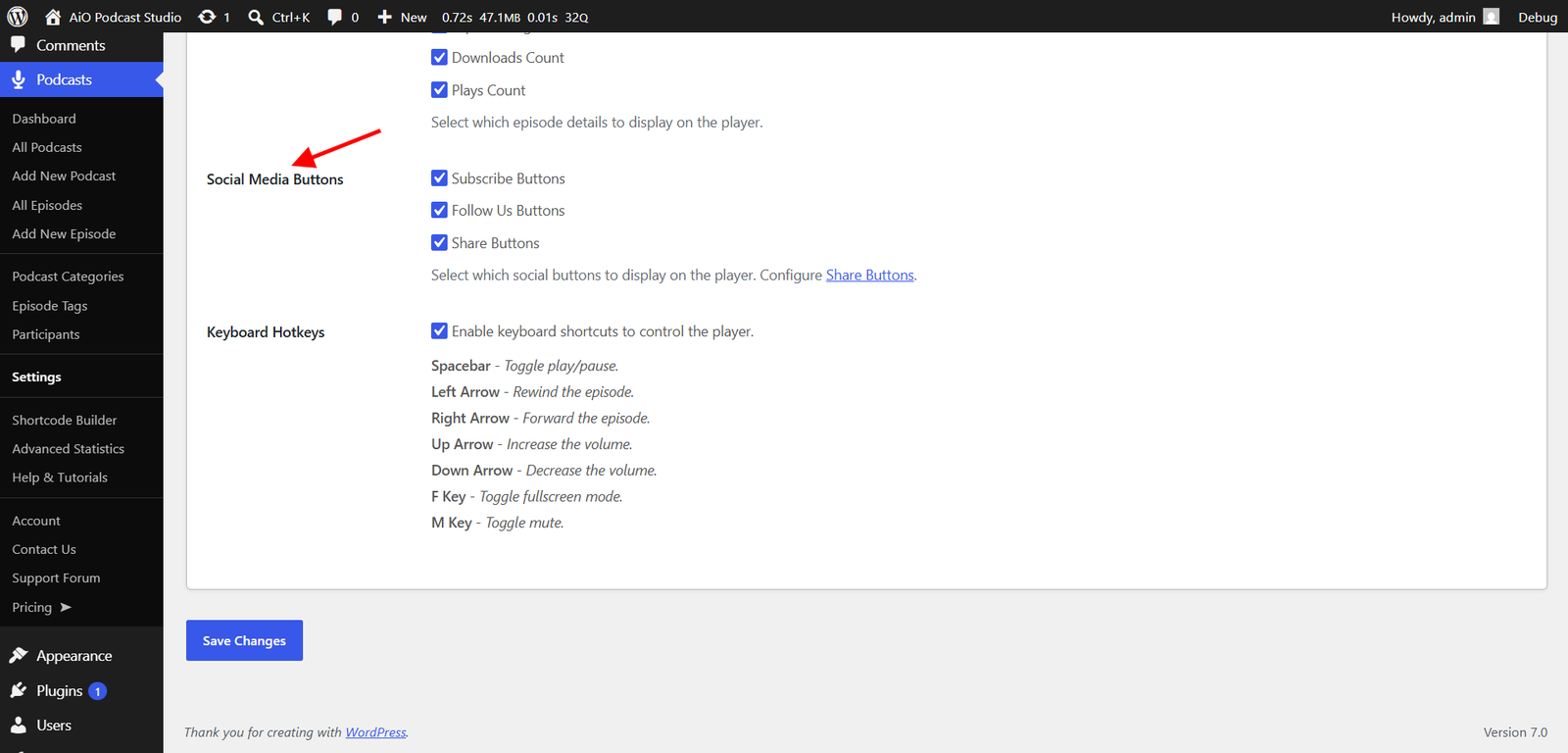
- Subscribe Buttons — Links to subscribe to the podcast on external platforms such as Apple Podcasts, Spotify, and others. These are set up on each individual podcast.
- Follow Us Buttons — Links to your social media profiles, displayed as follow buttons on the player.
- Share Buttons — Buttons that allow visitors to share the episode on social networks or copy a direct link.
Keyboard Hotkeys
Enable Keyboard Hotkeys to allow visitors to control the player using their keyboard without needing to click on any buttons. When enabled, the following shortcuts are active while the player is focused.
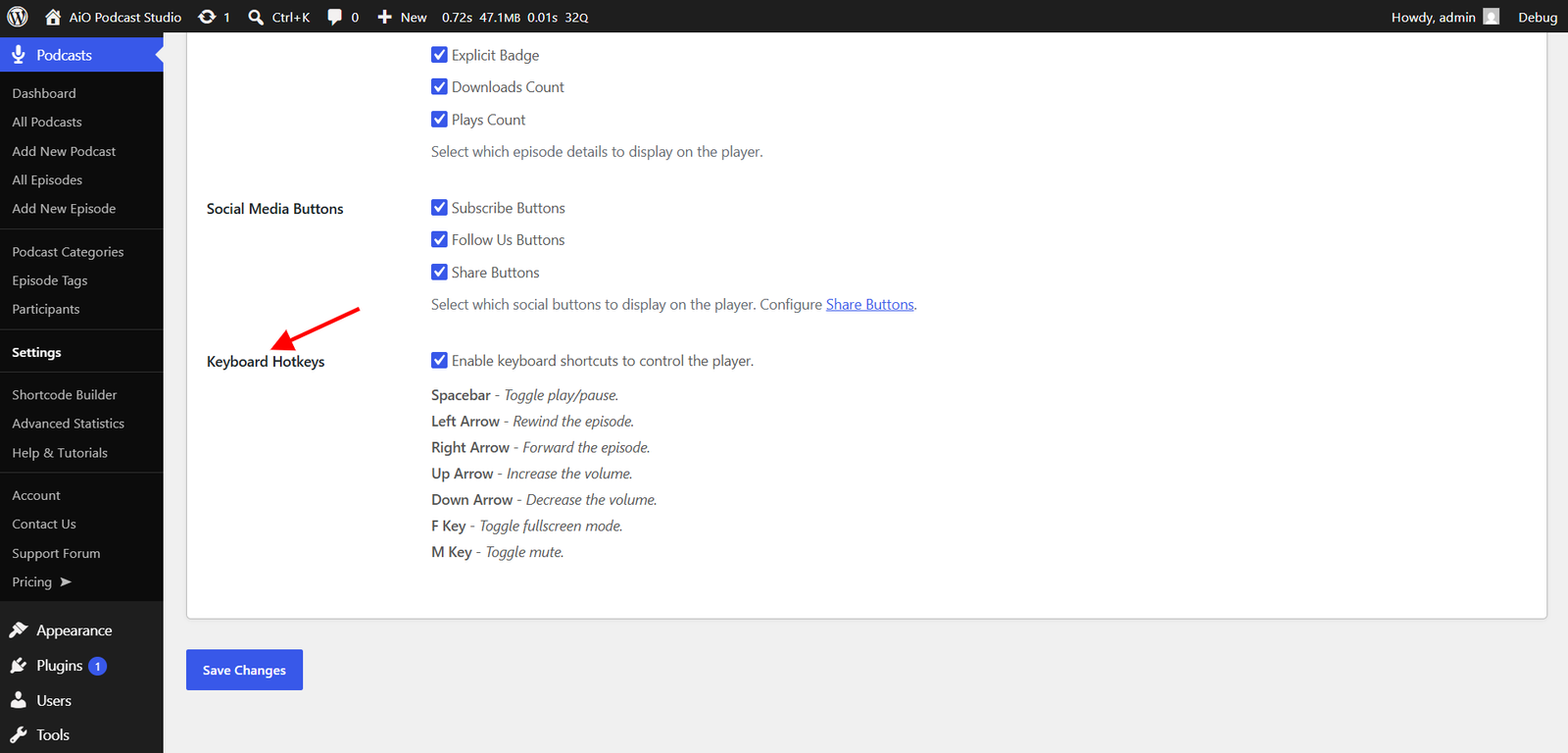
- Spacebar — Toggle play and pause.
- Left Arrow — Rewind the episode.
- Right Arrow — Fast-forward the episode.
- Up Arrow — Increase the volume.
- Down Arrow — Decrease the volume.
- F Key — Toggle fullscreen mode.
- M Key — Toggle mute.