
Episode transcripts in AiO Podcast Studio let you publish a full written version of your audio alongside the player. Transcripts improve accessibility for listeners who are deaf or hard of hearing, help search engines index your episode content, and let fans read along while the episode plays. This tutorial explains how to add a transcript and how it is displayed on your website.
Contents
Add a Transcript to an Episode
Open the episode you want to edit by going to Podcasts → All Episodes and clicking the episode title. In the Episode Info panel below the content editor, make sure the Episode Details tab is selected. Click the Transcription accordion to expand it.
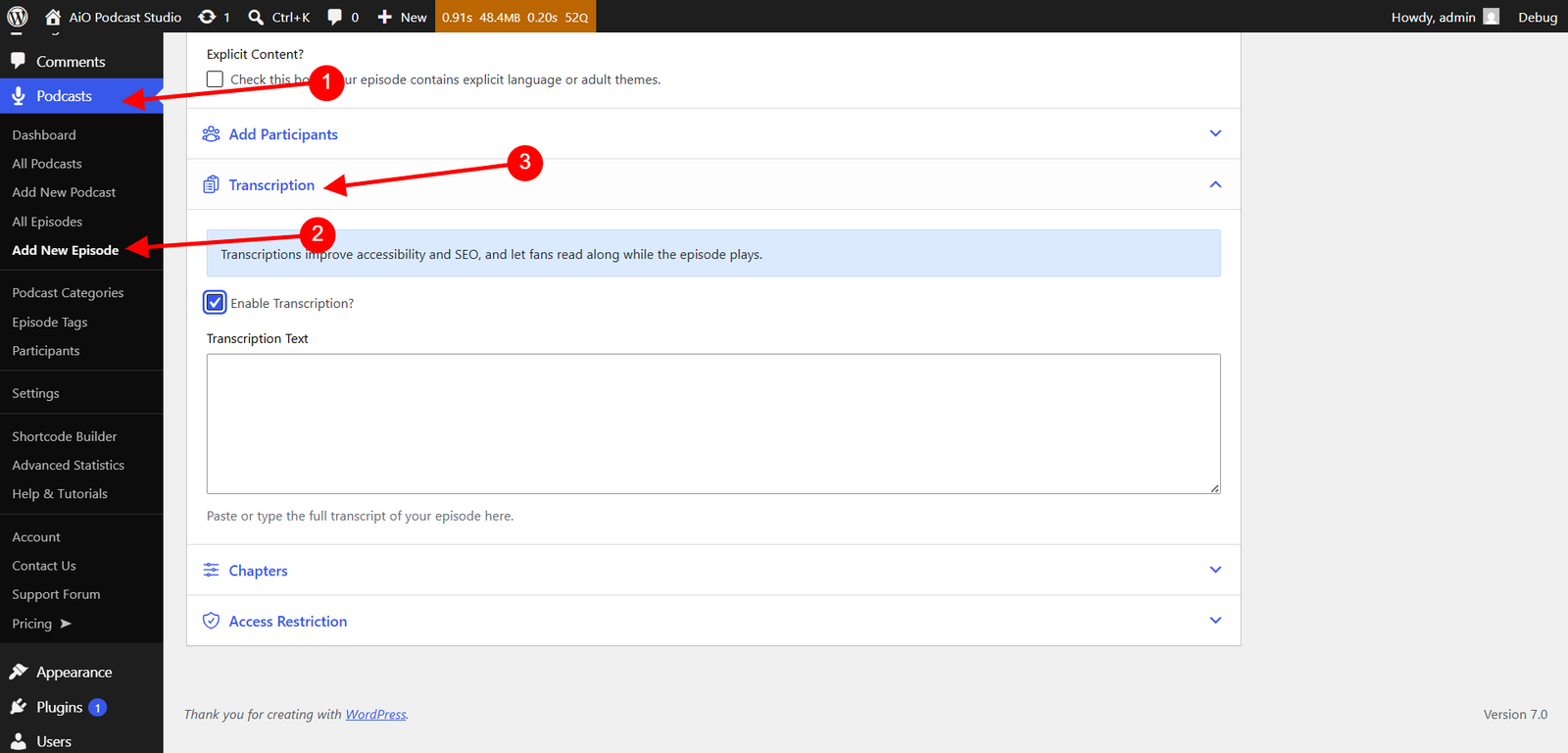
Check the Enable Transcription? box. A Transcription Text field will appear below it. Paste or type the full transcript of your episode into the text area. Click Update to save.
To remove a transcript, uncheck the Enable Transcription? box and click Update. The text you entered is preserved in the field but will no longer appear on the public episode page until the checkbox is re-enabled.
How Transcripts Are Displayed
The way the transcript appears on the episode page depends on whether the episode also has a written description in the main content editor.
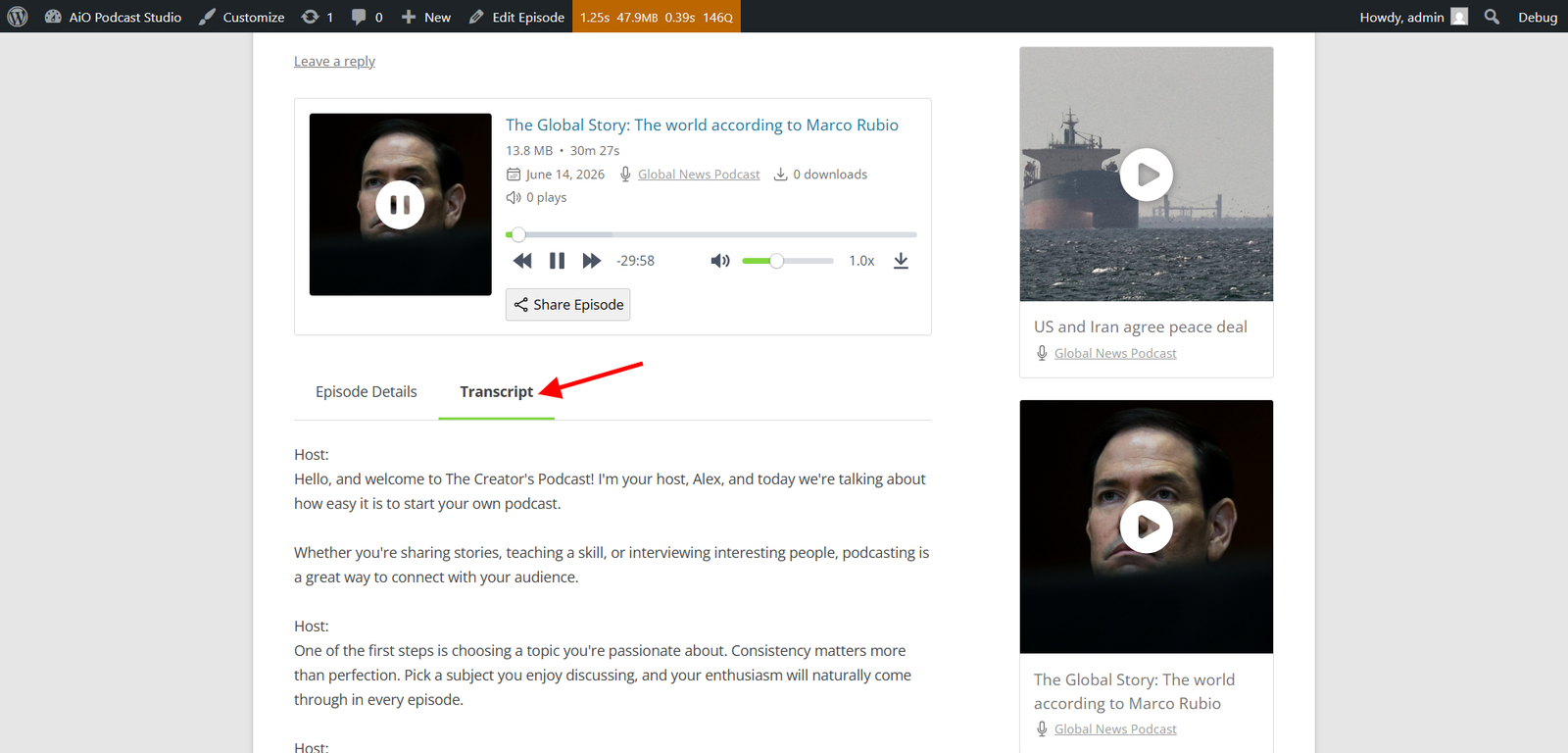
- Episode has both a description and a transcript — The episode page displays a tabbed interface. The first tab, labelled Episode Details, shows the episode description. The second tab, labelled Transcript, shows the full transcript. Visitors can switch between the two tabs without leaving the page.
- Episode has a transcript only — The transcript is displayed directly on the page without a tab interface.
- Episode has a description only — The description is displayed as normal and no transcript section appears.
Clickable Timestamps
AiO Podcast Studio automatically detects timestamps in your transcript text and turns them into clickable links. When a visitor clicks a timestamp, the audio player on the same page seeks to that point in the episode and begins playing from there.
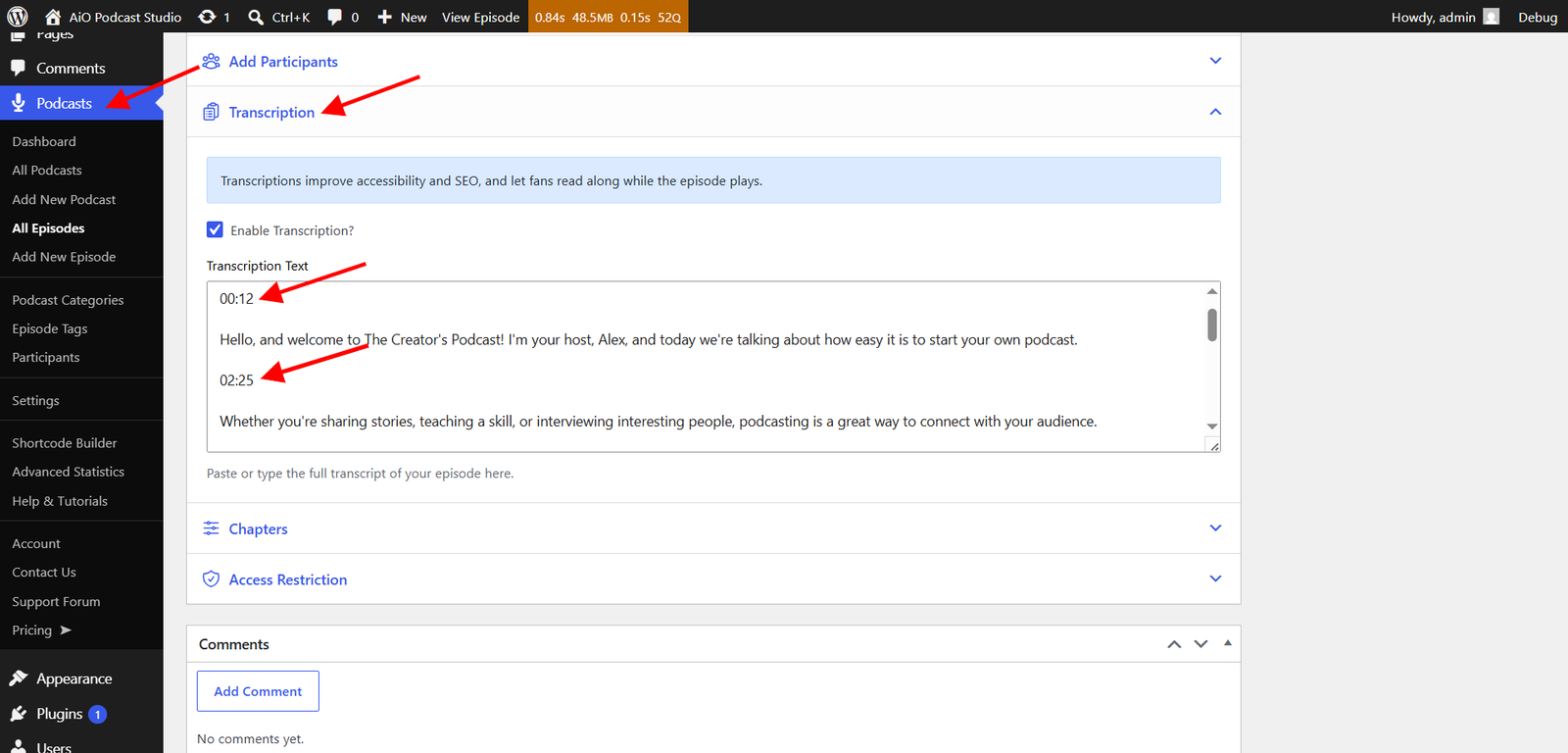
Timestamps are recognised in both MM:SS and HH:MM:SS formats — for example, 4:32 or 1:04:32. No special formatting is required; simply include the timestamps as plain text in your transcript and the plugin will handle the rest.
Clickable timestamps require the Chapters control to be enabled in the player settings. Go to Podcasts → Settings → Display, open the Player tab, and make sure the chapters control is active. If it is not enabled, timestamps in the transcript will remain as plain text.