
AiO Podcast Studio supports video episodes alongside audio. You can upload a video file directly, host it externally, or link to a YouTube or Vimeo video, and the plugin will detect the media type and switch the player to video mode automatically. This tutorial walks through setting up a video episode, configuring the video player size, and understanding how video episodes appear in your RSS feed.
Contents
- Setting the Episode File
- How the Video Player Renders
- Configuring the Video Player Size
- Video Episodes and Your RSS Feed
Setting the Episode File
Go to Podcasts → All Episodes and open the episode you want to make a video episode, or create a new one via Podcasts → Add New Episode. In the Episode Info panel, open the Episode Details accordion and locate the Episode File field.
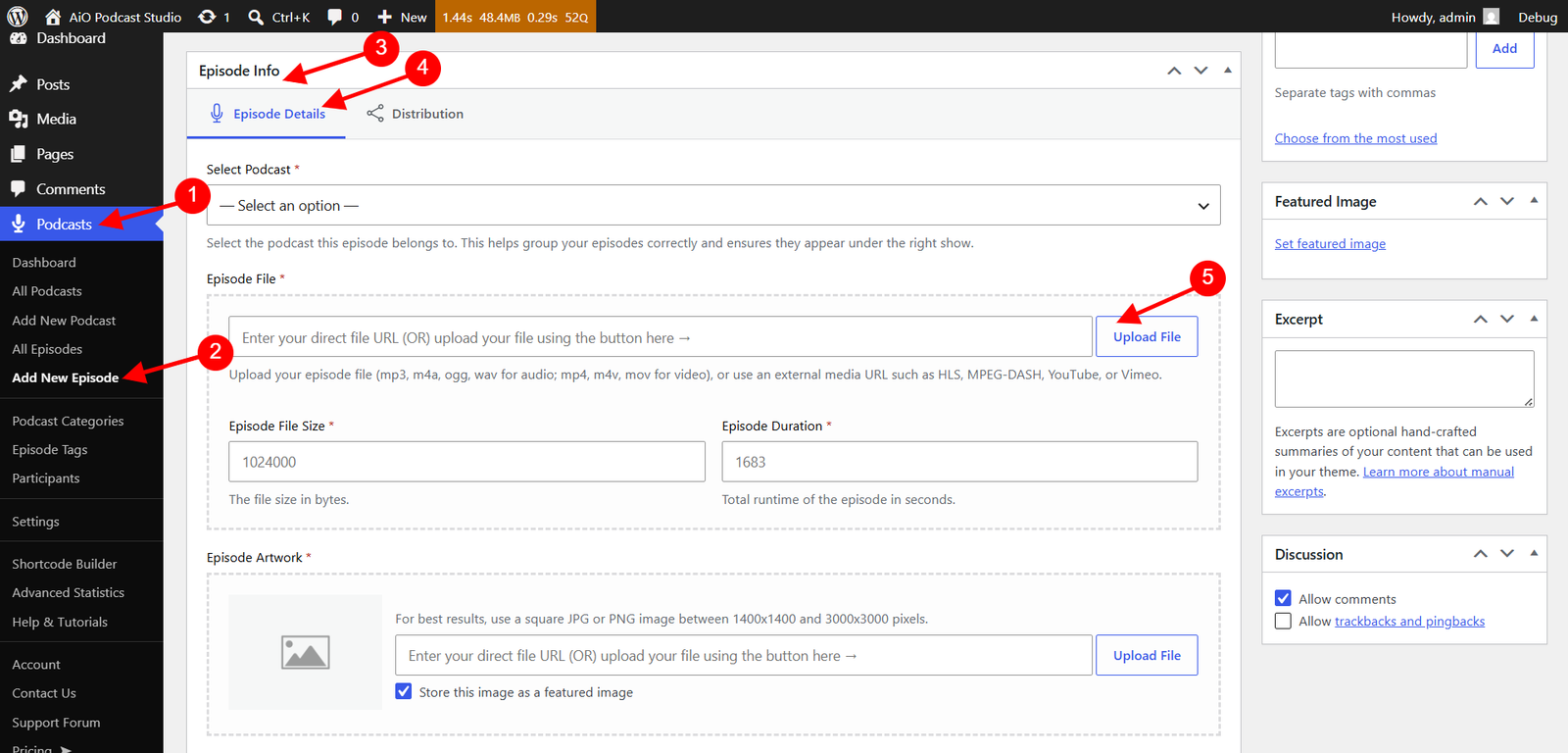
There are two ways to add a video file.
- Upload a video file — Click Upload File and select a video file from your WordPress Media Library or upload a new one. Supported formats are MP4 (.mp4), M4V (.m4v), and QuickTime (.mov). The plugin stores the file type automatically when you upload through the media uploader.
- Paste an external URL — Type or paste a URL directly into the Episode File field. The plugin detects the media type from the URL. Supported external sources are YouTube, Vimeo, HLS streams (.m3u8), and MPEG-DASH streams.
After setting the file, fill in the Episode File Size (in bytes) and Episode Duration (in seconds) fields. These values are used by the RSS feed and player. For external URLs such as YouTube and Vimeo, these fields are optional since the video is not included in the RSS feed enclosure.
Click Publish or Update to save the episode.
How the Video Player Renders
When the plugin detects a video file or URL in the Episode File field, the web player on your website switches to video mode automatically. No additional configuration is required. In video mode, the episode artwork is replaced by the video itself, and the player controls appear over the video.
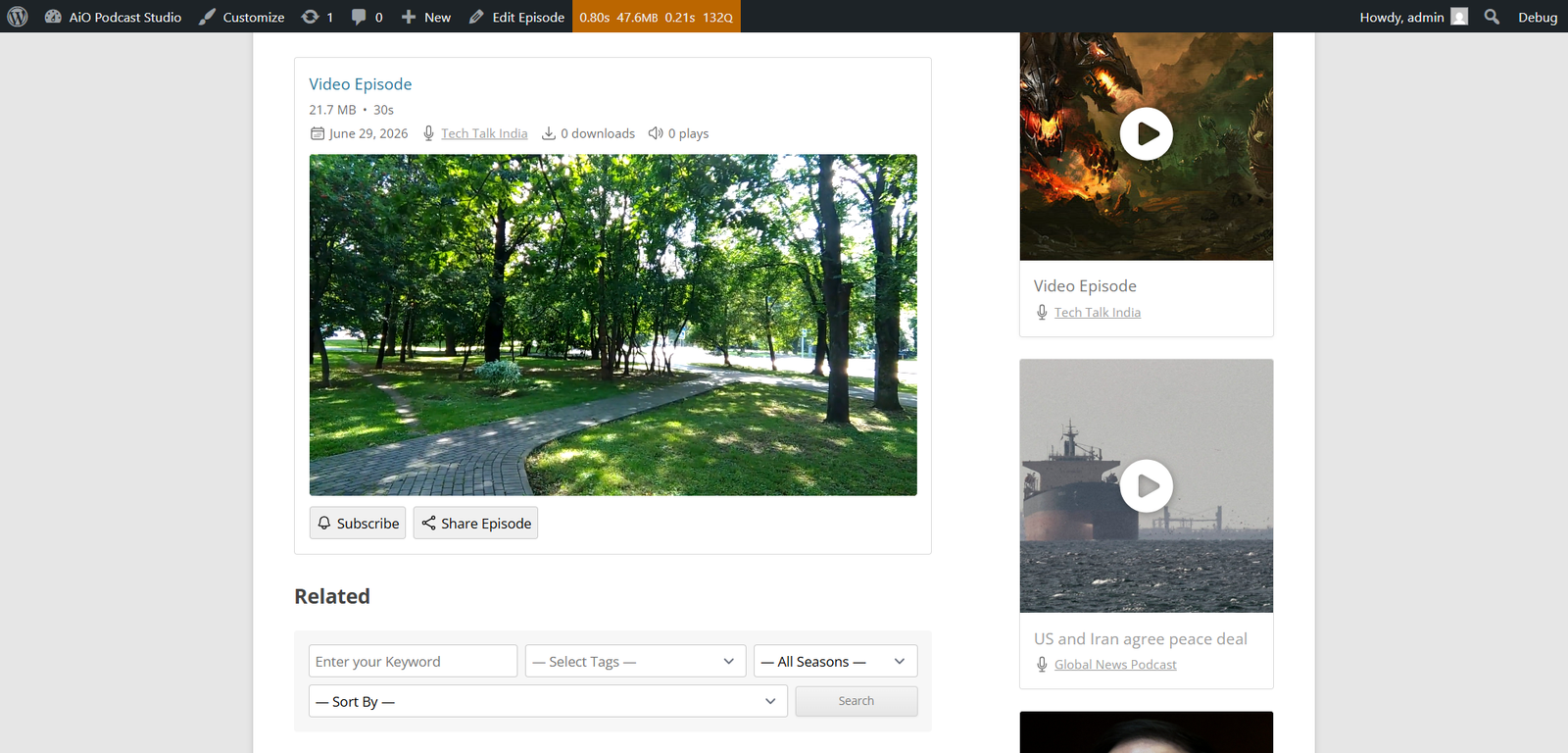
The detection works as follows.
- Files uploaded through the media uploader have their MIME type stored and are used directly by the player.
- YouTube URLs (youtube.com or youtu.be) and Vimeo URLs (vimeo.com) are recognised by their domain and rendered using the respective platform’s embedded player.
- HLS and MPEG-DASH streaming URLs are detected by file extension or MIME type and played natively in the browser where supported.
To filter your episode list by media type, go to Podcasts → All Episodes and use the Video Episodes option in the filter dropdown above the list. This makes it easy to manage all video episodes across your podcasts from a single view.
Configuring the Video Player Size
The video player size is controlled by two settings that apply to all video episodes across your site. Go to Podcasts → Settings → Display and open the Player tab.
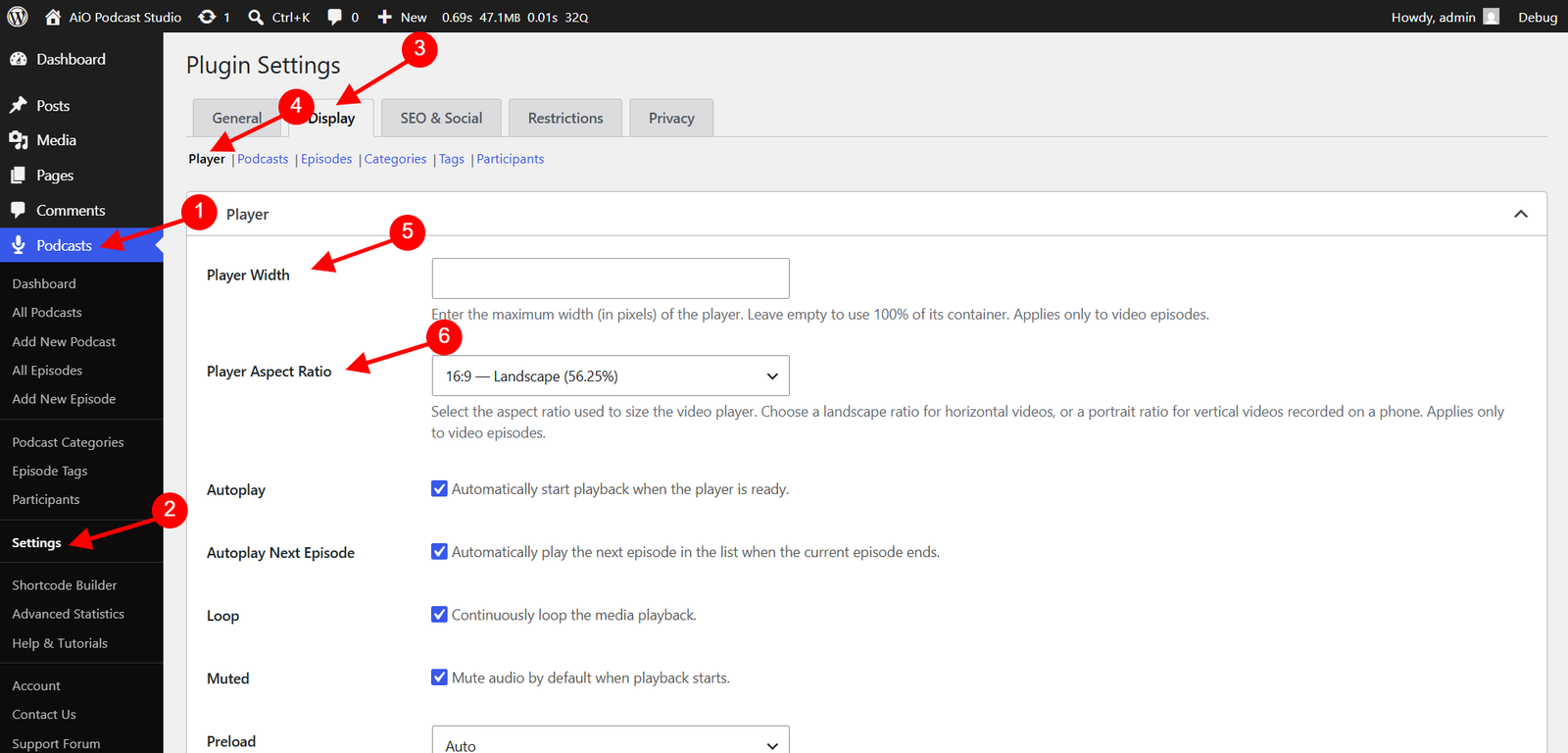
- Player Width — Enter the maximum width of the video player in pixels. For example, entering 800 limits the player to 800 pixels wide. Leave the field empty to allow the player to stretch to the full width of its container.
- Player Aspect Ratio — Select the ratio that matches your video content. Available options are 21:9 — Ultrawide, 16:9 — Landscape, 4:3 — Classic Landscape, 1:1 — Square, 4:5 — Portrait, and 9:16 — Vertical. For most horizontal videos, 16:9 — Landscape is the correct choice. For vertical videos recorded on a phone, choose 9:16 — Vertical.
Click Save Changes to apply. These settings affect all video episodes on your site. If you need a different size for a specific shortcode, the Player Width and Player Aspect Ratio fields are also available in the Shortcode Builder under the Player section, where they override the global defaults for that shortcode only.
Video Episodes and Your RSS Feed
The RSS feed handles video episodes differently depending on whether the file is self-hosted or linked from an external platform.
- Self-hosted video files (MP4, M4V, MOV) — These are included in the RSS feed enclosure with the correct MIME type (video/mp4, video/x-m4v, or video/quicktime). Podcast apps and directories that support video podcasts will be able to download and display the episode.
- External URLs (YouTube, Vimeo, HLS, MPEG-DASH) — These are not included in the RSS feed enclosure. External platform links cannot be distributed through a podcast RSS feed, so these episodes will only be playable through the embedded web player on your website. They will not appear in podcast apps.
If distributing your video episodes through podcast apps is important, use self-hosted MP4 files and ensure the Episode File Size and Episode Duration fields are filled in for each episode, as these values are required for a valid RSS enclosure.