
Episodes are the individual recordings that make up your podcast. Each episode belongs to a parent podcast and contains its own audio file, artwork, metadata, and optional extras such as a transcript and chapter markers. This tutorial walks through every field available when creating or editing an episode in AiO Podcast Studio.
Contents
Create a New Episode
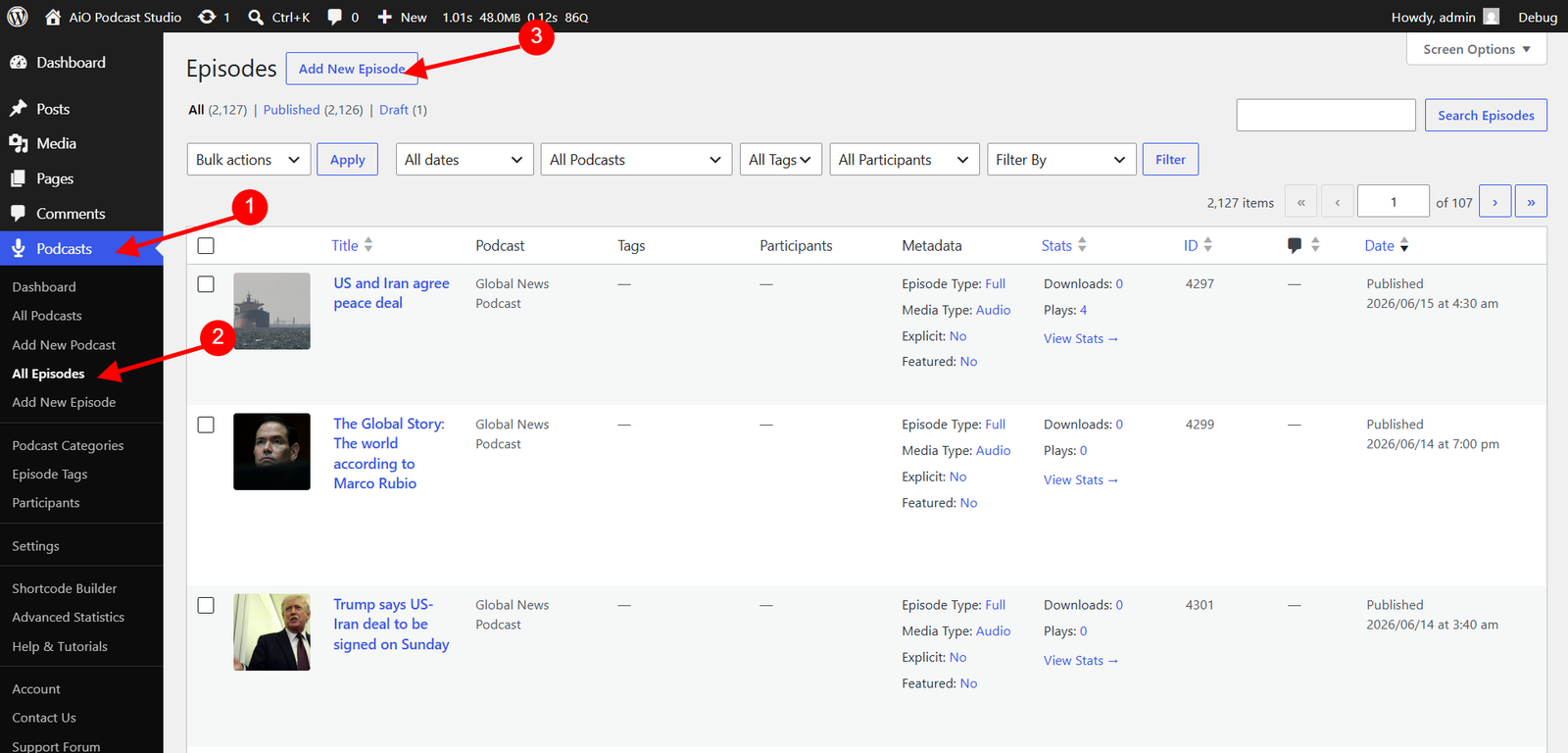
Go to Podcasts → All Episodes in your WordPress admin sidebar and click Add New Episode. At the top of the edit screen, enter the episode title in the Title field. In the main content area below, you can write a description or show notes for the episode — this text is displayed on the episode’s public page and is included in the RSS feed as the episode summary.
Episode Details
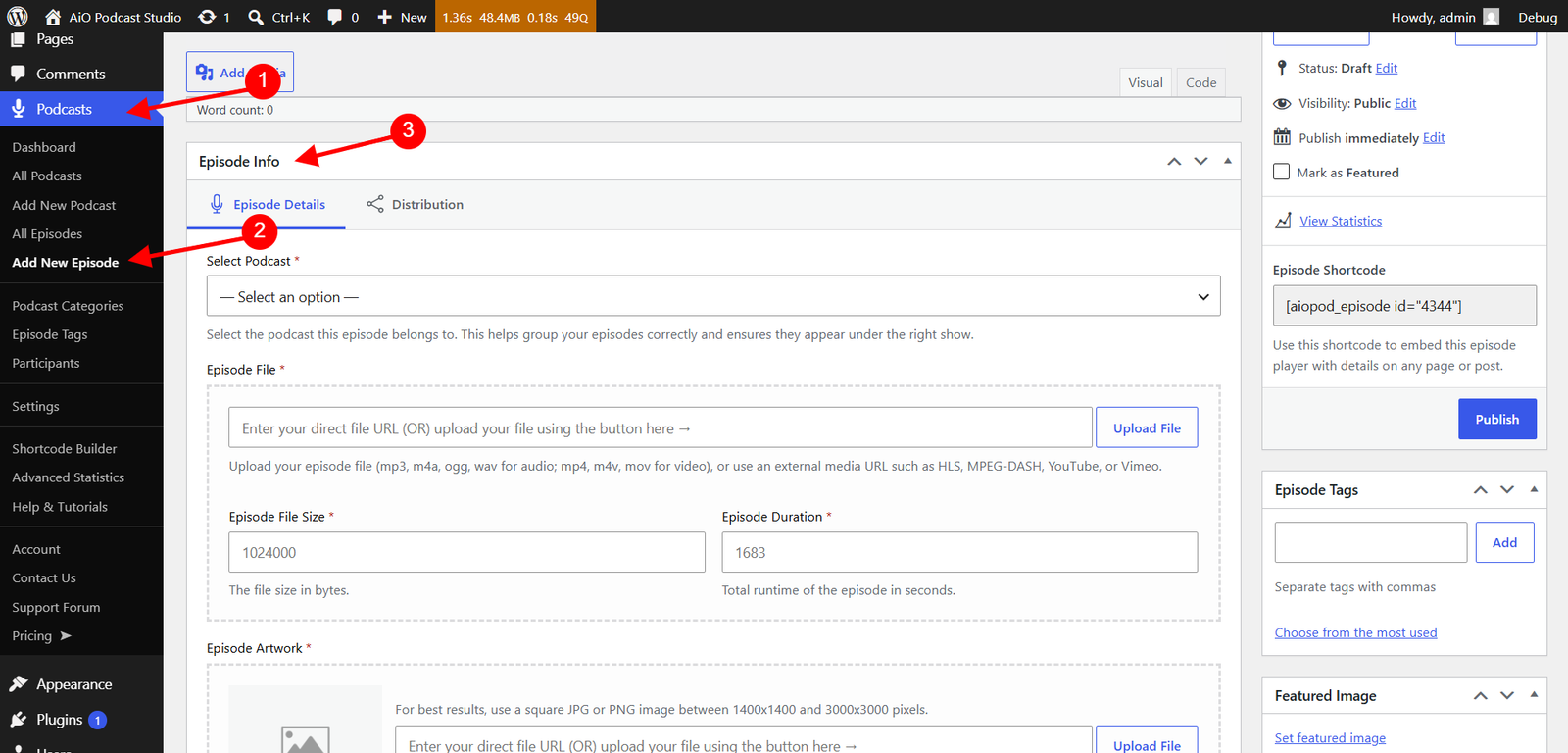
Below the content editor you will find the Episode Info panel. The Episode Details tab is open by default and contains all the core fields for your episode.
Required fields
- Select Podcast — Choose the podcast this episode belongs to from the dropdown. This groups the episode under the correct show and ensures it appears in the right RSS feed.
- Episode File — Upload your audio file (MP3, M4A, OGG, or WAV) using the Upload File button, or paste an external audio URL directly into the field. Once a file is selected, the Episode File Size (in bytes) and Episode Duration (in seconds) fields below it are filled in automatically. You may also enter these values manually if needed.
- Episode Artwork — Upload a cover image for this episode or paste an image URL. For best results, use a square JPG or PNG image between 1400×1400 and 3000×3000 pixels. If featured images are enabled in your appearance settings, a checkbox will appear allowing you to also store this image as the episode’s WordPress featured image.
Optional fields
- Episode Type — Classify the episode as Full, Trailer, or Bonus. This value is included in the RSS feed and used by directories such as Apple Podcasts to organise and display episodes correctly. Defaults to Full.
- Season Number — The season this episode belongs to. Leave blank if your podcast does not use seasons.
- Episode Number — The episode’s number within the season or across the entire podcast. Used by podcast directories for ordering and display.
- Explicit Content? — Check this box if the episode contains explicit language or adult themes. This flag is included in the RSS feed and shown in podcast directories.
Participants
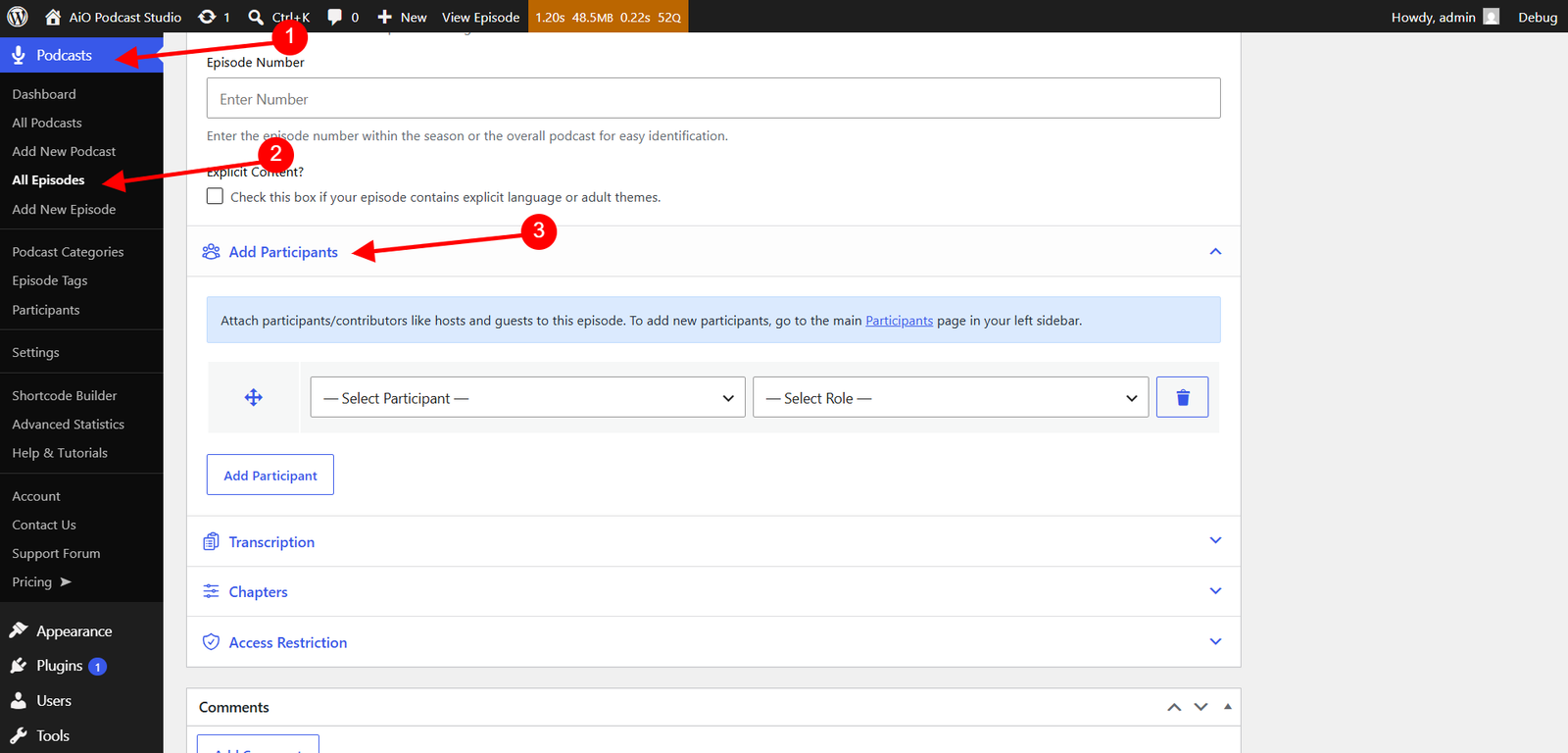
Click the Add Participants accordion to expand it. Here you can attach hosts, guests, and other contributors to this specific episode. Click Add Participant, select a person from the first dropdown, and assign their role from the second dropdown. You can add multiple participants, drag the rows to reorder them, and remove any entry with the trash icon.
Participants must be created first on the Podcasts → Participants page before they will appear in the dropdown. For full details on creating and managing participant profiles, see the Managing Participants tutorial.
Transcription
Click the Transcription accordion to expand it. Transcriptions improve accessibility and SEO, and allow listeners to read along while the episode plays.
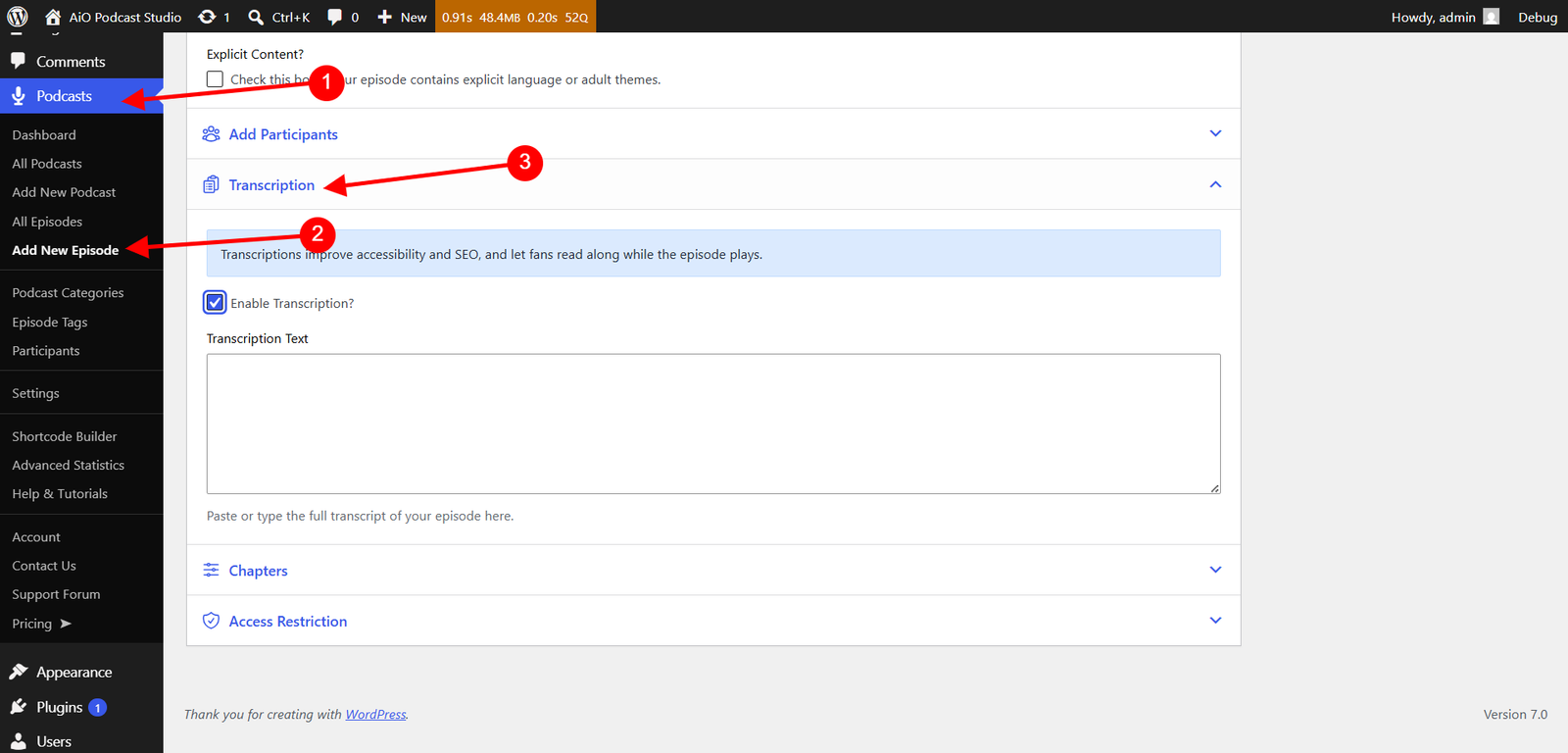
Check the Enable Transcription? box to reveal the Transcription Text field. Paste or type the full transcript of your episode into the text area. The transcription will be displayed on the episode’s public page when enabled.
Chapters
Click the Chapters accordion to expand it. Chapters let listeners jump to key moments in your episode for a more interactive listening experience.
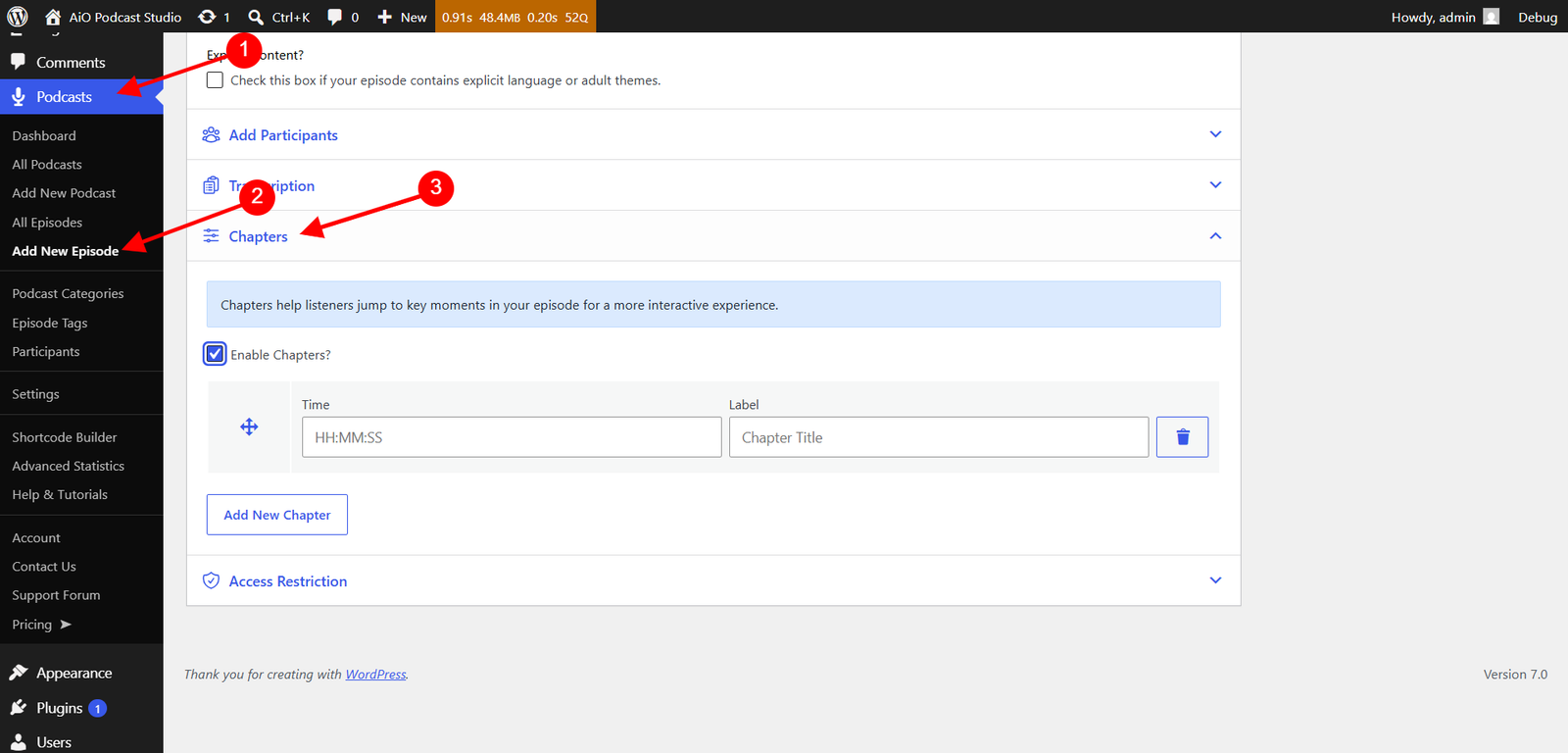
Check the Enable Chapters? box to reveal the chapter list. Click Add New Chapter to add a row. Each row has two fields:
- Time — The timestamp where the chapter begins, in HH:MM:SS format (e.g., 00:05:30).
- Label — A short title describing what happens at that point in the episode (e.g., Introduction, Guest Interview).
Add as many chapters as needed. Drag and drop the rows to reorder them, and click the trash icon to remove a chapter.
Distribution
Click the Distribution tab in the Episode Info panel to access RSS feed and directory settings for this episode.
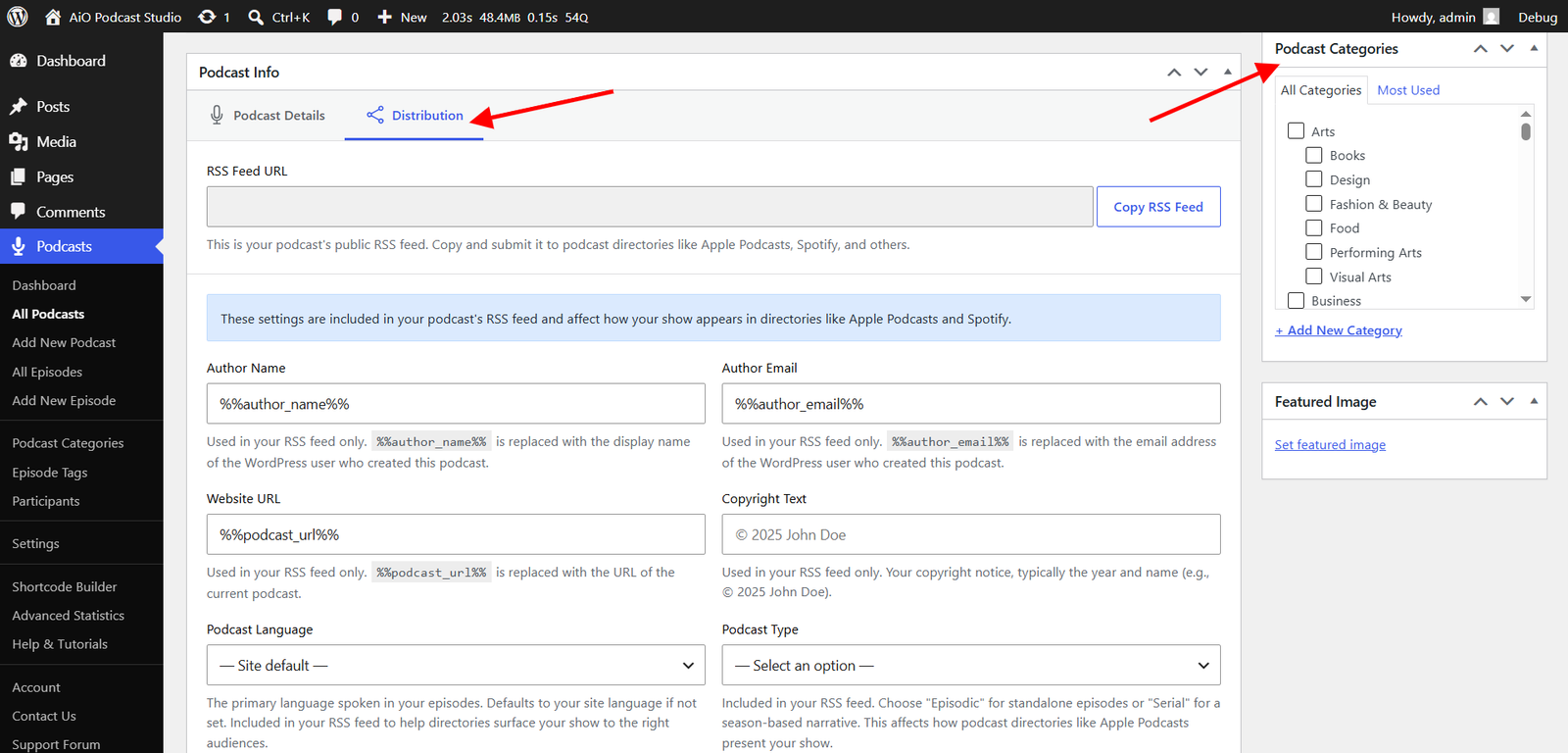
Author Info
The Author Name field overrides the podcast-level author for this individual episode in your RSS feed. This is useful for multi-host shows where different people front different episodes. Leave the field blank to inherit the author name set on the parent podcast.
Block from Directories
Check the Block from Directories box to prevent this episode from appearing in podcast directories such as Apple Podcasts and Spotify. The episode will still be accessible on your website. This is useful for bonus or unlisted content that you do not want distributed publicly through external platforms.