
Episode filters in AiO Podcast Studio give visitors a toolbar above your episode listings so they can search, sort, and narrow down episodes by keyword, tag, or season. You control which filter controls appear, how they are laid out, and how they behave when a visitor interacts with them. This tutorial explains how to enable and configure the episode filter bar.
Contents
Enable Filters on Your Episode Listings
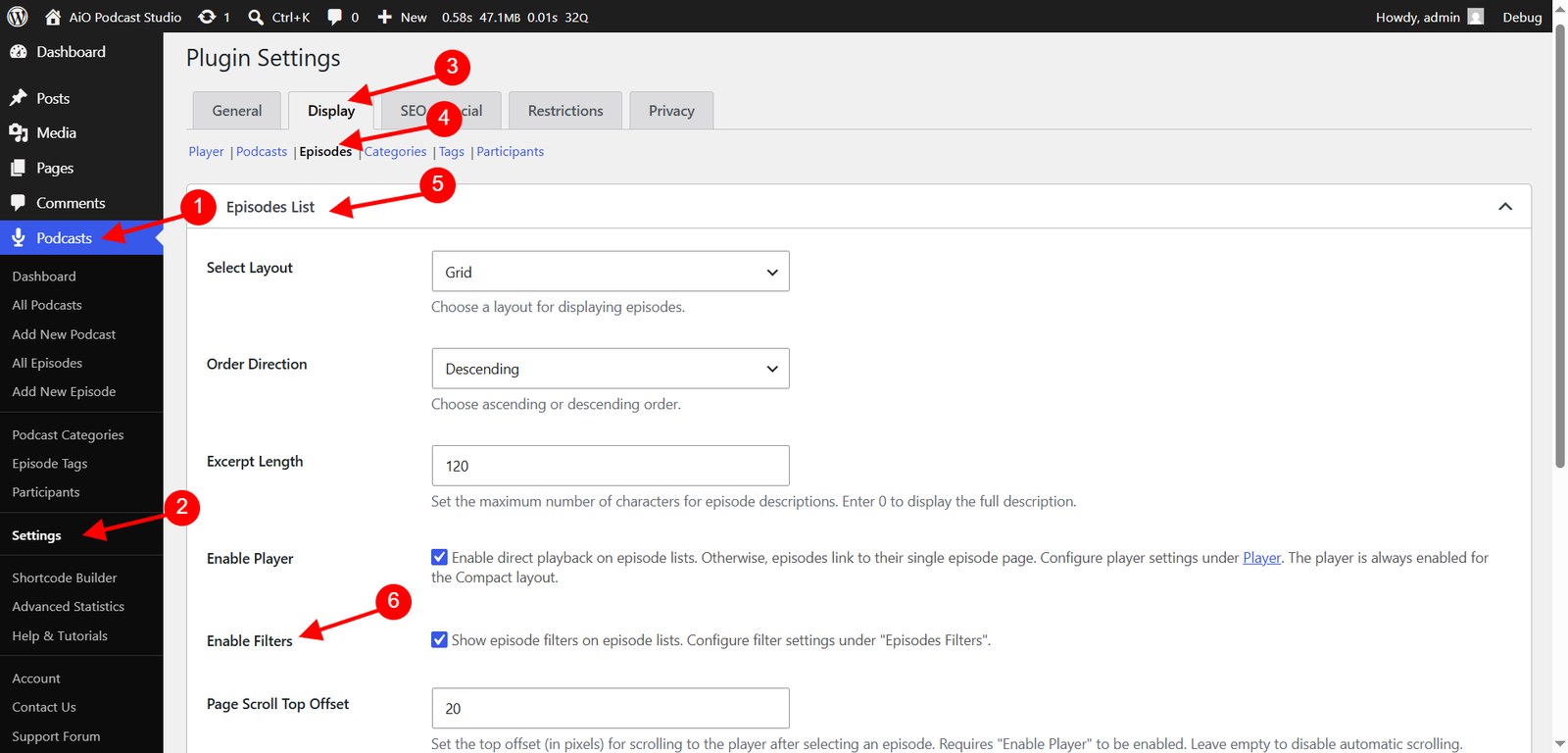
Filters are turned off by default and must be enabled before they appear on your website. Go to Podcasts → Settings and open the Display tab. Under the Episodes List section, check Enable Filters. This shows the filter bar above your main episode listings. Click Save Changes.
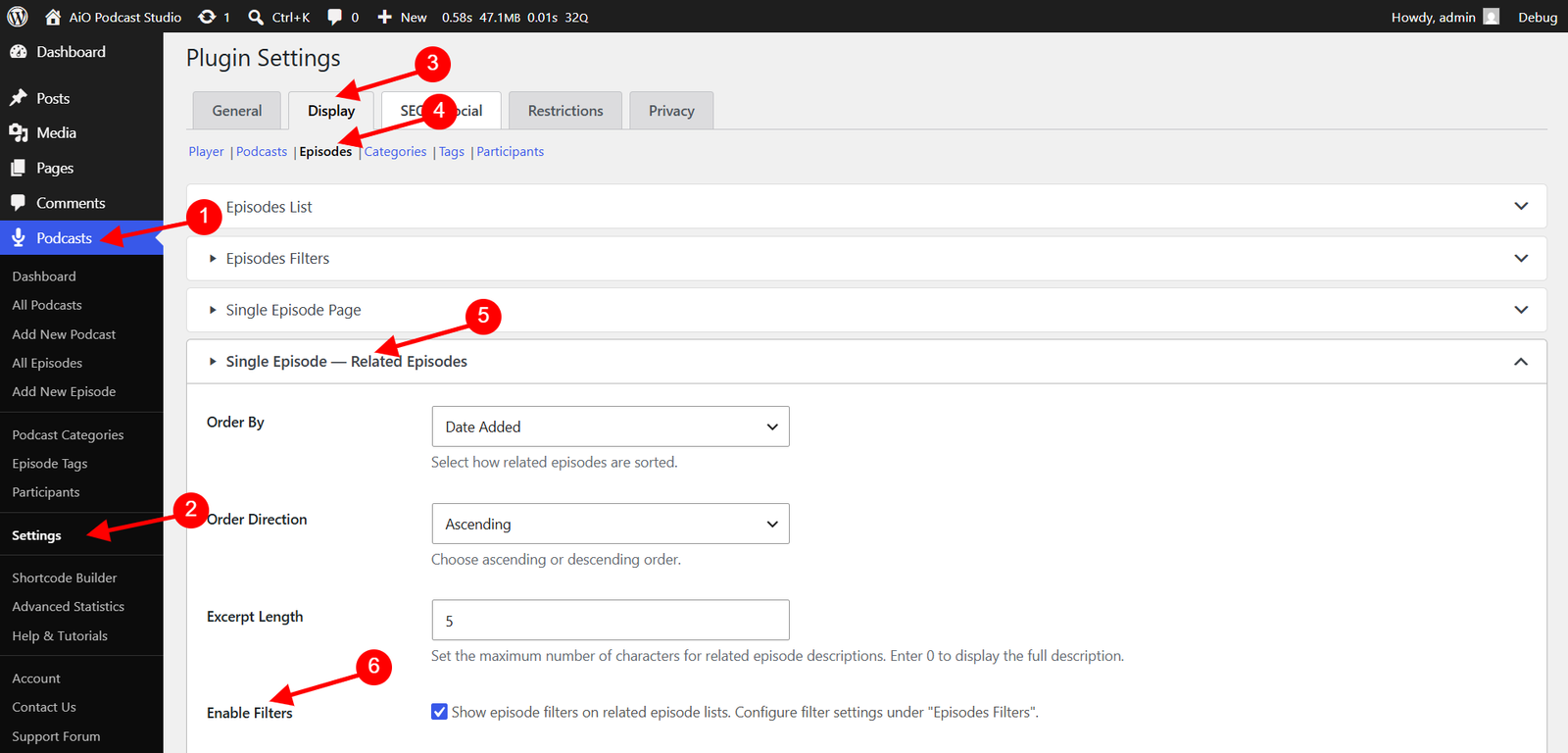
Filters can also be enabled for related episode sections. Under the Episode Page section in the same Display tab, check Enable Filters to show the filter bar above any related episodes displayed on individual episode pages.
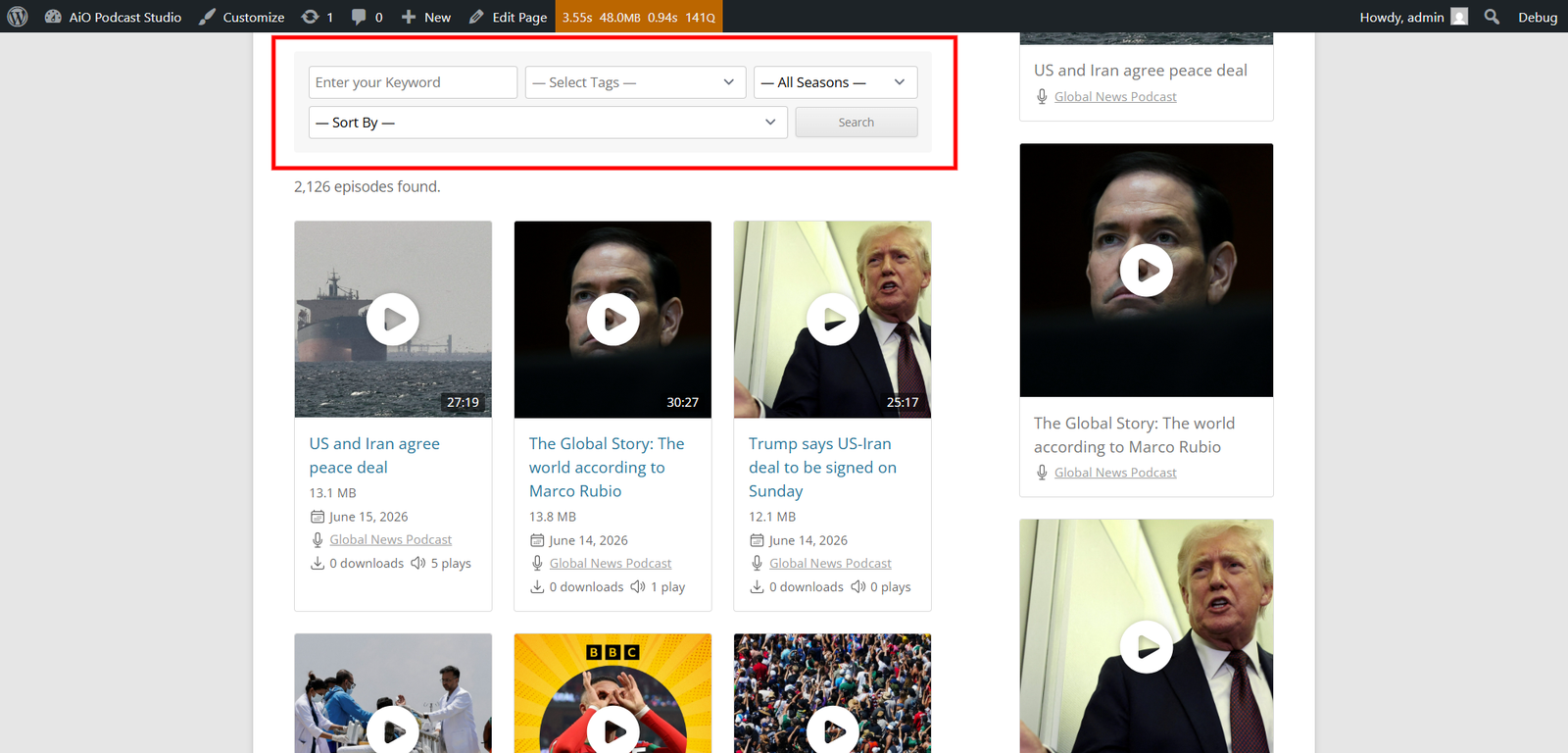
The specific controls that appear in the filter bar — keyword search, tags, season, sort, and reset — are configured separately under the Episodes Filters section described below.
Filter Options
Go to Podcasts → Settings → Display → Episodes Filters. Under Filter Options, select which controls should appear in the filter bar. Each option can be enabled or disabled independently.
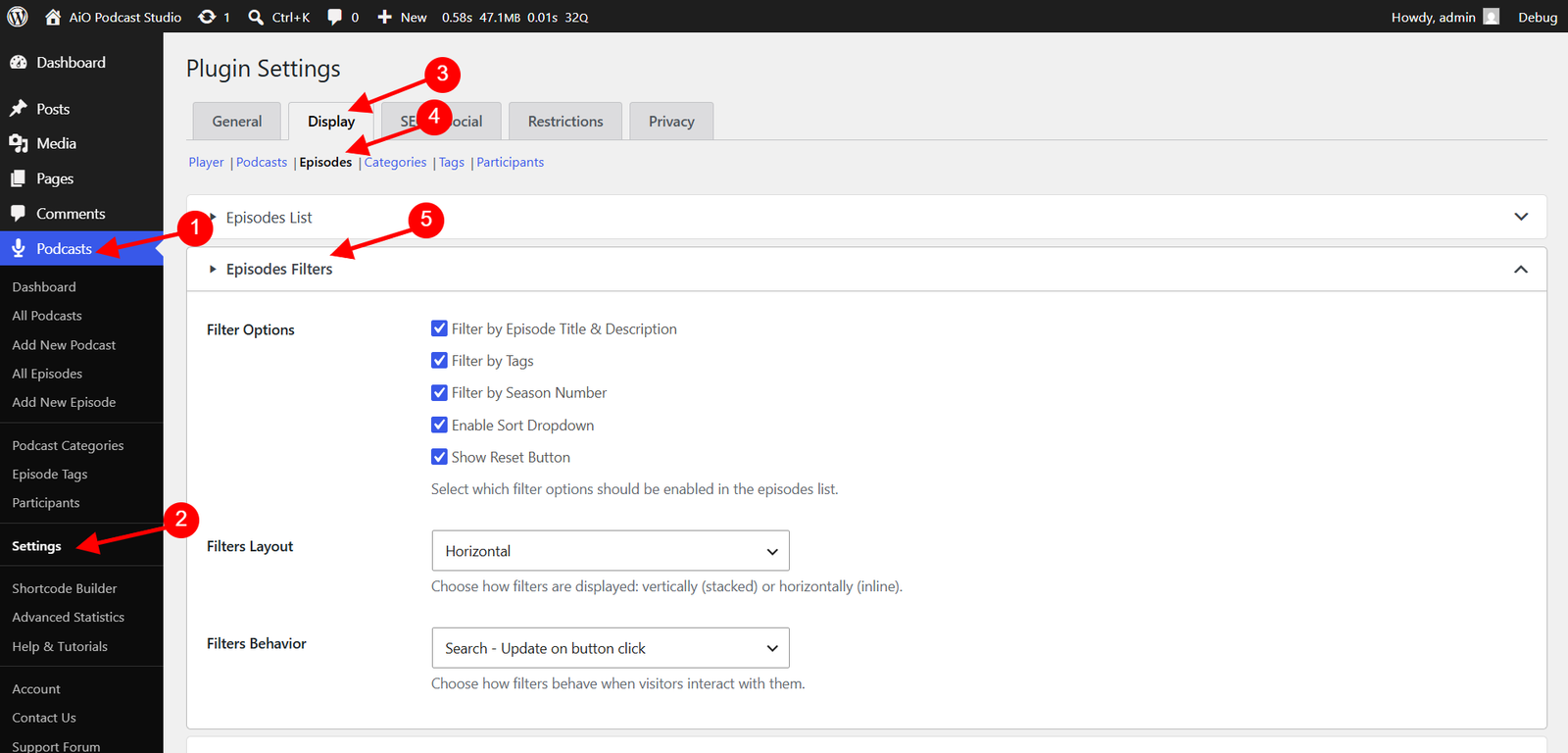
- Filter by Episode Title & Description — Adds a keyword search field. Visitors can type any word or phrase and the listing updates to show only episodes whose title or description contains the query.
- Filter by Tags — Adds a tag dropdown. Visitors can select one or more episode tags to narrow the listing to episodes with those tags. Tags must be assigned to episodes before they appear in this dropdown. See the Creating Episode Tags tutorial for details.
- Filter by Season Number — Adds a season dropdown. The dropdown is populated automatically from the season numbers that exist on published episodes. Visitors can select a season to show only episodes from that season. See the Season Management tutorial for details.
- Enable Sort Dropdown — Adds a sort dropdown. Visitors can reorder the episode listing by the following options: Title (A–Z), Title (Z–A), Newest First, Oldest First, Most Downloaded, or Most Played.
- Show Reset Button — Adds a Reset button to clear all active filters and return the listing to its default state. In Ajax mode the button appears and disappears automatically as filters are applied. In Search mode the button is only shown after a search has been submitted.
Filter Layout
Under Filters Layout in the same Episodes Filters section, choose how the filter controls are arranged on screen.
- Vertical — Filter controls are stacked in a column. This works well when the filter bar is placed in a sidebar or when you have several filter controls that would be too wide to display side by side.
- Horizontal — Filter controls are arranged in a single row inline. This is the more compact option and suits episode listings that span the full width of the page.
Filter Behavior
Under Filters Behavior, choose how the episode listing responds when a visitor interacts with a filter control.
- Live — Update instantly — The listing refreshes in real time as the visitor types or changes a selection, with no button click required and no page reload. This gives the fastest feedback but sends a request to the server on every keystroke.
- Ajax — Update instantly without page reload — The listing updates automatically when the visitor finishes interacting with a control (on change), without reloading the page. This is the default mode and offers a smooth experience with fewer server requests than Live mode.
- Search — Update on button click — The listing only updates when the visitor clicks the Search button. This mode adds a submit button to the filter bar and is the most conservative option, useful when you want to avoid unnecessary requests or when your episode list is very large.