
AiO Podcast Studio supports three episode types: Full, Trailer, and Bonus. These types control how episodes are classified in your RSS feed, how they are labelled on your website, and how they are organised on a podcast’s public page. This tutorial explains what each type means and how to use them.
Contents
- Episode Type Overview
- Set the Episode Type
- Display on Your Website
- Separate Sections on the Podcast Page
- Episode Type in Your RSS Feed
Episode Type Overview
Each episode type serves a distinct purpose and is recognised by major podcast directories including Apple Podcasts and Spotify.
- Full — A regular, complete episode. This is the default type and is used for the vast majority of episodes. Full episodes appear in your main episode listing and are counted as part of your podcast’s episode total.
- Trailer — A short preview or promotional clip. Trailers are typically used to introduce a new podcast, announce an upcoming season, or give potential listeners a taste of the show. Directories may display trailers separately from the main episode list.
- Bonus — Supplementary content that sits outside the regular episode series. This could include behind-the-scenes recordings, extended interviews, Q&A sessions, or any content you want to offer as an extra without it counting as a numbered episode.
Set the Episode Type
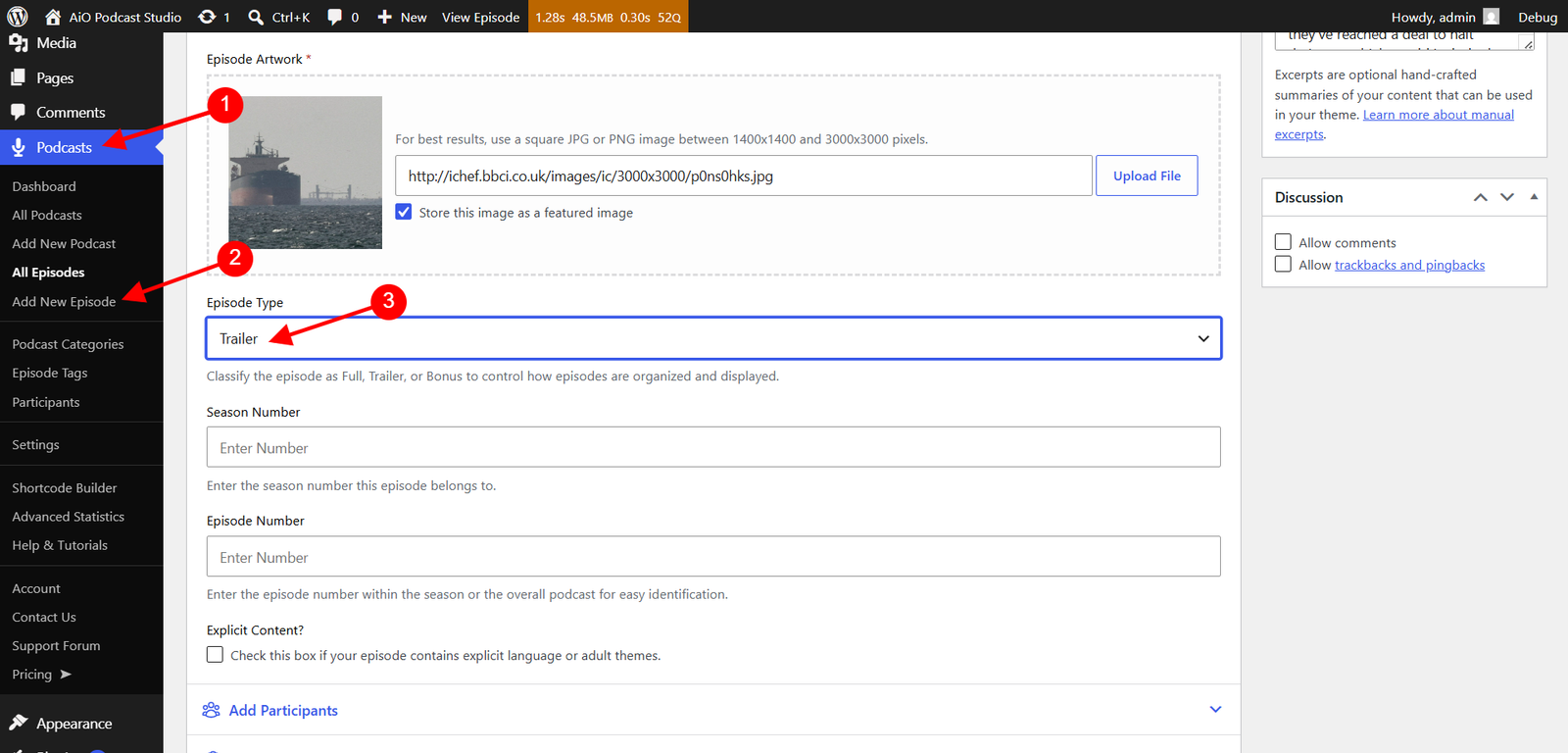
Open the episode you want to edit by going to Podcasts → All Episodes and clicking the episode title. In the Episode Info panel below the content editor, make sure the Episode Details tab is selected. Locate the Episode Type dropdown and choose Full, Trailer, or Bonus. Click Update to save.
New episodes default to Full if no type is selected.
Display on Your Website
Episode type labels are shown on episode cards and in the player for Trailer and Bonus episodes. Full episodes do not display a label since that is the standard type. You can control whether these labels appear from two places in your settings.
Episode listings
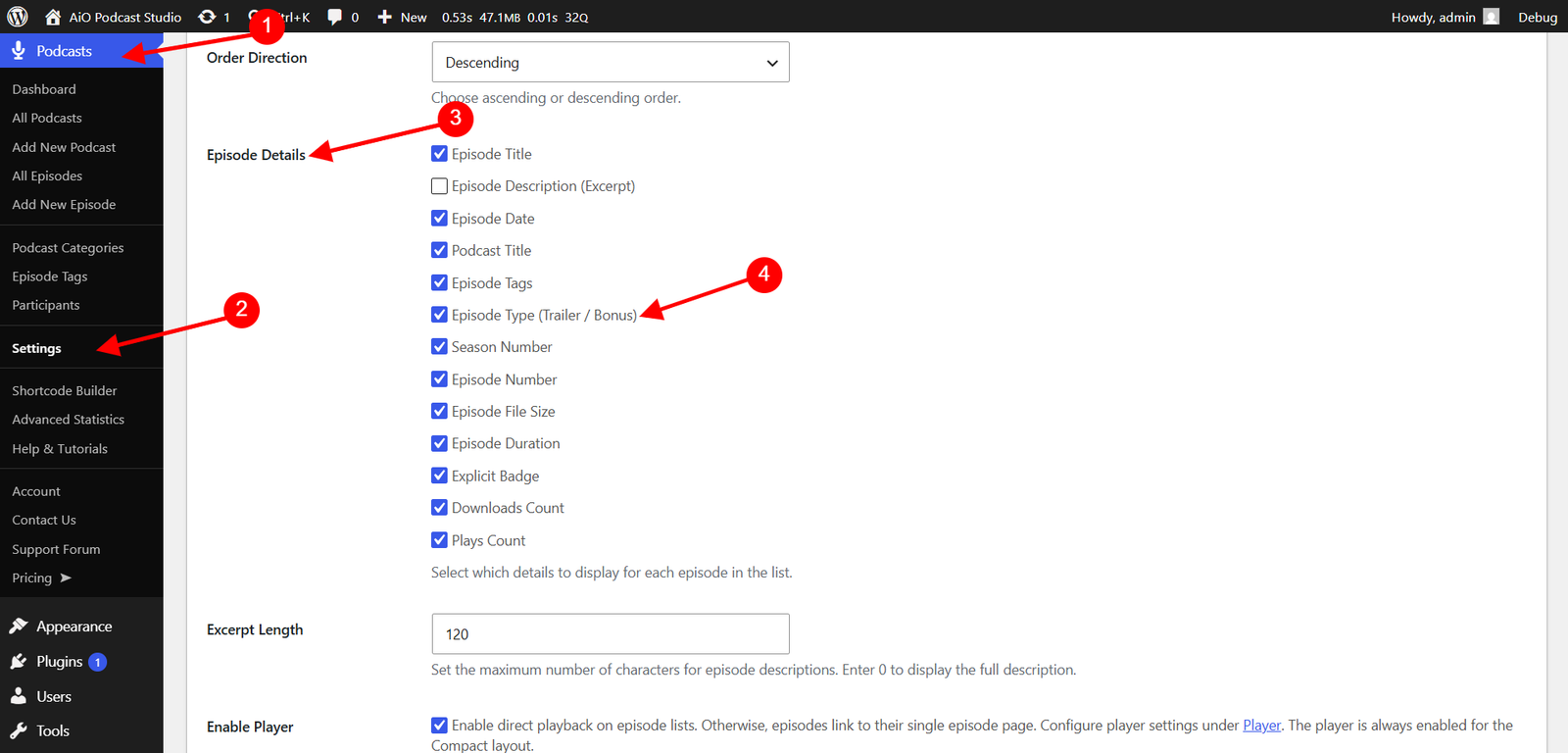
Go to Podcasts → Settings and open the Display tab. Under the Episodes section → Episodes List → Episode Details, enable Episode Type (Trailer / Bonus) to display Trailer and Bonus labels on episode cards in your listings.
Player
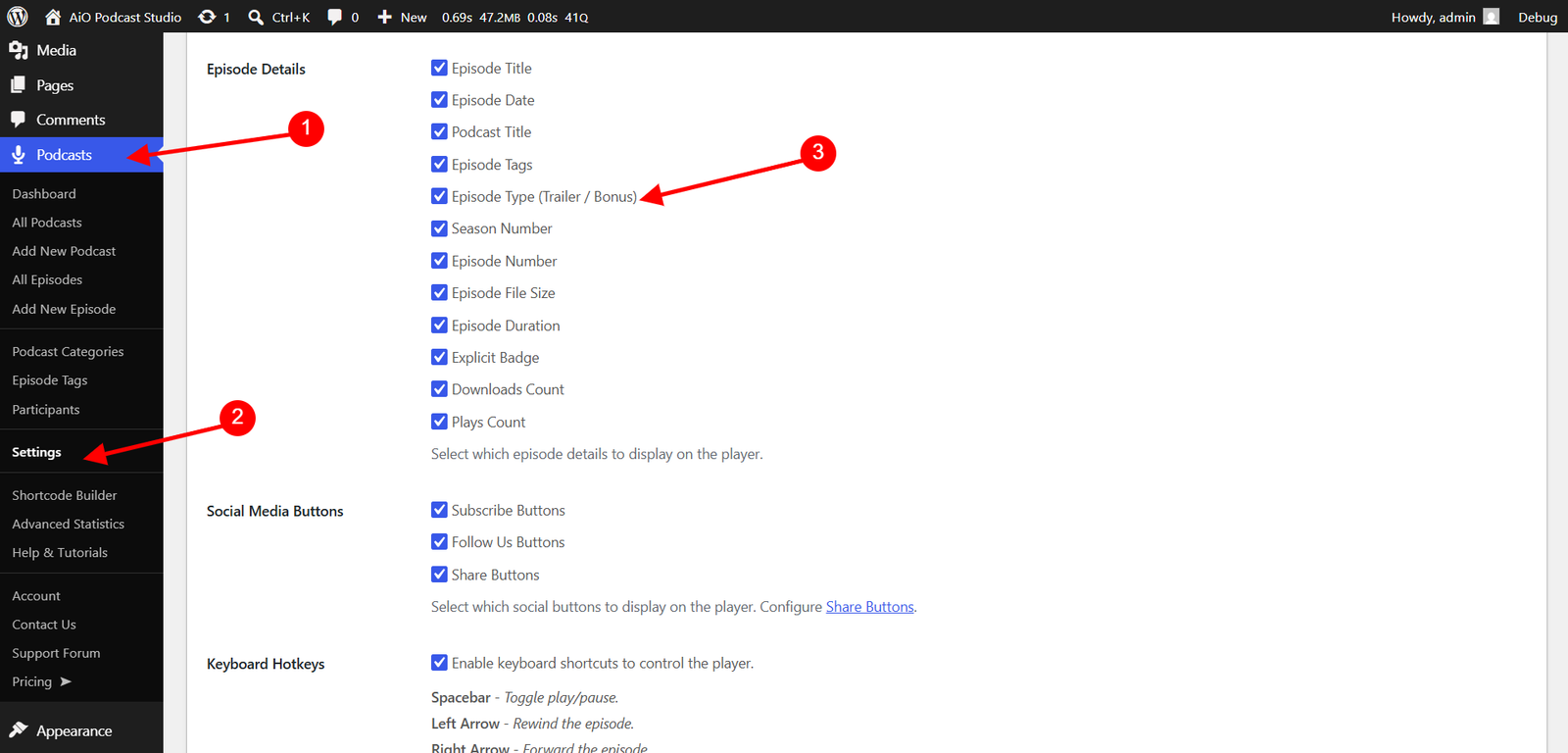
Go to Podcasts → Settings and open the Display tab. Under the Player section, enable Episode Type (Trailer / Bonus) to show the type label within the audio player.
Separate Sections on the Podcast Page
By default, all episode types appear together in episode listing on a podcast’s public page. You can instead split Trailer and Bonus episodes into their own dedicated sections, displayed as sliders beneath the main episode list.
Go to Podcasts → Settings → Display tab → Podcasts and open the Single Podcast Page tab. The following options are available:
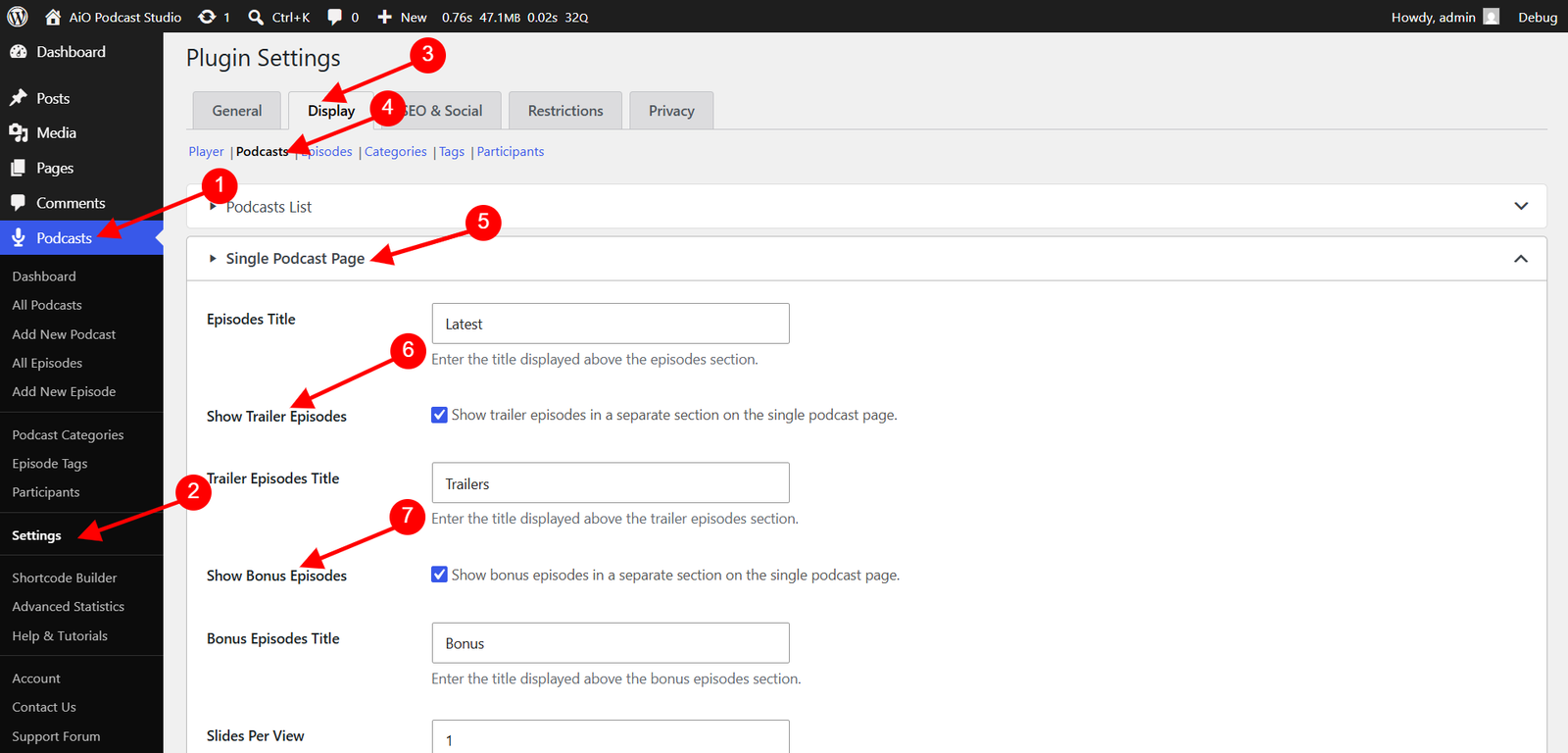
- Show Trailer Episodes — When enabled, trailer episodes are removed from the main episode listing and displayed in a separate slider section below it. The title of this section defaults to Trailers & More and can be changed in the Trailer Episodes Title field.
- Show Bonus Episodes — When enabled, bonus episodes are removed from the main episode listing and displayed in a separate slider section. The title defaults to Bonus Episodes and can be changed in the Bonus Episodes Title field.
Both options can be enabled at the same time, resulting in up to three distinct sections on the podcast page: the main episode listing, a trailers section, and a bonus episodes section.
Episode Type in Your RSS Feed
The episode type is automatically included in your podcast’s RSS feed as the <itunes:episodeType> tag. Podcast directories read this tag to determine how to categorise and display the episode. Apple Podcasts, for example, uses it to separate trailers from regular episodes and to flag bonus content appropriately.
No additional configuration is required for the RSS feed — setting the episode type in the edit screen is all that is needed for the correct value to appear in the feed.