
Every podcast in AiO Podcast Studio has its own RSS feed. Podcast directories such as Apple Podcasts and Spotify read this feed to list your show, pull in new episodes, and display your artwork, description, and categories. This tutorial explains where to find your feed URL and how to configure the settings that control what appears in it.
Contents
Your RSS Feed URL
Go to Podcasts → All Podcasts and open the podcast you want to configure. In the Podcast Info panel below the content editor, click the Distribution tab. The first section shows your RSS Feed URL — the public address of your podcast’s feed. Click Copy RSS Feed to copy it to your clipboard.
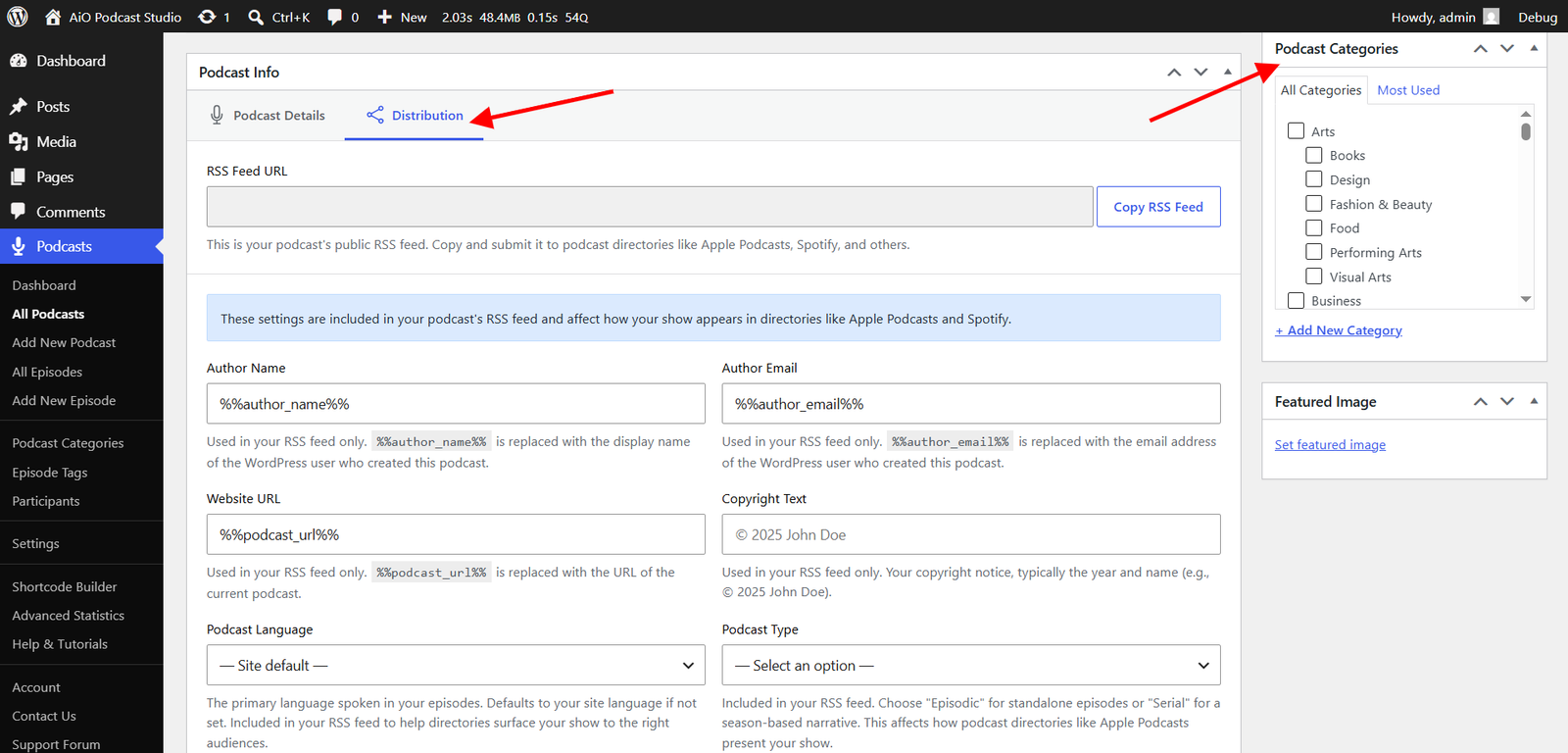
Submit this URL when listing your podcast in directories such as Apple Podcasts, Spotify, Amazon Music, or any other platform that accepts an RSS feed. You only need to submit the URL once; directories will check it automatically for new episodes.
RSS Feed Settings
Below the feed URL, the same Distribution tab contains the RSS Feed settings section. These fields are included in your feed and affect how your show appears in directories.
- Author Name — The name of the podcast’s author or creator as it will appear in directories. The placeholder
%%author_name%%is replaced automatically with the display name of the WordPress user who created the podcast. You can replace it with any name you prefer. - Author Email — The contact email address included in the feed’s owner block. The placeholder
%%author_email%%is replaced automatically with the email address of the WordPress user who created the podcast. This field is not shown publicly on directories but may be used for verification. - Website URL — The web address associated with your podcast in the feed. The placeholder
%%podcast_url%%is replaced automatically with the URL of the podcast’s page on your site. You can enter a different URL if you want to link to an external website instead. - Copyright Text — A copyright notice included in the feed, typically the year and your name — for example, © 2025 Your Name. Leave this blank if you do not need a copyright notice.
- Podcast Language — The primary language spoken in your episodes. Choose the appropriate language from the dropdown. If left blank, the plugin uses your WordPress site language. Directories use this field to surface your show to listeners in the right regions.
- Podcast Type — Choose Episodic for shows where each episode stands on its own and listeners can start anywhere. Choose Serial for season-based or narrative shows where episodes should be listened to in order. This value is included in the feed as the
<itunes:type>tag and affects how directories present your show. - Mark as Complete — Check this box if your show has ended and no new episodes will be published. This signals to directories via the
<itunes:complete>tag that they can stop checking for new episodes.
Once all fields are filled in to your liking, click Update to save the podcast.
What Else Appears in the Feed
Several other pieces of information are pulled into your RSS feed automatically from data you set elsewhere on the podcast.
- Podcast Title and Description — The podcast’s title, description, and excerpt are included in the feed automatically from the main content editor fields at the top of the podcast edit screen.
- Podcast Artwork — The image set in the Podcast Artwork field on the Podcast Details tab is included in the feed as the
<itunes:image>tag. Directories require a square image between 1400×1400 and 3000×3000 pixels. For best results, use a JPEG or PNG file. - Podcast Categories — Any categories assigned to the podcast from the Podcast Categories panel on the edit screen are included in the feed as
<itunes:category>tags. Directories use these categories to list your show in the correct section of their directory. - Explicit Content — The Explicit checkbox on the Podcast Details tab controls the
<itunes:explicit>tag in the feed. Enable it if your podcast contains mature content. This applies at the podcast level; individual episodes can also carry their own explicit flag.
Feed Redirect and Blocking
The third section under the Distribution tab contains two advanced options for controlling whether and where directories can access your feed.
- Redirect URL — If you are moving your podcast to a different hosting provider, enter the new RSS feed URL here. The plugin will include an
<itunes:new-feed-url>tag in your current feed that instructs directories to update their records and follow the new address. Once directories have updated, you can safely decommission the old feed. Leave this field blank if you are not migrating. - Block from Directories — Check this box to prevent the podcast from being accessed by podcast directories. The plugin will include an
<itunes:block>Yestag in the feed and will also return a 404 response to any request for the feed URL. Use this option for private or unlisted podcasts that you do not want indexed publicly.
Click Update after making any changes to these fields.